
Take-off Sheets
What are take-off sheets?
Section titled “What are take-off sheets?”A take-off sheet (or inventory take-off) is a parts and materials list generated from a quote option. Once a customer approves a quote, a take-off sheet gives your team (and your procurement or warehouse staff) a clear list of everything needed to complete the job:
- Materials: consumable parts and supplies.
- Equipments: tools or equipment items.
- Assets: hire or rental items.
- Services: the service tasks from the quote option, with their associated parts.
Take-offs have a cost summary so you can track actual vs original cost and see where you’re saving (or overspending).
Where to find take-offs
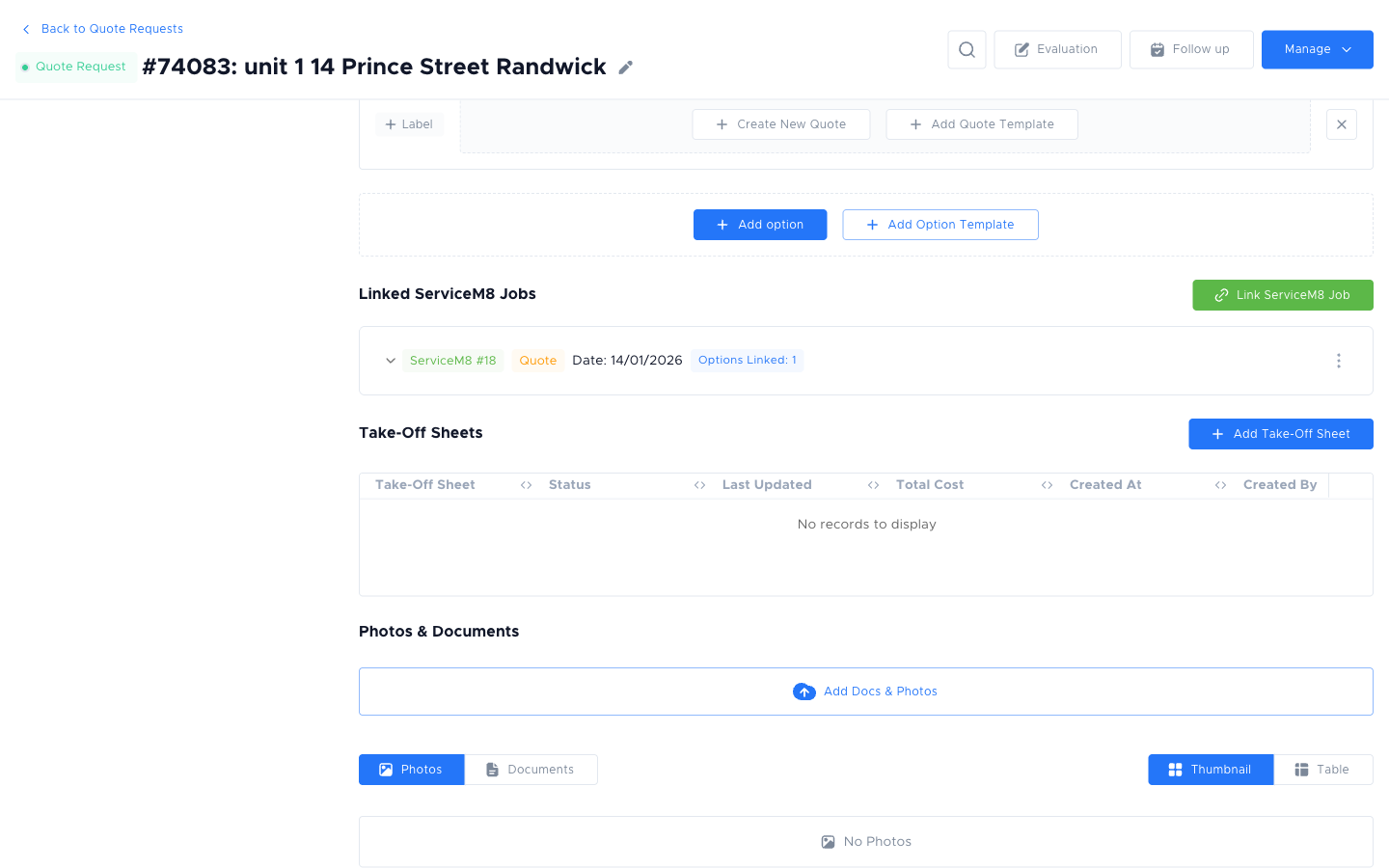
Section titled “Where to find take-offs”Take-off sheets live inside a quote request. Open the quote request and scroll to the Take-Off Sheets section to view, create, or open the take-off sheet for that request. There is no separate Take-offs page in the sidebar.
Take-off statuses
Section titled “Take-off statuses”| Status | Meaning |
|---|---|
| Draft | Being worked on. Can still be edited. |
| Pending Approval | Ready for review; marked as done but awaiting sign-off. |
| Approved | Finalised and locked. Read-only. |
Creating a take-off sheet
Section titled “Creating a take-off sheet”Take-off sheets are typically created from a quote request once a quote option is approved:
-
Open the quote request.
-
Find the approved quote option and click Add Take-Off Sheet.
-
The system pre-populates the take-off with materials, equipments, assets, and services from the quote option.
-
Review and adjust quantities as needed.
-
Save to keep changes.
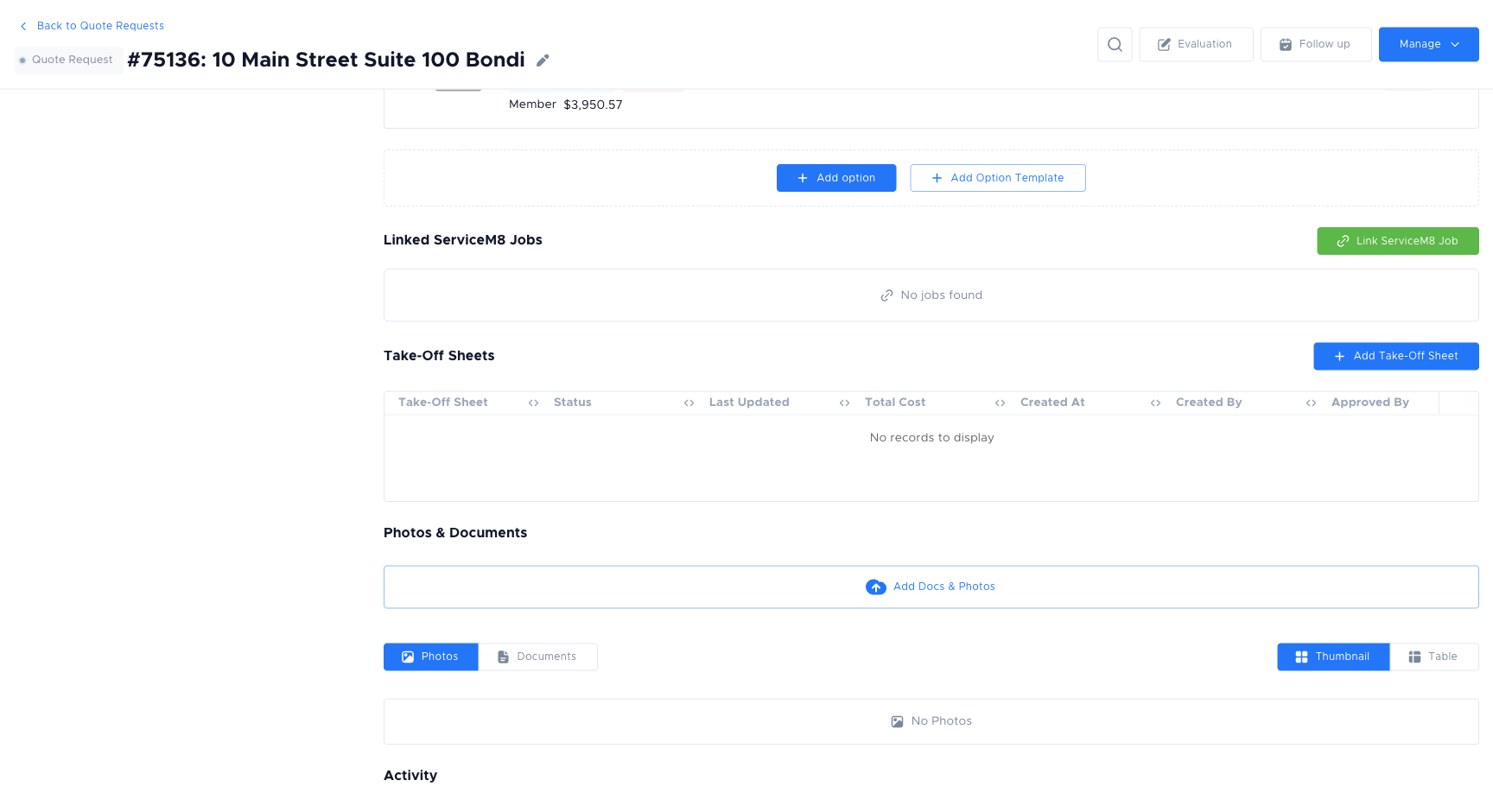
From an approved quote option, click Add Take-Off Sheet to generate a pre-filled sheet with materials, equipments, assets, and services.
Reviewing and editing a take-off sheet
Section titled “Reviewing and editing a take-off sheet”Open a take-off from the list or from the quote request. You can:
- Edit quantities: adjust how many of each material, equipment, or asset is needed.
- Add notes: use the Take-off notes field for instructions or special requirements.
- Attach photos: upload document photos (or pull them from the linked quote request) for reference.
- View cost summary: the top bar shows Original cost (from the quote option), Current cost (based on current quantities), and Saving (the difference).
Once you’re happy, click Save.
Approving a take-off sheet
Section titled “Approving a take-off sheet”When the take-off is ready for procurement or dispatch:
-
Click Mark as ready. Status changes to Pending Approval.
-
A manager or authorised user reviews and clicks Approve. Status changes to Approved and the sheet becomes read-only.
-
If changes are needed after approval, click Revoke to put it back to Draft.
Exporting and sharing a take-off sheet
Section titled “Exporting and sharing a take-off sheet”From the take-off sheet, you can:
- Print: opens a print-ready PDF in a new tab.
- Download PDF: saves the take-off as a PDF to your device.
- Email: opens an email dialog to send the take-off sheet to a supplier or team member. Attach one or both PDF formats (grouped by service, or ungrouped flat list).
- View email history: see previously sent emails for this take-off.
Cost tracking
Section titled “Cost tracking”The cost summary at the top of the take-off sheet shows:
- Original cost: the cost locked in when the take-off was created from the quote option.
- Current cost: the live cost based on current quantities and unit prices.
- Saving: displayed in green if current cost is below original, red if over.
This helps you catch scope creep or pricing changes before work starts.
When a job is linked to a take-off, see Job statuses to understand what each status means.
Frequently asked questions
Section titled “Frequently asked questions”Why can’t I see the “Add Take-Off Sheet” button on the quote request?
The quote option must be in an Approved state before a take-off can be created from it. Approve the quote option first.
Why are take-off totals different from the quote?
If quantities were changed after the take-off was created, the Current cost reflects the new quantities while the Original cost remains from creation time.
Can I edit an approved take-off?
Click Revoke to unlock the take-off for editing. After making changes, the take-off will need to be re-approved.
Things to check
Section titled “Things to check””Add Take-Off Sheet” is not available on the quote request
The quote option must be Approved. Approve the quote option first, then try again.
Take-off shows different totals to the quote
Quantities may have changed after the take-off was created. Check the Current vs Original cost columns.
Cannot approve a take-off (button is disabled)
You need the “Approve Take-off” permission. Ask your admin if you expect to have this access.