
Documents
What are documents?
Section titled “What are documents?”Documents in brix are files and photos stored and linked to your work, for example:
- Quote attachments: PDFs, images, or other files attached to a quote or quote request.
- Client documents: Contracts, site photos, or certificates linked to a client.
- Job or request attachments: Invoices, before/after photos, or notes uploaded against a specific request.
Having documents in one place makes it easier to find everything related to a customer or job without switching between systems.
Where to find documents
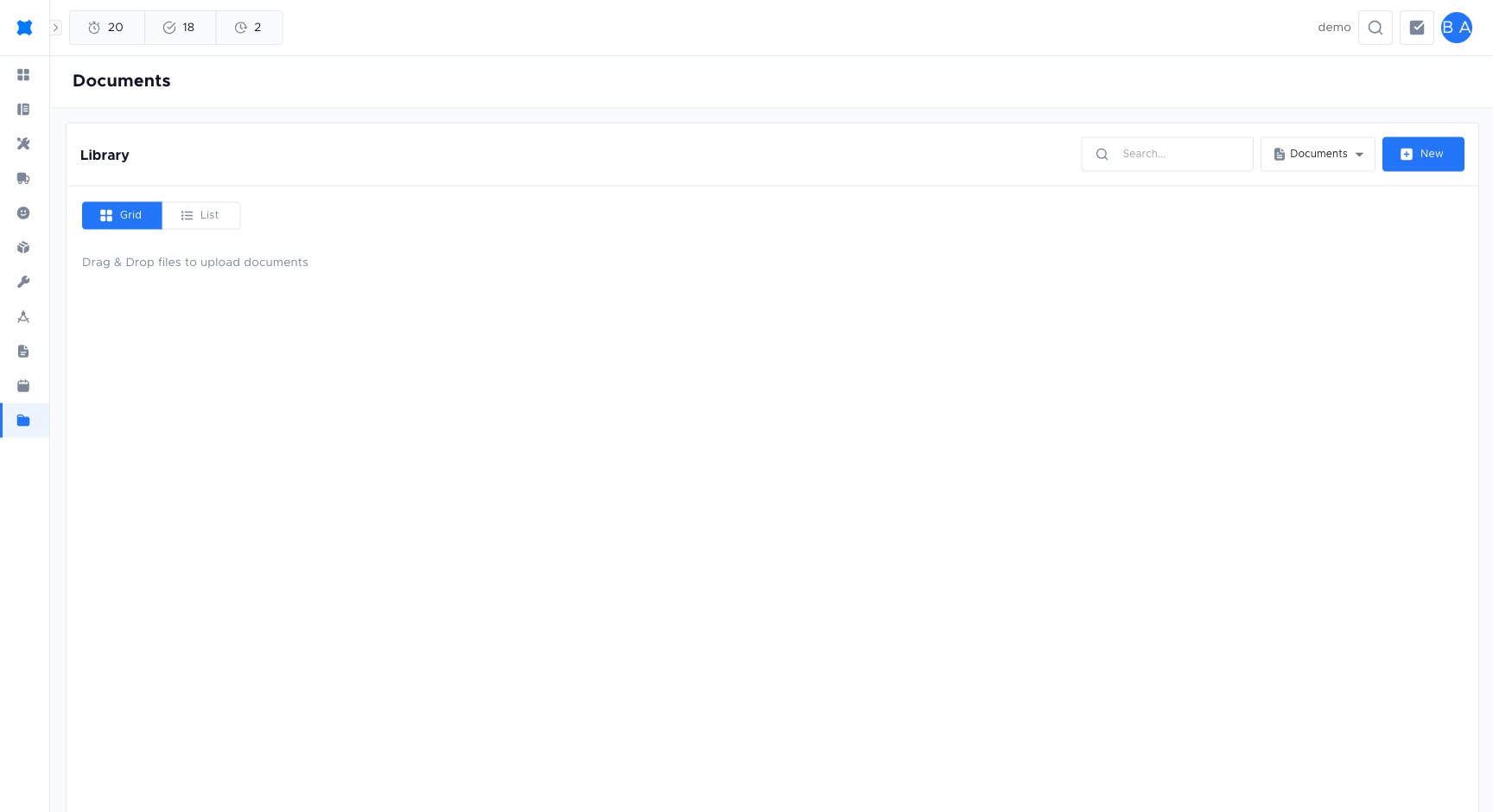
Section titled “Where to find documents”- Documents (sidebar): Opens the Documents area where you can browse or search stored documents, often with filters by type, date, or linked client/request.
- From a quote request or client: Many screens have a Documents or Attachments section where you can view and upload files for that request or client.
Viewing a document
Section titled “Viewing a document”-
Go to Documents or open the Documents/Attachments section on a quote request or client.
-
Click the document (or its name) to open or download it. Depending on file type, it may open in the browser or download to your device.
Uploading a document
Section titled “Uploading a document”-
Open the place where the document should live (e.g. a quote request or client record).
-
Find the Upload, Add document, or Attach file action.
-
Choose the file from your device (and add a name or description if required).
-
Save or confirm. The document is then stored and linked to that request or client.
Supported file types and size limits depend on your organisation’s settings. If upload fails, check the file type and size or ask your admin.
Organising and deleting
Section titled “Organising and deleting”- Naming: Give documents clear names when uploading so they’re easy to find later.
For storage limits and retention, your admin configures these in Manage and Settings.
Frequently asked questions
Section titled “Frequently asked questions”I uploaded a file but it’s not appearing
The page may not have refreshed. Try reloading. If still missing, check for an upload error message near the upload button.
Can I replace a document with a newer version?
Delete the old file and upload the new one. There is no version-replace feature; you must delete and re-upload.
Who can delete documents?
Document deletion requires a specific permission. If you need to delete a file and the option is not visible, contact your admin.
Things to check
Section titled “Things to check””File type not supported” when uploading
Check that the file type is allowed by your workspace settings. Common supported types are PDF, JPG, and PNG. Ask your admin about supported types.
Document does not appear after upload
The page may not have refreshed. Try reloading. If still missing, check for an upload error message.
Delete option is not visible on a document
Document deletion requires a specific permission. Contact your admin if you need to delete a file.