
ServiceM8 Integration
This guide walks an admin through connecting Brix to ServiceM8, choosing which data to sync, mapping users, and running an initial client sync. Once connected, day-to-day syncing happens automatically or from the Transfers page.
Watch: how Brix works with ServiceM8
Section titled “Watch: how Brix works with ServiceM8”A short overview: connecting the integration, building and approving a quote, and linking the approved quote to a ServiceM8 job so it’s ready to invoice.
Before you begin
Section titled “Before you begin”You will need:
- Admin access to Brix (so the Manage area is visible).
- An active ServiceM8 account with permission to authorise third-party apps.
- The ServiceM8 login credentials of the user who will authorise the connection. You sign in to ServiceM8 directly; no separate key is required.
- A clear idea of which data you want to flow between Brix and ServiceM8 (clients, notes, photos, quotes, jobs, in either direction). You can change this later.
Step 1: Open the Integrations page
Section titled “Step 1: Open the Integrations page”- Sign in to Brix as an admin.
- From the top bar or sidebar open Manage.
- Choose Settings → Integrations.
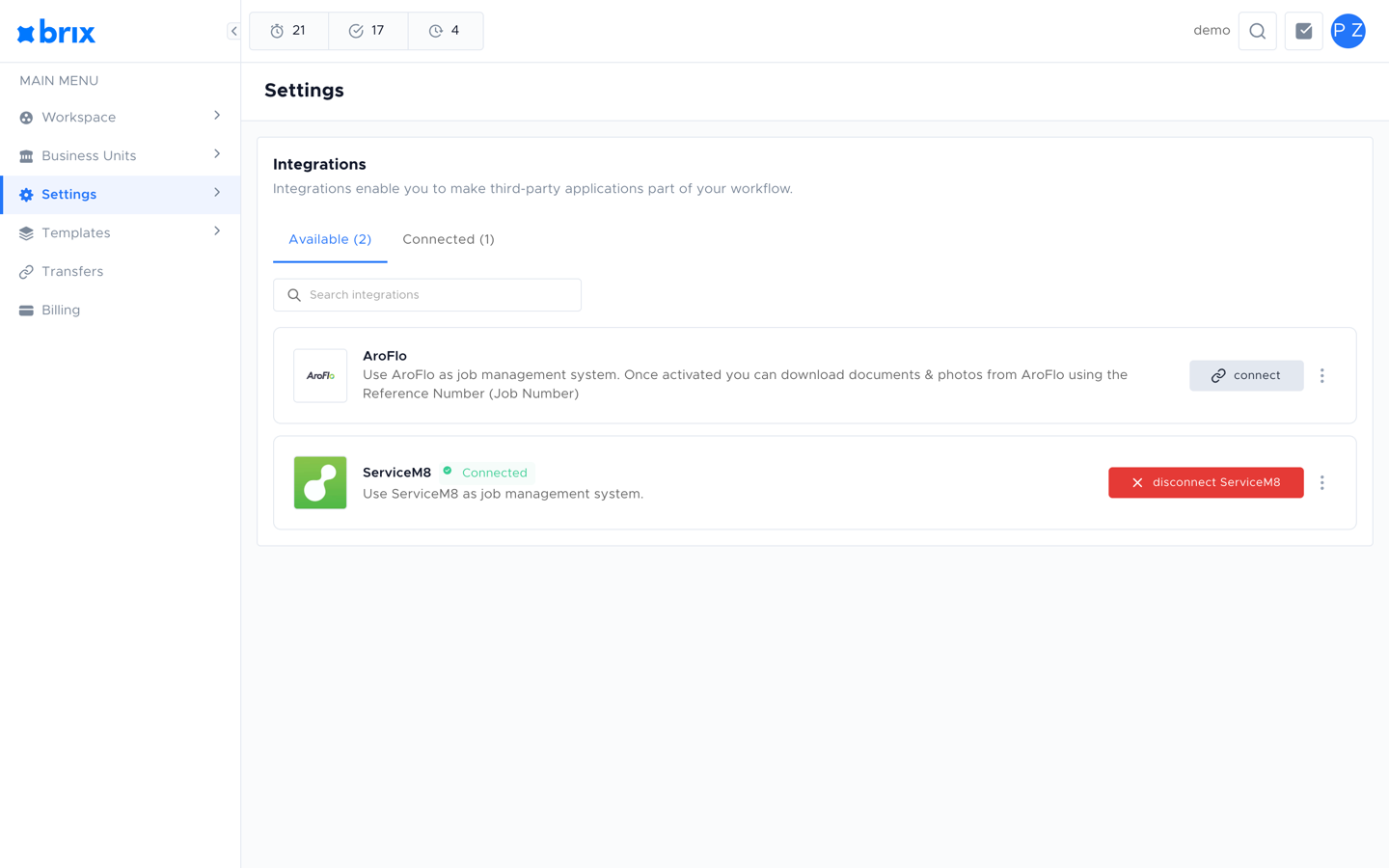
The Integrations page shows Available and Connected tabs at the top, each with a count, and a search box below them. Each integration appears as a card with its logo, a short description, and a Connect or Configure button. ServiceM8 appears on the Available tab, and on Connected once it is connected for your workspace.
Step 2: Open the ServiceM8 integration
Section titled “Step 2: Open the ServiceM8 integration”Click Configure (or Connect if it is not yet connected) on the ServiceM8 card. The ServiceM8 integration page opens.
If your workspace has not yet connected ServiceM8 you will see:
- A short description and the ServiceM8 logo.
- An Enable Integration toggle.
- A Features section with one switch per data flow.
- A Connect with ServiceM8 button.
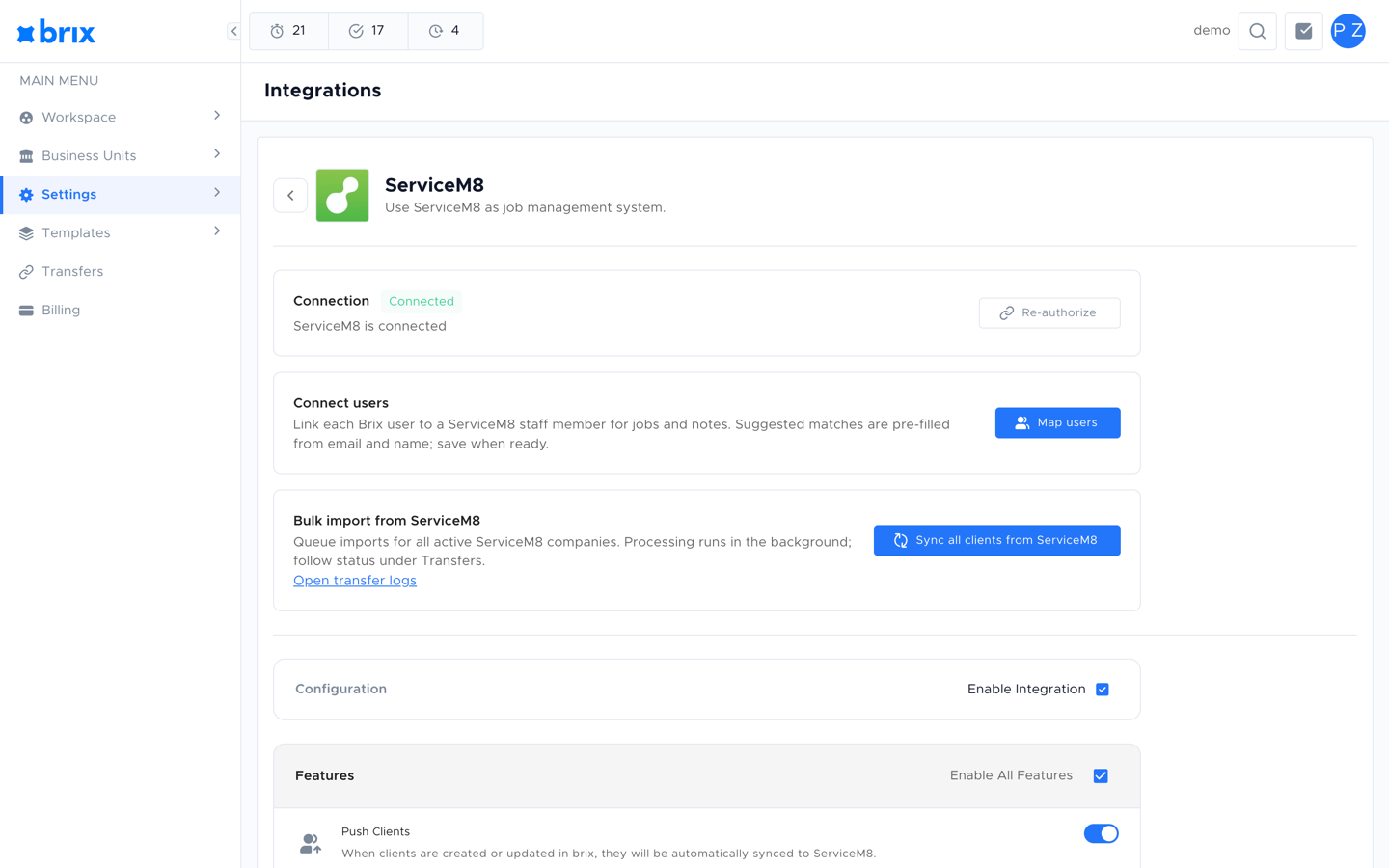
If ServiceM8 is already connected, skip to Step 6: Manage the connection. The connected page looks like this:
Step 3: Choose which features to enable
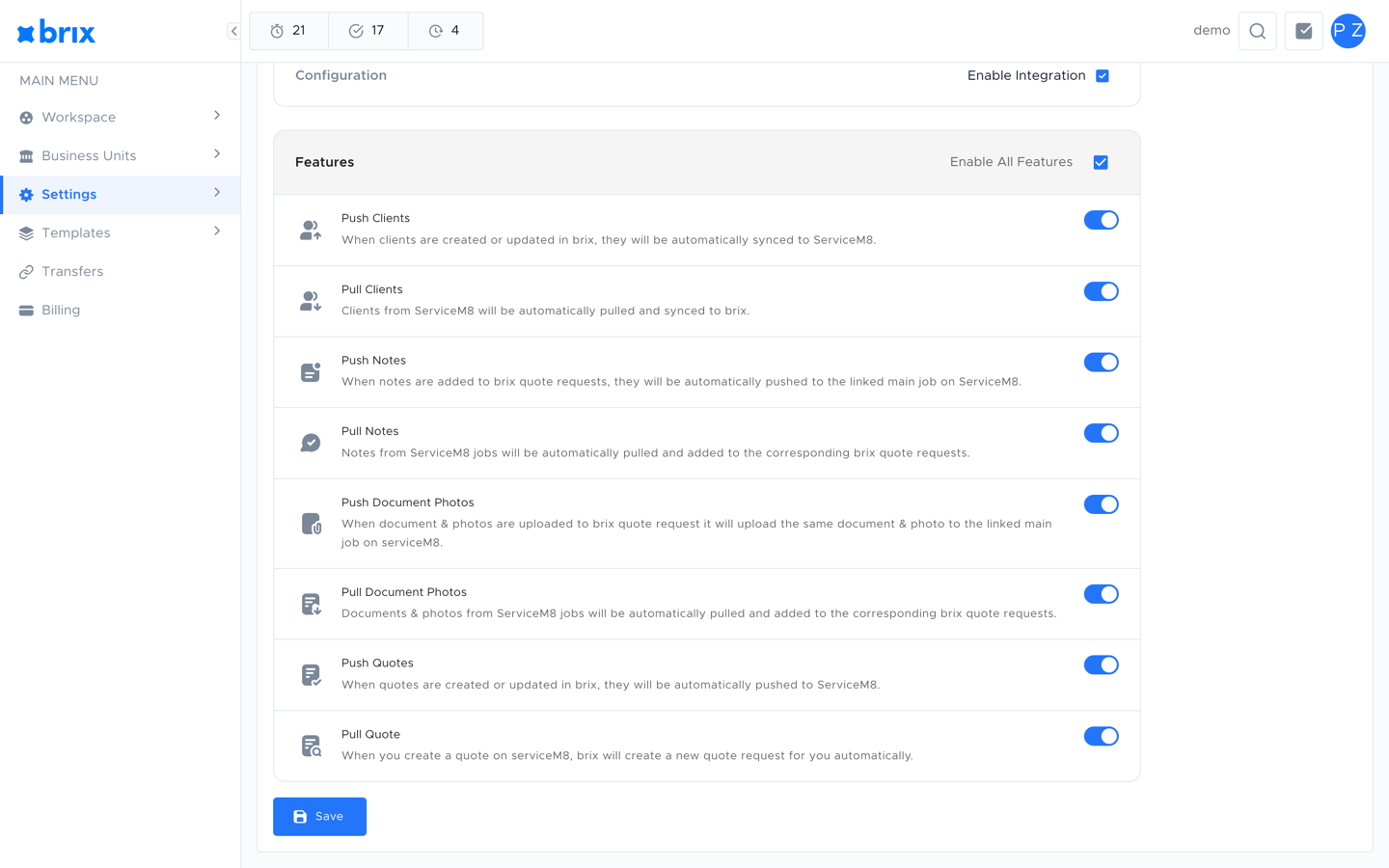
Section titled “Step 3: Choose which features to enable”Tick Enable Integration, then turn on the features you want. Each feature is independent and can be turned on or off later.
| Feature | What it does |
|---|---|
| Push Clients | Sends Brix clients into ServiceM8 (creates or updates the matching company). |
| Pull Clients | Pulls ServiceM8 companies into Brix as clients. |
| Push Notes | Sends notes added in Brix into the linked ServiceM8 record. |
| Pull Notes | Brings notes added in ServiceM8 back into the Brix record. |
| Push Document Photos | Uploads photos attached to a Brix document into ServiceM8. |
| Pull Document Photos | Pulls photos attached in ServiceM8 into the matching Brix document. |
| Push Quotes | Sends Brix quotes into ServiceM8. |
| Pull Jobs | Imports every job from ServiceM8 into Brix and keeps them up to date, including each job’s badges. |
There is also an Enable All Features switch at the top of the section that turns every feature on or off in one click.
You must select at least one feature before you can connect.
Step 4: Authorise with ServiceM8
Section titled “Step 4: Authorise with ServiceM8”- Click Connect with ServiceM8.
- Brix redirects you to ServiceM8’s sign-in page in the same window.
- Sign in with the ServiceM8 account that should own the connection.
- Review the permissions ServiceM8 displays (these match the features chosen in Step 3) and click Allow.
- ServiceM8 redirects back to Brix automatically. You should see a green ServiceM8 connected successfully notification.
If the redirect fails or you click Deny in ServiceM8, Brix shows a red error notification with a short reason. You can simply click Connect with ServiceM8 again to retry.
Step 5: Review granted scopes
Section titled “Step 5: Review granted scopes”Once connected, the page now shows:
- A green Connected chip and the message “ServiceM8 is connected”.
- A Granted Scopes list: small chips showing each permission ServiceM8 returned. If a feature is missing a required permission, that feature will not work; use Re-authorize (top right) to grant the missing ones.
Brix asks only for the permissions the features you ticked actually need. Read staff is always requested so Brix can match your users to ServiceM8 staff; everything else follows from the switches:
| Feature | Permissions requested |
|---|---|
| Push Clients | manage customers, manage customer contacts |
| Pull Clients | read customers, read customer contacts |
| Push Notes | publish job notes |
| Pull Notes | read job notes |
| Push Document Photos | publish job photos, manage attachments |
| Pull Document Photos | read job attachments |
| Push Quotes | manage jobs, create jobs, manage job materials |
| Pull Jobs | read jobs, read schedule, manage badges |
Step 6: Manage the connection
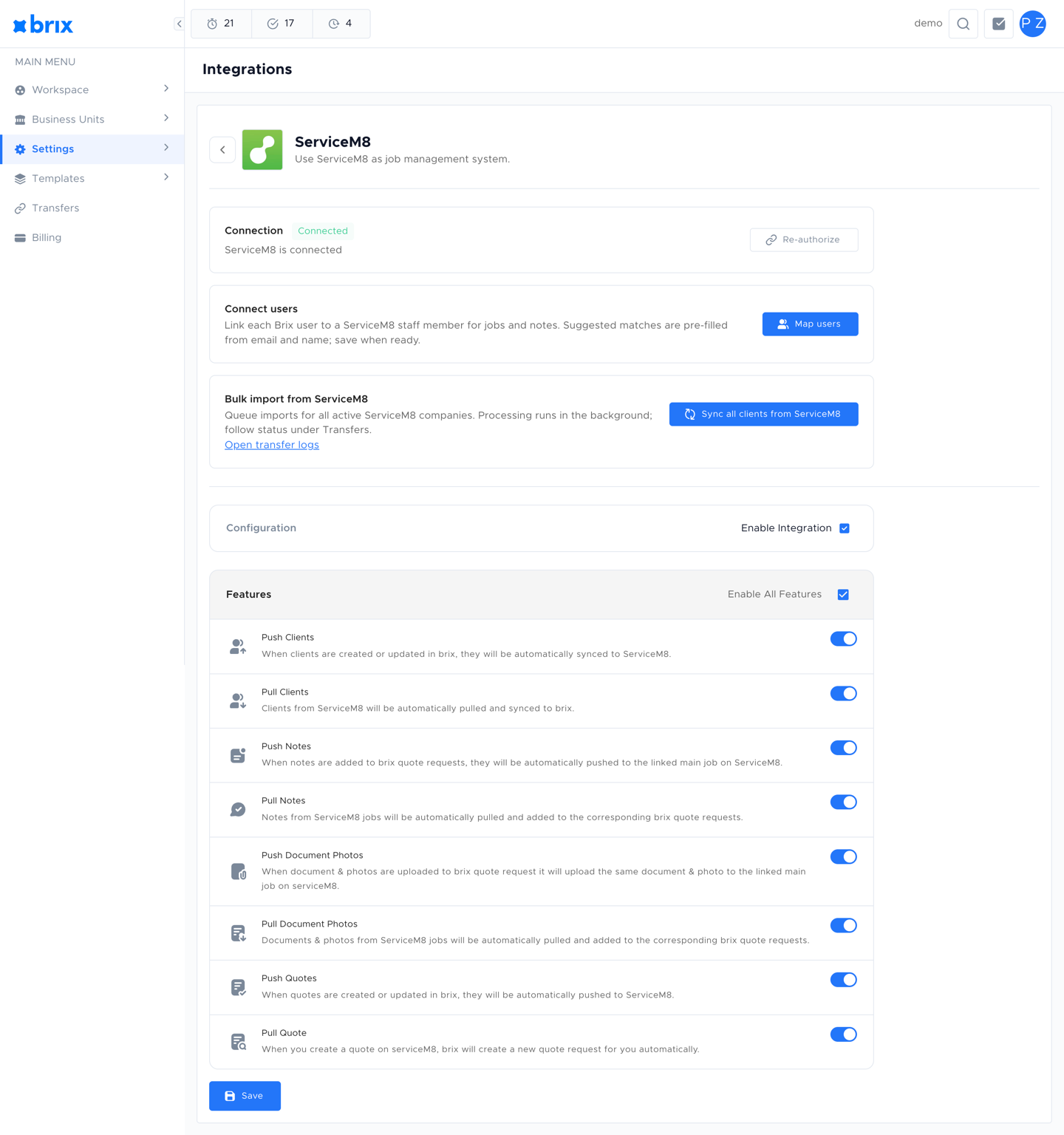
Section titled “Step 6: Manage the connection”After the connection is established, the page exposes the controls you will use day to day.
Once the integration is live, you can link individual ServiceM8 jobs to quote requests directly from the request detail page. See Linking Jobs for the step-by-step walkthrough.
Re-authorize
Section titled “Re-authorize”Use Re-authorize if you need to sign in again (for example after revoking access in ServiceM8, after a connection expiry, or to grant additional permissions). It re-runs the sign-in flow with the features that are currently enabled.
Configuration
Section titled “Configuration”Below the connection details there is a second Configuration section with:
- An Enable Integration toggle. Turning this off keeps the credentials but stops Brix from syncing. You will be asked to confirm because Brix will no longer be able to talk to ServiceM8 until you turn it back on.
- The same Features switches as Step 3, so you can change which data flows without disconnecting.
- An Auto-create Quote Requests toggle, which only appears here (see below).
- A Save button (only enabled once you change something).
Auto-create Quote Requests
Section titled “Auto-create Quote Requests”Create a brix quote request automatically when a ServiceM8 job has the Quote status. Turn this off to keep syncing jobs without creating quote requests.
This one sits apart from the eight switches above, and behaves differently in three ways worth knowing:
- It appears only after you connect. It is not on the pre-connect form, because it grants no permission. The switches above decide what Brix is allowed to read; this one decides what Brix does with what it reads.
- It is not covered by Enable All Features.
- It is on by default, including for workspaces that connected before it existed.
Turning it off is narrower than it sounds. Jobs keep syncing either way, and a quote request that already exists keeps updating from its job. All that stops is the creation of new quote requests from ServiceM8 jobs.
Save your changes whenever you adjust features or the enabled state.
Step 7: Map Brix users to ServiceM8 staff
Section titled “Step 7: Map Brix users to ServiceM8 staff”Many ServiceM8 records (jobs, notes, time entries) are attributed to a staff member. To make sure activity from Brix is attributed to the right person, link each Brix user to a ServiceM8 staff member.
- On the ServiceM8 integration page, click Map users.
- The Map users dialog opens with a row per Brix user and a dropdown showing the ServiceM8 staff list.
- Brix suggests a match for each user based on email and name. Review each suggestion and adjust if needed.
- Use the search box at the top to filter the list when you have many users.
- Click Save to apply the mappings.
Repeat this any time you add new Brix users or new ServiceM8 staff.
Step 8: Run an initial client sync (optional)
Section titled “Step 8: Run an initial client sync (optional)”If you turned on Pull Clients, you can backfill all existing ServiceM8 companies into Brix in one go.
- On the ServiceM8 integration page, scroll to Bulk import from ServiceM8.
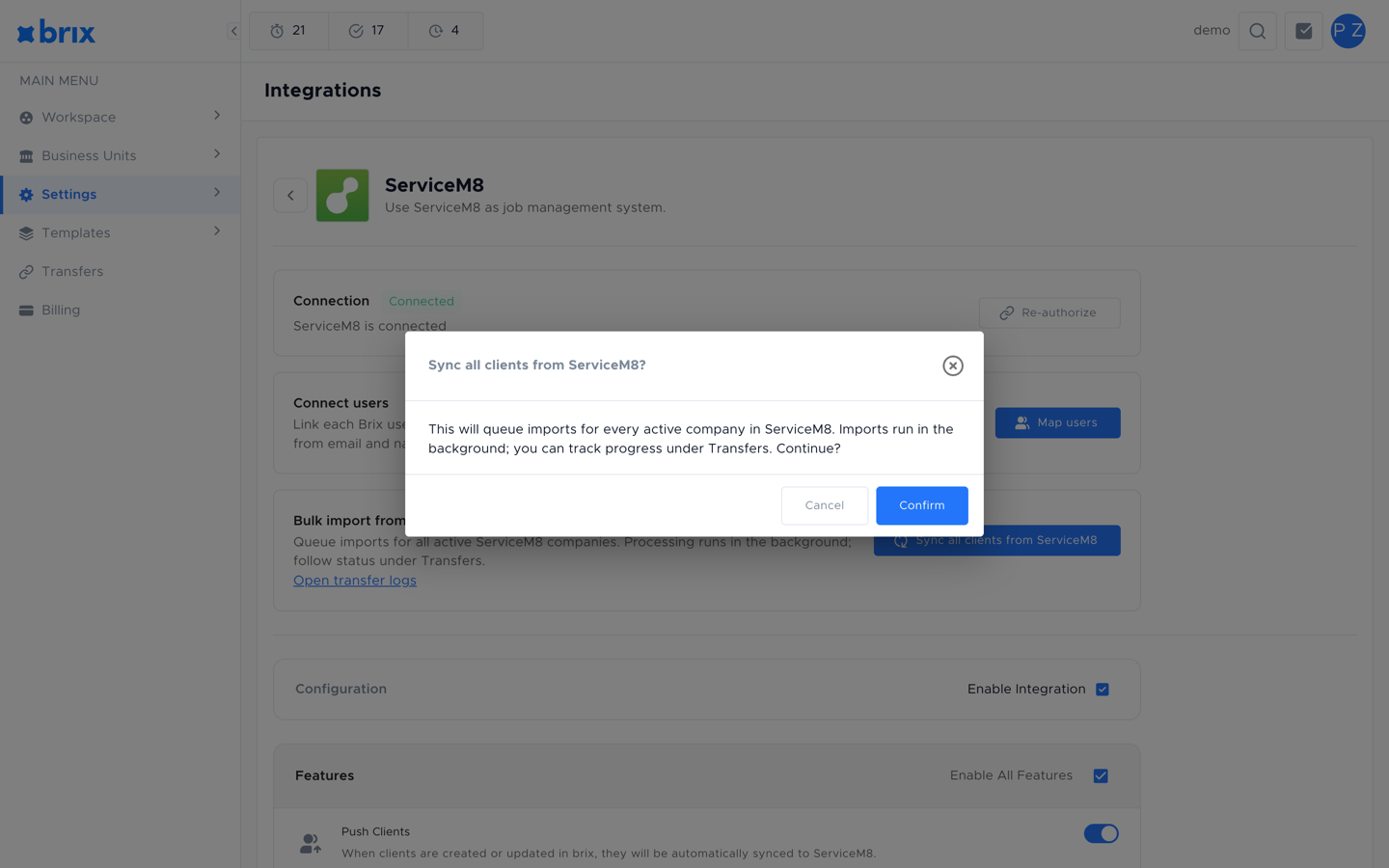
- Click Sync all clients from ServiceM8.
- Confirm the action in the dialog. Brix queues an import for each active ServiceM8 company.
- A notification reports how many companies were queued and how many errors occurred (if any).
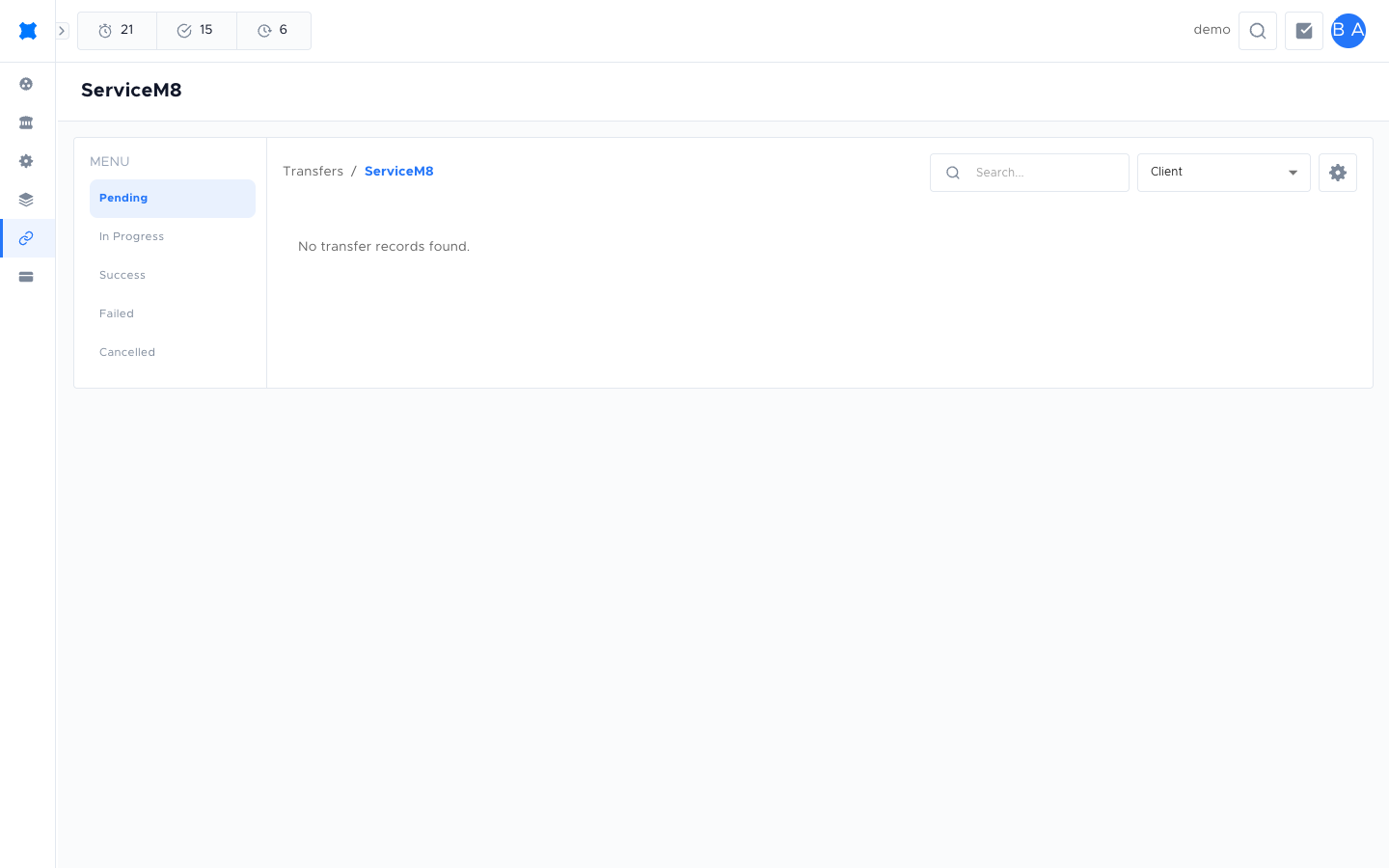
- Click Open transfer logs (or open Transfers from the sidebar) to watch the progress.
The Transfers page lists every queued import grouped by status (Pending, In Progress, Success, Failed, Cancelled), with a record-type filter (Client or Quote Request) and a search box. Click a row to open the transfer details and view logs. Failed transfers can be retried from there. See Managing transfers.
Step 8b: Re-import every job (optional)
Section titled “Step 8b: Re-import every job (optional)”With Pull Jobs on, Brix imports your ServiceM8 jobs and keeps them up to date on its own. You rarely need to do anything else. Occasionally you may want to start the import over, after fixing data in ServiceM8, or if you suspect Brix has missed jobs.
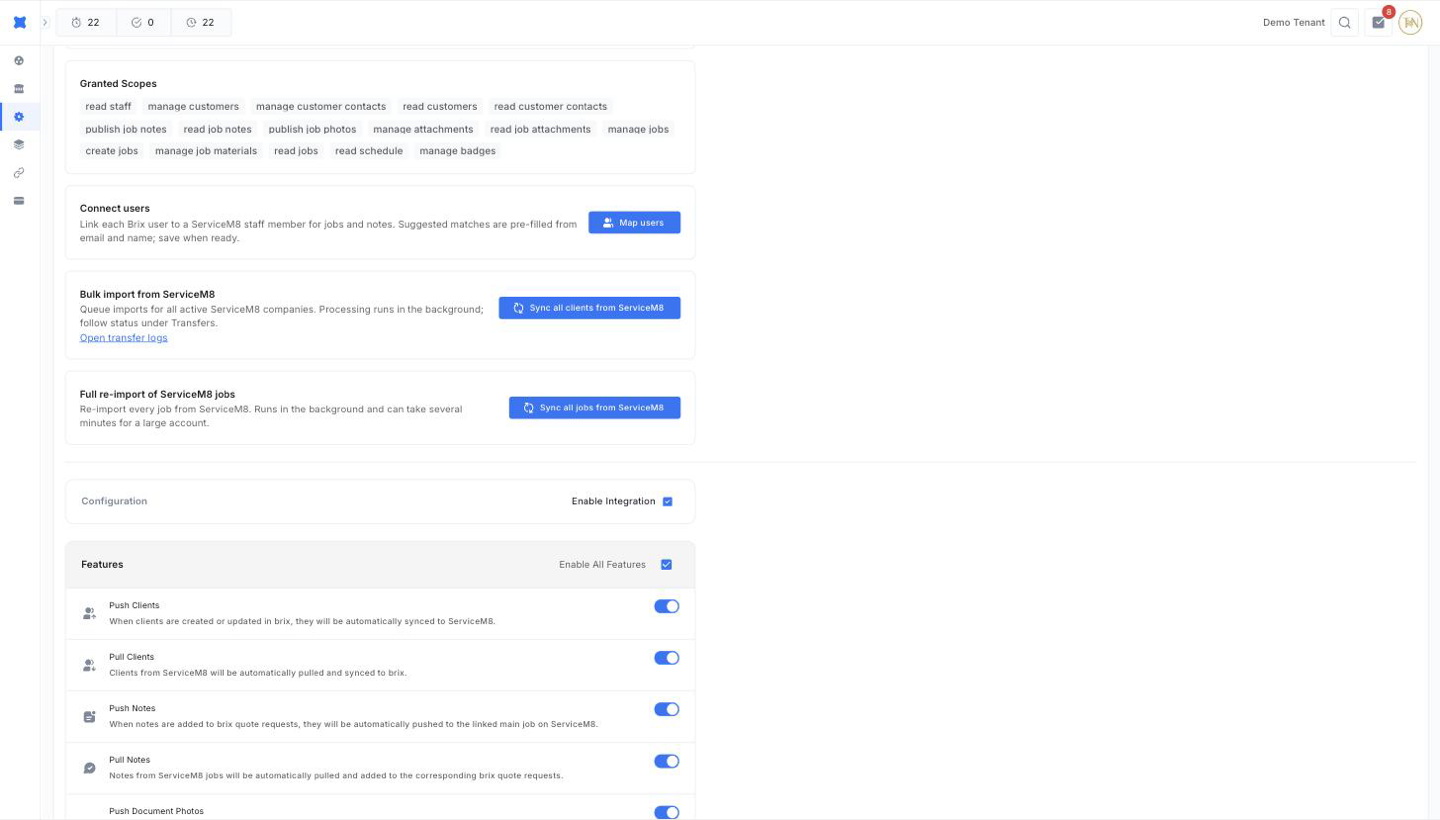
- On the ServiceM8 integration page, scroll to Full re-import of ServiceM8 jobs.
- Click Sync all jobs from ServiceM8.
- Confirm in the dialog.
- A notification confirms the re-import is queued.
Two things are worth knowing before you use it:
- It re-imports every job, not just what has changed. Brix starts again from the first job in your ServiceM8 account and works through the lot.
- It runs in the background and can take several minutes on an account with a lot of jobs. Nothing appears to happen straight away, and you can navigate away from the page while it works.
Jobs already in Brix are updated in place rather than duplicated, so it is safe to run more than once.
Step 9: Verify the sync
Section titled “Step 9: Verify the sync”After the initial sync (or after enabling a push/pull feature), verify the integration end-to-end:
- Clients: Open a recently transferred client in Brix, then open the matching record in ServiceM8 and confirm the contact details match.
- Notes: Add a note in Brix to a synced client. After a short delay, confirm the same note appears in ServiceM8 (and vice versa for Pull Notes).
- Quotes: Create or send a quote in Brix and confirm it appears in ServiceM8 if Push Quotes is on. With Pull Jobs and Auto-create Quote Requests both on, create a job in Quote status in ServiceM8 and confirm a new quote request appears in Brix.
- Photos: Attach a photo to a document in Brix and confirm it appears in ServiceM8 (and vice versa).
- Jobs and badges: Open a synced client in Brix and check the Jobs tab of its history: the ServiceM8 jobs should be listed, each showing any badges from ServiceM8.
If something does not appear, open the Transfers page, filter by Failed, and use the Transfer logs to see the error message.
Why a ServiceM8 quote might not sync to Brix
Section titled “Why a ServiceM8 quote might not sync to Brix”Brix creates a matching quote request as soon as a job reaches Quote status in ServiceM8. By default a new ServiceM8 job starts in Quote status, so most quotes flow across on their own. If a new quote is not showing up in Brix, check the ServiceM8 job against the list below. A job that misses any of these is skipped, often without an obvious error.
Every job has to clear these:
- Auto-create Quote Requests is on. This is the switch that controls the behaviour, in the Configuration section (see above). It is on by default, so most workspaces never touch it, but if someone has turned it off, jobs keep syncing and no new quote requests are created.
- Pull Jobs is enabled and authorised. Open the ServiceM8 integration page and confirm Pull Jobs is on (see Step 3), then check that
read jobsappears under Granted Scopes. Without that permission Brix cannot read the job at all, and nothing is created. If the switch is on but the permission is missing, click Re-authorize. - The job is in Quote status. Only jobs in Quote status create a quote request. Jobs in Work Order, Completed, or Unsuccessful status are ignored.
- The job has a client. Brix needs the company on the job to create the quote request. A job with no client attached is skipped until you add one.
The remaining checks depend on when Brix sees the job:
- A job that has just been created also needs a booking. Brix only creates the quote request right away if the new job already has a scheduled date. An unscheduled job is not lost. It is picked up the next time the job is edited.
- A job picked up on a later edit also needs to be active, with a contactable client. On that path Brix additionally skips jobs deleted in ServiceM8, and companies with no email, mobile, or phone number at all. Neither check applies to a job that sails through on creation, so a quote request can exist for a client you would expect to have been skipped.
Mapping staff is not one of these checks, but it is worth doing: Brix assigns the quote request to the Brix user matching the job’s ServiceM8 staff member, and falls back to a generic ServiceM8 user when there is no match (see Step 7).
If the job meets every point above and the quote still does not appear, open Transfers, filter by Failed, and read the transfer log for the quote request to see the reason.
Job badges
Section titled “Job badges”Badges are the short labels you attach to jobs in ServiceM8 to flag things at a glance: “Warranty”, “Urgent”, “Follow up”, or whatever your team uses. With Pull Jobs on, Brix brings those badges across with the jobs and shows them wherever it lists a ServiceM8 job:
- On each job in a client’s Jobs history.
- On the linked ServiceM8 jobs shown on a quote request.
A few things to expect:
- Badges are read-only in Brix. Add, rename, or remove them in ServiceM8; Brix picks up the change on the next sync. There is no way to edit a badge from Brix.
- Only the name comes across. Brix shows every badge in the same neutral style, so the colours you set in ServiceM8 are not reproduced.
- A brand new badge may not show up straight away. If you create a badge in ServiceM8 and use it immediately, Brix may not yet know that badge exists, and simply leaves it off the job until a later sync catches up.
Disabling or disconnecting
Section titled “Disabling or disconnecting”- Pause syncing: Turn off Enable Integration in the Configuration section and click Save. Brix keeps your settings but stops syncing.
- Change which data syncs: Turn individual feature switches on or off and click Save.
- Revoke access entirely: Sign in to ServiceM8 and remove the Brix app from your authorised connections. After that, use Re-authorize in Brix to sign in again from scratch when needed.
Troubleshooting
Section titled “Troubleshooting”| Symptom | What to check |
|---|---|
| Red Connection failed notification after sign-in | The ServiceM8 user did not approve all requested scopes, or closed the window before the redirect completed. Click Connect with ServiceM8 to retry. |
| A feature is enabled but nothing syncs | Check Granted Scopes on the integration page. If a permission is missing, click Re-authorize. Turning a feature on in Configuration does not grant its permissions on its own. |
| New ServiceM8 staff are not selectable in Map users | Reopen the Map users dialog so the staff list reloads, then re-save. |
| Transfers stuck in Pending | Open Transfers, select the rows and use Start Transfer. If they fail, open the row to read the Transfer logs. |
| A pushed client did not appear in ServiceM8 | Confirm Push Clients is on in Configuration, and check the transfer log for that client on the Transfers page. |
| A new ServiceM8 quote did not create a quote request in Brix | Check Auto-create Quote Requests first: it is the switch that controls this. Then confirm Pull Jobs is enabled and read jobs is granted, and that the job is in Quote status with a client attached. A newly created job also needs a scheduled date. See Why a ServiceM8 quote might not sync to Brix. |
| ServiceM8 jobs sync, but no quote requests are created | Expected when Auto-create Quote Requests is off: that is exactly what the switch does. Existing quote requests carry on updating from their jobs. |
| ServiceM8 jobs are not appearing in Brix at all | Confirm Pull Jobs is on in Configuration and that read jobs appears under Granted Scopes. If the switch was turned on after connecting, click Re-authorize. |
| A job’s badges are missing in Brix | Badges need manage badges under Granted Scopes. Click Re-authorize if it is not there. A badge created in ServiceM8 very recently may take a sync or two to appear. |
Frequently asked questions
Section titled “Frequently asked questions”Do I need to reconnect if I change the features in Configuration?
No. Changing individual feature switches in Configuration does not require reconnecting. Just update the switches and click Save.
What happens if I disconnect the integration?
Your settings are kept but syncing stops. Records already transferred remain in both systems. To reconnect, sign in with ServiceM8 again using Connect with ServiceM8.
Things to check
Section titled “Things to check”A feature is enabled but nothing syncs
Check Granted Scopes on the integration page. If a permission is missing, click Re-authorize to grant it.
Transfers stuck in Pending
Open Transfers, select the rows and use Start Transfer. If they fail, open the row to read the transfer logs.
Related guides
Section titled “Related guides”- Integrations Overview: list of available integrations and how they relate to Transfers.
- AroFlo Integration: connect Brix to AroFlo using your AroFlo credentials.
- Transfers Overview: what transfers are and where to find them.
- Managing Transfers: filter, retry, cancel, and inspect transfer logs.