
Search
What is Search?
Section titled “What is Search?”Search lets you find records across your brix workspace (including clients, quote requests, and other items) without navigating to each section individually.
Where to find it
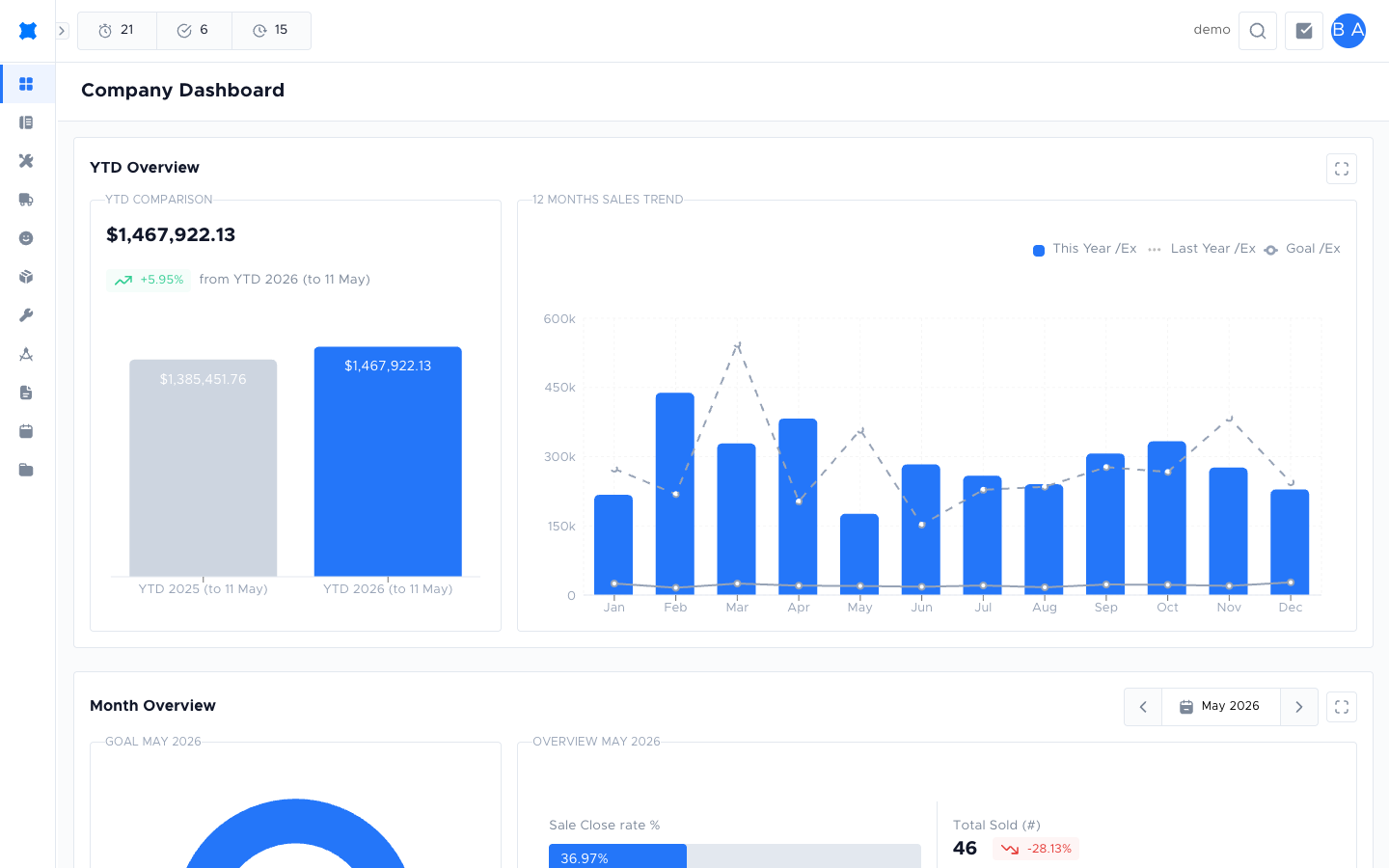
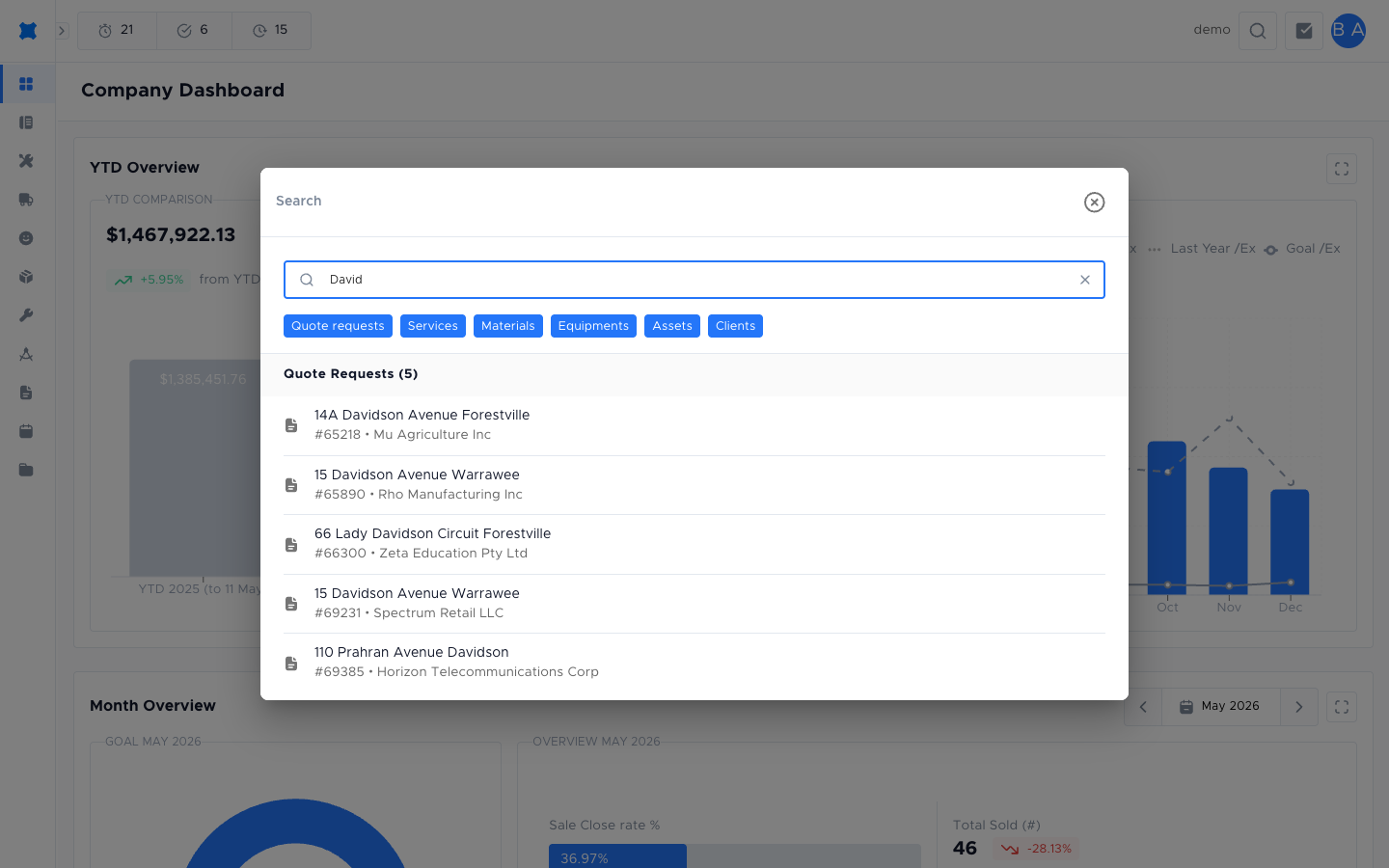
Section titled “Where to find it”Click the search icon in the top bar of any brix page. A search box opens where you can type a keyword to find matching records.
What you can search for
Section titled “What you can search for”Search results are filtered based on your permissions. You will only see records for the sections your role can access.
| Record type | What is searched |
|---|---|
| Quote Requests | Quote request title, client name, reference number |
| Services | Service name |
| Materials | Material name |
| Equipments | Equipment name |
| Assets | Asset name |
| Clients | Client name, phone number, address |
Tips for better results
Section titled “Tips for better results”- Use at least two or three characters to get results. Very short searches may return too many matches.
- Search by name or reference number for the most accurate results.
- If you cannot find a record, check the relevant section directly (for example, open Clients to browse all client records).
- Results are grouped by record type. Use the filter chips at the top of the search modal to narrow down to a specific type.
Things to check
Section titled “Things to check”Search returns no results
Try a broader term. Search requires a close match for most fields; partial matches are supported for names.
A record I know exists is not appearing
The record may have been archived or is in a section that search does not cover. Open the relevant section to find it directly.
See also:
- Quote Requests to browse all quote requests.
- Clients to browse all client records.
Quote RequestsView and manage all quote requests in your workspace.
ClientsManage client records and contact details.