
Labels
What is a label?
Section titled “What is a label?”A label is a short coloured tag you attach to a quote request so your team can sort and filter work quickly, for example “Urgent”, “Waiting on parts” or “VIP”. Each label has a name, an optional description and a colour.
Anyone with access can attach existing labels to a quote request. Only admins create, rename, archive or delete labels, and they do that here.
Where to find it
Section titled “Where to find it”Go to Manage → Settings → Labels. If you don’t see Labels, your permission group doesn’t include it. Ask your workspace owner to update your Permissions.
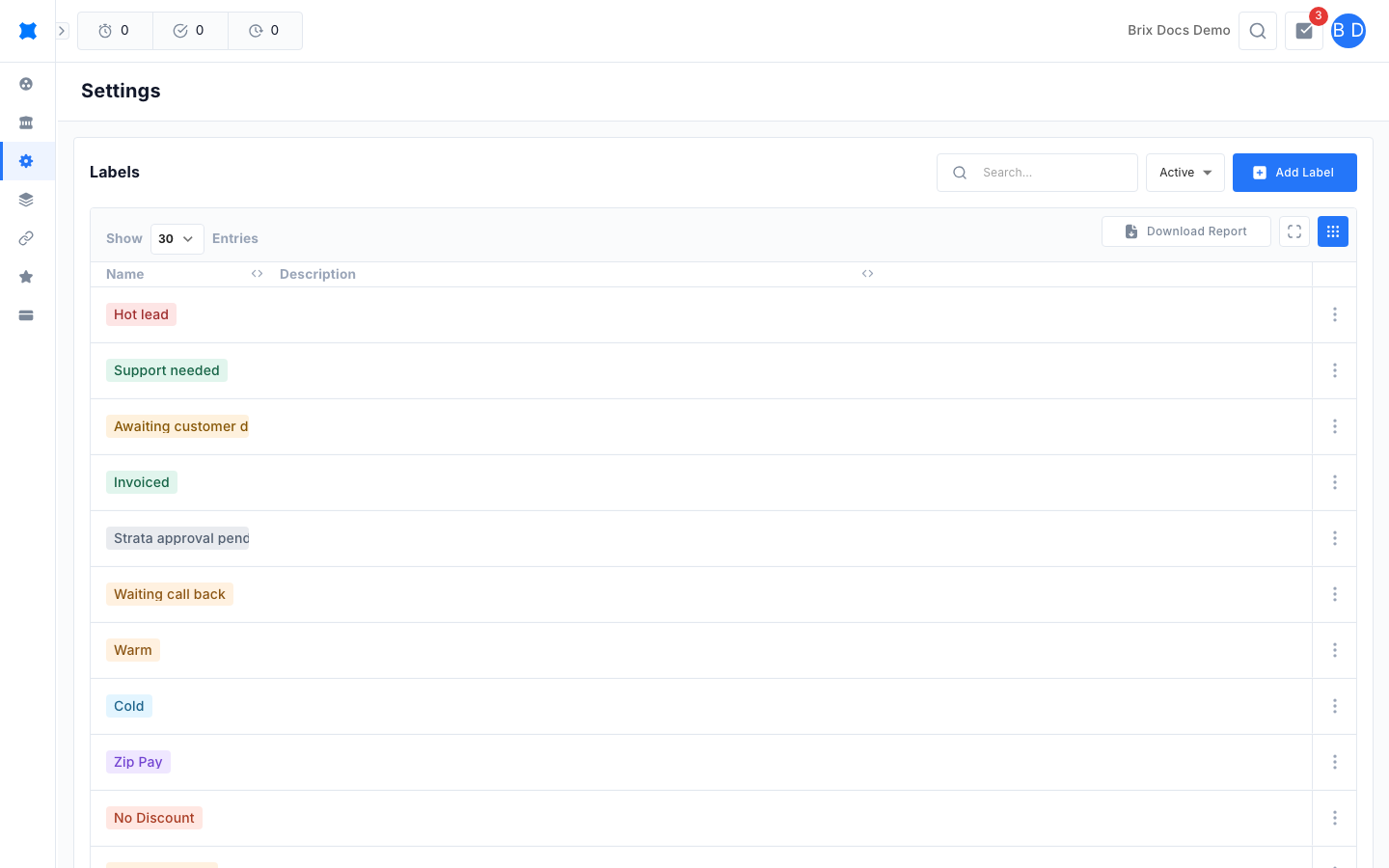
The list shows each label as a coloured chip in the name column, with its description beside it. Use the search box to find a label. Turn on the archived filter to see archived labels.
Create a label
Section titled “Create a label”-
Go to Manage → Settings → Labels.
-
Click the add button in the toolbar.
-
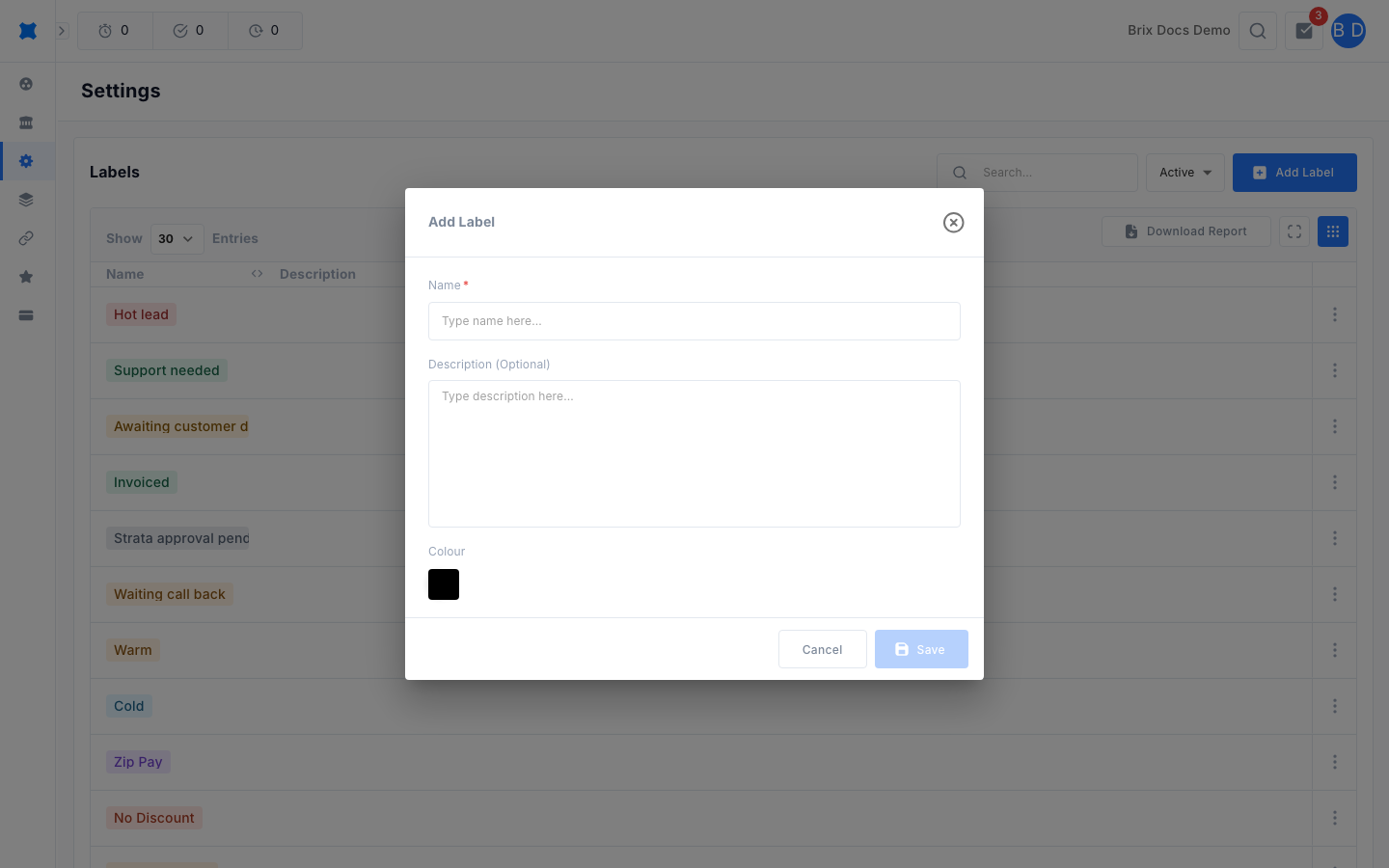
Enter a Name.
-
Add a Description if the label needs explaining.
-
Click the Colour circle and pick a colour. New labels start as black.
-
Click Save.
Edit, duplicate, archive or delete a label
Section titled “Edit, duplicate, archive or delete a label”Click a row to open it, or click the row’s action menu (the three dots) and choose from:
- View details: Open the label to read it.
- Edit: Change the name, description or colour, then click Save.
- Duplicate: Open a copy of the label with a new name, so you can adjust it and save it as a separate label.
- Archive: Hide the label from the picker. Choose Activate on an archived label to bring it back.
- Delete: Remove the label after you confirm.
Where labels show up
Section titled “Where labels show up”Your team assigns labels from a quote request. Labels also appear as a filter on the quote request list, and changes to a request’s labels are recorded in its activity log. Colours carry through to each place the label appears, so pick colours that stay readable on a white background.
Statuses
Section titled “Statuses”A label is either active or archived. Only active labels can be picked.
| Status | What it means |
|---|---|
| Active | Shown in the list by default and available to attach. |
| Archived | Hidden from the default list and from the picker. Turn on the archived filter to find it again. |
Things to check
Section titled “Things to check”- Team members can’t find a label? It may be archived. Choose Activate from its action menu.
- Team members can’t create labels from a quote request? That is expected. They can only pick from the list you maintain here.
- Don’t see Labels under Settings? Ask your workspace owner to grant the Labels permission.
What happens next
Section titled “What happens next”With your labels in place, attach them to quote requests and use the label filter on the list to find them again.