
Brix Support Access
What is Brix Support Access?
Section titled “What is Brix Support Access?”Brix Support Access is a switch that decides whether the brix support team can get into your account to help you with a problem. It is off by default. While it is on, brix support can see your account. When it is off, they can’t. You choose how long access lasts, and you can take it back at any time.
The page also keeps an access history, so you can always see who asked for access, who approved it and when support actually signed in.
Where to find it
Section titled “Where to find it”Go to Manage → Settings → Brix Support Access.
The status card
Section titled “The status card”The card at the top of the page shows the current state of access.
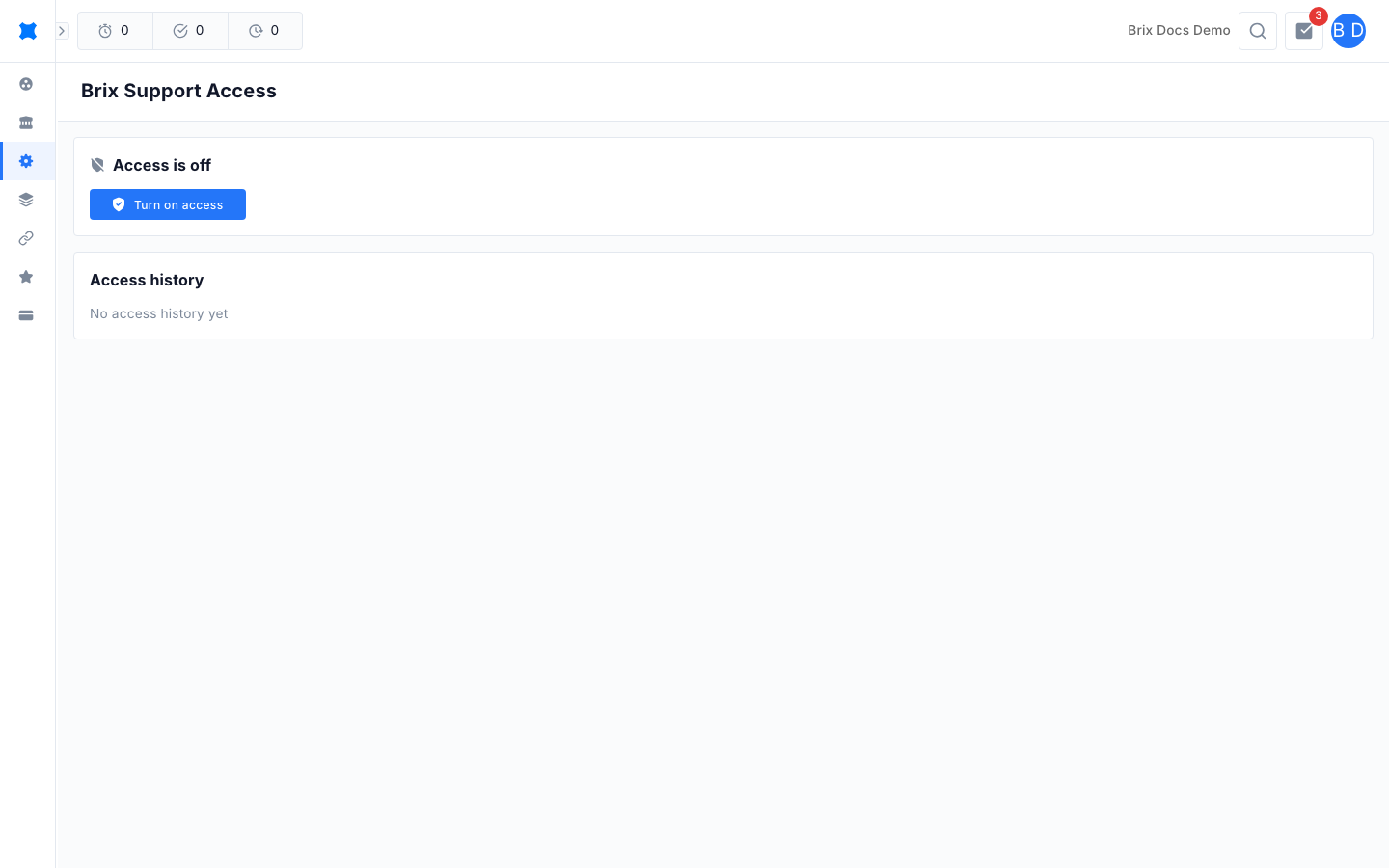
| Status | What it means | What you can do |
|---|---|---|
| Access is off | Brix support can’t get into your account. | Click Turn on access. |
| Access is on | Brix support can currently get into your account. The card shows how access was given, who granted it, and when it ends. | Click Revoke access. |
| Brix support requested access | Brix support has asked for temporary access. The card shows who asked, the reason they gave and when they asked. | Click Approve or Deny. |
When access is on, the card also shows one of these labels, which explains how it started. Hover over the information icon next to the label for a short explanation.
| Label | What it means |
|---|---|
| Turned on by you | You switched access on yourself, without a request from brix support. |
| Approved request | You approved a request from brix support for temporary access. |
| Staff granted | Brix support was given access directly, without a request, to resolve an urgent issue. |
The card also shows Expires in with a countdown and the exact end date and time. If you chose no end date, it reads Does not expire until turned off.
Turn on access
Section titled “Turn on access”-
Go to Manage → Settings → Brix Support Access.
-
Click Turn on access.
-
Choose how long access should last: 24 hours, 7 days, 30 days, Until turned off, or Custom date & time. For a custom time, pick the date and time access should end in the Expires at field.
-
Click Turn on access in the dialog.
You see a “Brix support access turned on” message and the status card changes to Access is on.
Approve or deny a request
Section titled “Approve or deny a request”When brix support asks for access, the card at the top of the page changes to Brix support requested access.
-
Read who made the request and the reason they gave.
-
To allow it, click Approve, choose how long access should last, then click Approve in the dialog.
-
To refuse it, click Deny. Access stays off.
Revoke access
Section titled “Revoke access”-
Go to Manage → Settings → Brix Support Access.
-
Click Revoke access.
-
Click Revoke access in the dialog to confirm.
If you set an end date, access also stops by itself when that time passes. You don’t need to revoke it.
Access history
Section titled “Access history”The Access history table below the status card records the full life of every access grant, newest first. It shows No access history yet until the first request or grant.
| Column | What it shows |
|---|---|
| When | The date and time of the event. |
| Event | What happened: Requested, Approved, Denied, Granted by Brix, Turned on, Revoked, Expired or Support session. |
| By | Who did it, such as the brix support email address that made a request or the person in your team who approved it. |
| Details | The reason given for a request, the end date of an approval, or whether a support session has ended or is In progress. |
What happens next
Section titled “What happens next”If you need help from the brix support team, tell them and approve their request here, or turn access on yourself before you contact them. Once the issue is fixed, come back and revoke access, or let it expire. For other admin tasks, see Manage and Settings.
Things to check
Section titled “Things to check”I see “Restricted” instead of the page
Only Super Admins can manage brix support access. Ask a Super Admin in your workspace to do it, or ask them to change your role. See Permissions.
I don’t see Brix Support Access in the Settings menu
The item only appears for users who can manage it. Check that you are signed in as a Super Admin, not as a brix staff account.
The page says it couldn’t load your support access settings
Refresh the page and try again shortly. If the message stays, contact brix support.
The status card doesn’t match what I expected
Brix support can change access while this page is closed, for example by sending a request. The page checks again each time you open it, so refresh if you left it open for a while.