
Quote Requests
Opening the quote requests list
Section titled “Opening the quote requests list”-
In the sidebar, click Quotes.
-
Click Requests (or the main “Quotes” link if that is how your menu is set up).
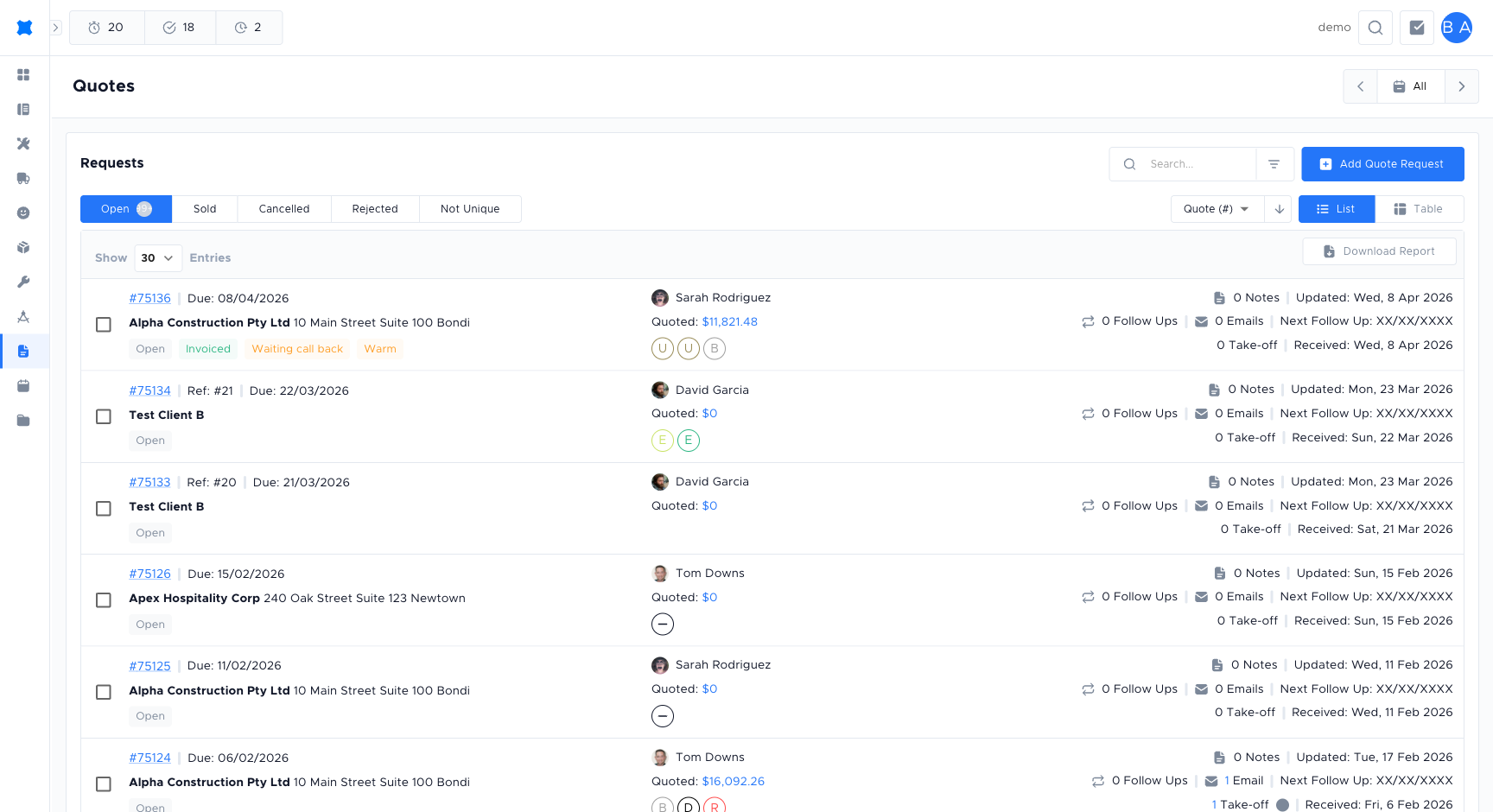
You’ll see a list of quote requests. Each row usually shows things like the customer name, date, status, quote value, follow-up count, and next follow-up date.
Finding a request
Section titled “Finding a request”Use the filters at the top of the list (if your company has them) to narrow by:
- Date range: When the request was created or updated.
- Status: Open, Sold, Cancelled, Rejected, or Not Unique.
- Customer or job: Client name or job reference.
You can also use search if your screen has a search box (e.g. by client name or reference). Sort by column (date, status, value) to find the requests you need.
What each column means
Section titled “What each column means”| Column | Description |
|---|---|
| Client | Customer linked to the request. |
| Date | Usually created or last updated. |
| Status | Open, Sold, Cancelled, Rejected, or Not Unique. See Statuses below. |
| Value | Quote total (may be primary option or highest). |
| Follow-ups | Number of logged follow-ups. |
| Next follow-up | Next scheduled follow-up date, useful for prioritising callbacks. |
Opening a quote request
Section titled “Opening a quote request”Click a row (or the View / Open action) to open that quote request. From the detail page you can:
- See full details and the quote options (lines, totals).
- Edit the quote (add or remove services, materials, labour).
- Send the quote to the customer.
- Add notes or schedule and log follow-ups.
- View or attach documents.
If your workspace has ServiceM8 or AroFlo enabled, you can link a job to this request from the request detail page. See Linking Jobs.
Statuses
Section titled “Statuses”| Status | Meaning |
|---|---|
| Open | The request is still active. The team is working on the quote or waiting on the customer. |
| Sold | The customer accepted the quote (one or more options were approved). |
| Cancelled | The request was cancelled before a sale (for example by the customer or because the work no longer goes ahead). |
| Rejected | The customer rejected the quote. |
| Not Unique | Marked as a duplicate of another quote request. Counted separately on the technician scorecard so it doesn’t inflate or deflate conversion stats. |
Referring a request to another technician
Section titled “Referring a request to another technician”When a quote request needs to be picked up by a different lead technician (for example because the original tech is unavailable, or the work belongs to another trade), use the Technician Set Lead action on the request detail page.
-
Open the quote request.
-
Click Technician Set Lead in the header actions.
-
In the Technician Set Lead dialog, choose the new technician and add an optional note.
-
Confirm. A new linked quote request is created for the new lead, and the original is updated to show the referral.
The original request shows a Referred to card with a link to the new request, and the new request shows a Linked quote requests card with a link back. This makes the chain of handoffs visible from either side.
Frequently asked questions
Section titled “Frequently asked questions”Why can’t I see some quote requests in the list?
Check the filters: date range, status, and search term all narrow the list. Clear all filters to see everything you have access to.
What does the “Open” status mean?
Open means the request is still active. The team is working on the quote or waiting on a response from the customer. It moves to Sold, Cancelled, or Rejected once the work is decided.
Can two technicians work on the same quote request?
Use “Technician Set Lead” to hand off to another technician. The original request is linked to the new one so the chain is visible. See Referring a request.
The customer approved but the status didn’t update. What should I do?
If the customer approved via the sent link, the status should update automatically. If it didn’t, open the request and manually change the status to Sold.
Things to check
Section titled “Things to check”Quote request list is empty
Filters may be hiding results. Clear all filters and try again. If the list is still empty, you may not have access to any requests. Check with your admin.
”Technician Set Lead” does not appear on the request
This action requires a specific permission. If you cannot see it, contact your admin.
Status change is not saving
Confirm you have permission to change statuses. Some status transitions (e.g. moving a request out of Sold once it has been finalised) may be restricted.