
Full-screen Mode
What is full-screen mode?
Section titled “What is full-screen mode?”Full-screen mode expands the dashboard to fill the entire browser window, removing the sidebar and header. It is useful for displaying brix on a TV or large monitor in your office.
Entering full-screen mode
Section titled “Entering full-screen mode”-
Open the Company Dashboard.
-
Click the Enter full screen button at the top right of the dashboard.
-
The dashboard expands to fill the browser window, hiding the sidebar and top bar.
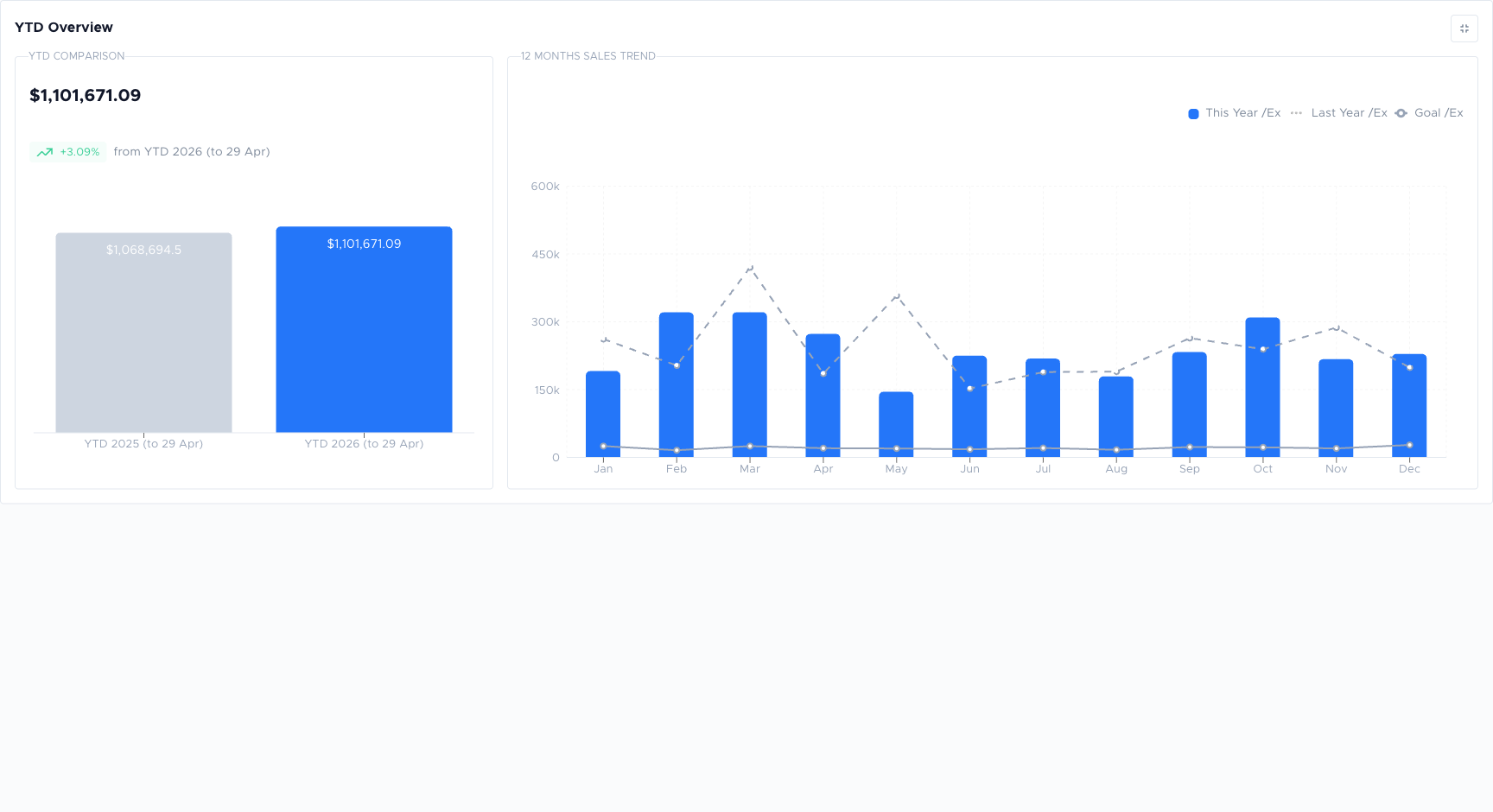
Exiting full-screen mode
Section titled “Exiting full-screen mode”Press Esc or click Exit full screen to return to the normal view.
Running it on a TV
Section titled “Running it on a TV”- Sign into brix on the device that drives the TV.
- Open the Company Dashboard and click Enter full screen.
- Leave the browser tab active. The widgets refresh automatically so the board stays current.
Tips:
- Use a dedicated login for the wallboard so signing out on another device doesn’t blank the TV.
- Most browsers will dim the tab if it is in the background. Keep the dashboard tab foregrounded.
- If the display goes blank overnight, a page reload (
Ctrl+R/Cmd+R) is the quickest recovery.
Things to check
Section titled “Things to check”Full-screen button is not visible
Scroll up on the dashboard page; the button may be above the fold on smaller screens.
Dashboard does not fill the screen
Try your browser’s own full-screen mode (F11 on Windows, Ctrl+Cmd+F on Mac) in addition to brix’s full-screen mode.
Company DashboardOverview of all metrics and performance widgets.
Dashboard WidgetsEvery widget explained: what it shows and where the numbers come from.