
Quote Settings
What is Quote Settings?
Section titled “What is Quote Settings?”Quote Settings is where you set the defaults brix uses when your team builds and sends quotes. Pick a section from the Menu on the left: Quotes, Payments, Take-Offs and Quote Request Form. Changes apply workspace-wide, so they affect every quote your team creates from then on.
Where to find it
Section titled “Where to find it”Go to Manage → Settings → Quotes. If you don’t see Quotes under Settings, your permission group doesn’t include the quote settings. Ask your workspace owner to update your Permissions.
The Take-Offs section only appears when take-offs are switched on for your workspace.
Quotes
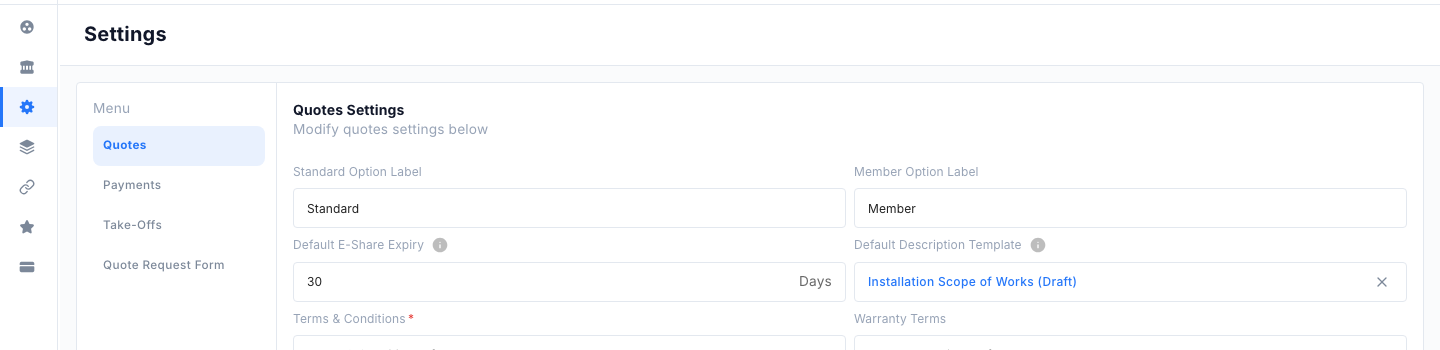
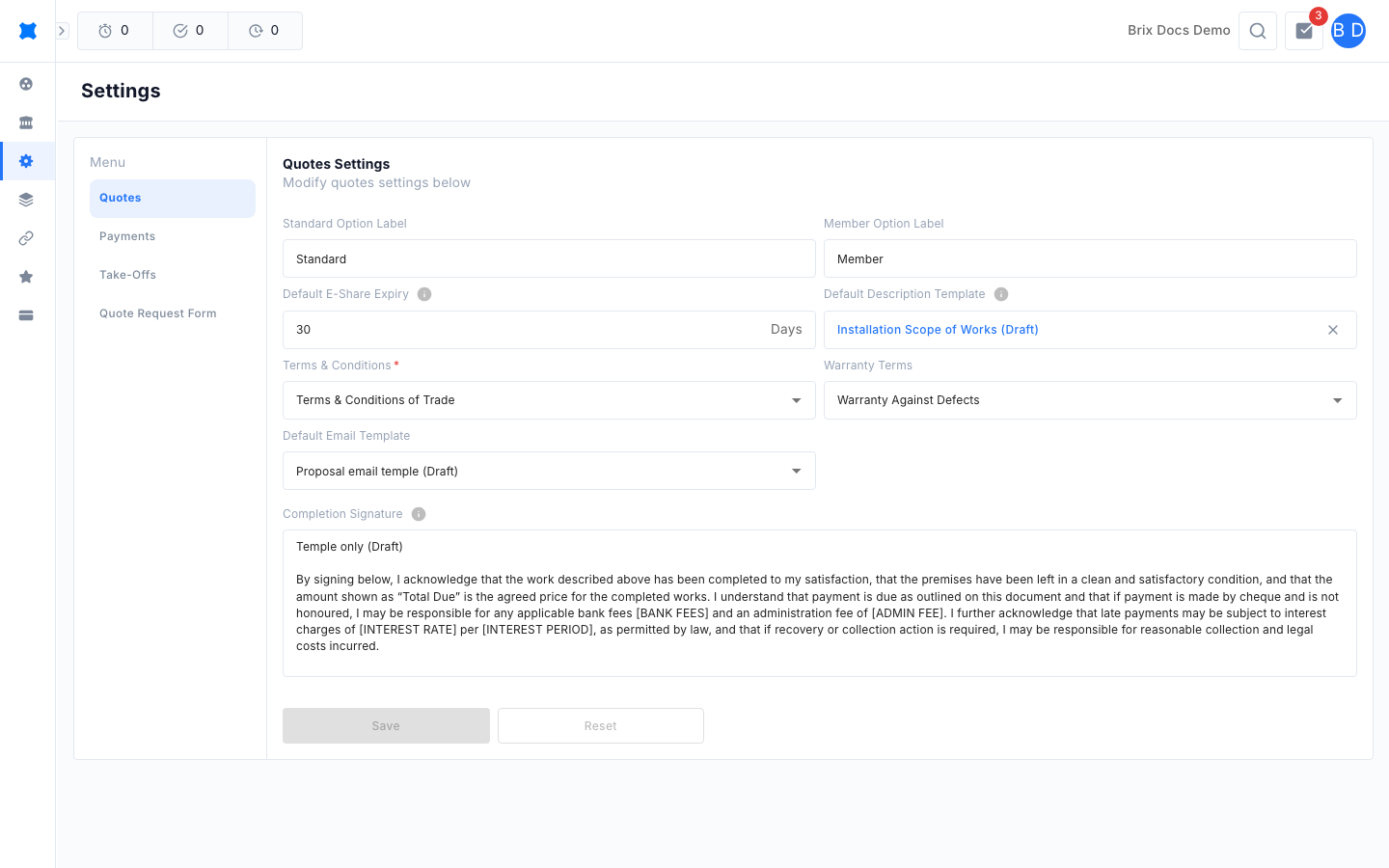
Section titled “Quotes”Use this section to set the wording, terms and expiry that new quotes start with.
| Field | What it does |
|---|---|
| Standard Option Label | The name shown for your standard quote option. |
| Member Option Label | The name shown for your member (premium) quote option. |
| Default E-Share Expiry | How many days a shared quote link stays valid. Enter 0 for no expiry. |
| Description template | The description template used for quote requests. See Description Templates. |
| Terms & Conditions | The terms attached to sent quotes. Required. See Terms & Conditions. |
| Warranty Terms | Optional warranty terms attached to sent quotes. |
| Default Email Template | The email template used when a quote is sent. |
| Completion Signature | The text shown to the customer before they sign to confirm the work is complete. |
-
Go to Manage → Settings → Quotes and stay on Quotes.
-
Change the fields you need.
-
Click Save. Click Reset to discard your changes and go back to the saved values.
Payments
Section titled “Payments”The text in this section is printed on your quote option PDFs, so customers know how to pay you.
- Payment instructions: How and when the customer should pay.
- Bank account info: The account details for bank transfers.
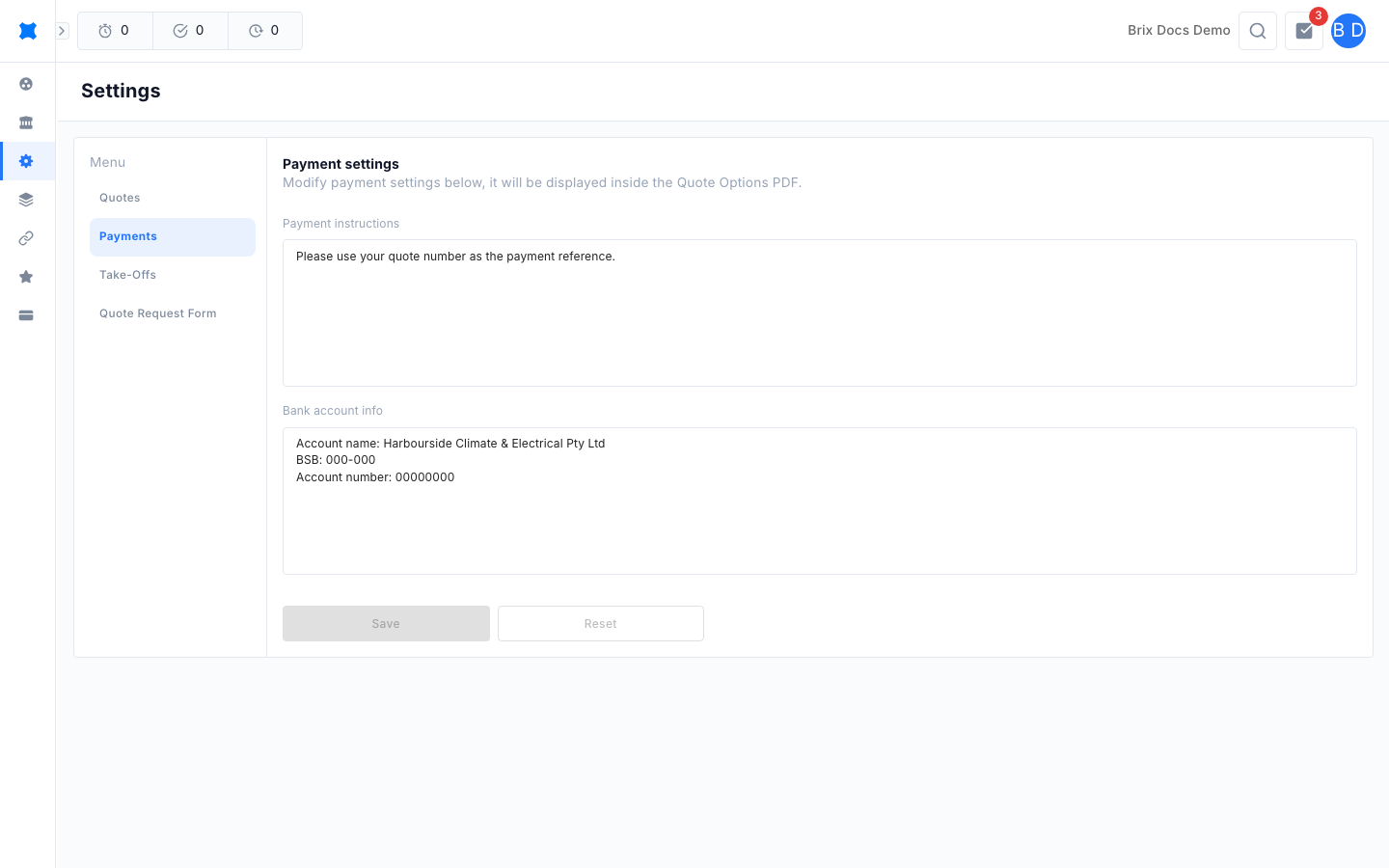
Click Save to apply your changes, or Reset to go back to the saved values.
Take-Offs
Section titled “Take-Offs”Sets the defaults for emailing a take-off sheet. See Take-off Sheets for how sheets work.
- Default TO Email: The address take-off emails are sent to by default.
- Default Email Template: The email template used when you send a take-off.
- Additional Content: Text added to the end of the exported PDF.
Quote Request Form
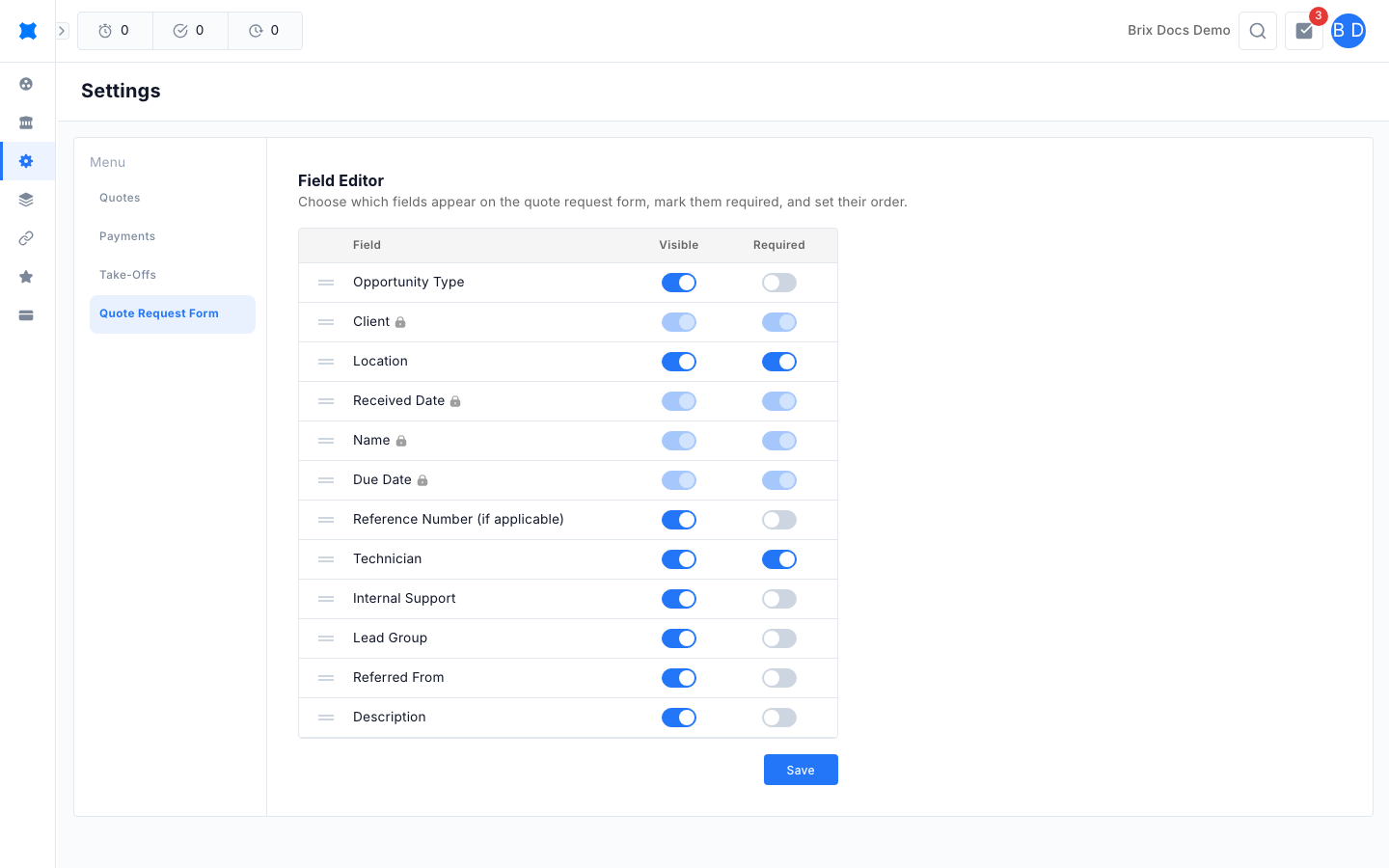
Section titled “Quote Request Form”Controls which fields appear on the quote request form and in what order. Open Field Editor and, for each field, you can:
- Drag the handle at the left of a row to change its order.
- Turn Visible on or off to show or hide the field.
- Turn This field is required on to make your team fill it in.
Some fields are locked, shown with a padlock. These are always shown and always required, so you can’t change them (Client, Name, Received Date and Due Date). Fields you can control include Opportunity Type, Location, Reference Number, Technician, Internal Support, Lead Group, Referred From and Description.
-
Go to Manage → Settings → Quotes and click Quote Request Form in the menu.
-
Drag fields into the order you want.
-
Switch Visible and This field is required as needed.
-
Click Save. A “Quote request form updated” message confirms it.
Statuses
Section titled “Statuses”N/A. Quote Settings is a set of workspace defaults, so there is no status lifecycle. Each section has its own Save button, and it stays greyed out until you change something.
Things to check
Section titled “Things to check”- Changes didn’t stick? Each section saves separately. Click Save on the section you edited before you switch to another section.
- Can’t save the Quotes section? Terms & Conditions is required. Pick one, or create one first in Terms & Conditions.
- Don’t see the Take-Offs section? Take-offs aren’t switched on for your workspace.
- A field is greyed out in the field editor? It is locked. Client, Name, Received Date and Due Date are always shown and required.
- Don’t see Quotes under Settings? Ask your workspace owner to grant the quote settings permission.
What happens next
Section titled “What happens next”New quotes pick up your changes straight away. Next, check your Terms & Conditions and email templates, then create a quote request to see the defaults in action.