
Sales Goals
What is Sales Goals?
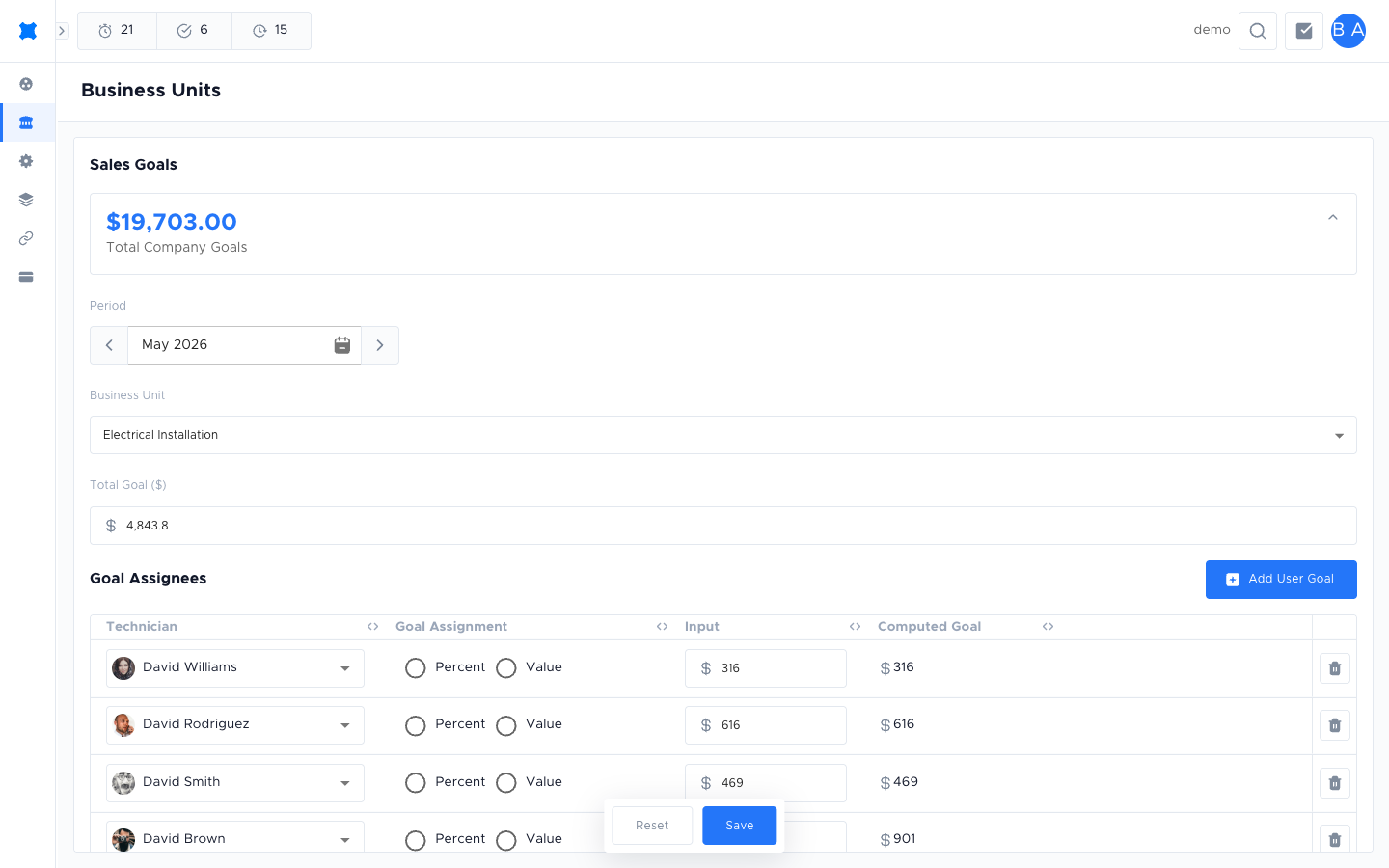
Section titled “What is Sales Goals?”Sales Goals is where you set a revenue target for each business unit each month, then break the target down across the technicians who report into that business unit. The page shows the total company goal at the top (the sum of every business unit’s goal for the selected month) so a manager can see what the whole company is aiming for in one place.
Where to find it
Section titled “Where to find it”Go to Manage → Business Units → Sales Goals.
What the page shows
Section titled “What the page shows”The Sales Goals page is built around four sections, top to bottom:
- Total Company Goals: a dollar figure summing every business unit’s goal for the selected month. Acts as a sanity-check on the per-unit numbers below.
- Period: a month picker. Goals are set one month at a time and do not carry over automatically.
- Business Unit: a dropdown that scopes the goal to a single business unit (for example, Electrical Installation). The fields below update to match the selected unit.
- Total Goal ($): the revenue target for the selected business unit, in dollars.
Setting a sales goal for a business unit
Section titled “Setting a sales goal for a business unit”-
Go to Manage → Business Units → Sales Goals.
-
Pick the Period (month) you want to set goals for.
-
Choose the Business Unit from the dropdown.
-
Enter the Total Goal ($): the revenue target for that unit, for that month.
-
Click Save.
The new total rolls up into the Total Company Goals widget at the top of the page.
Assigning the goal to technicians
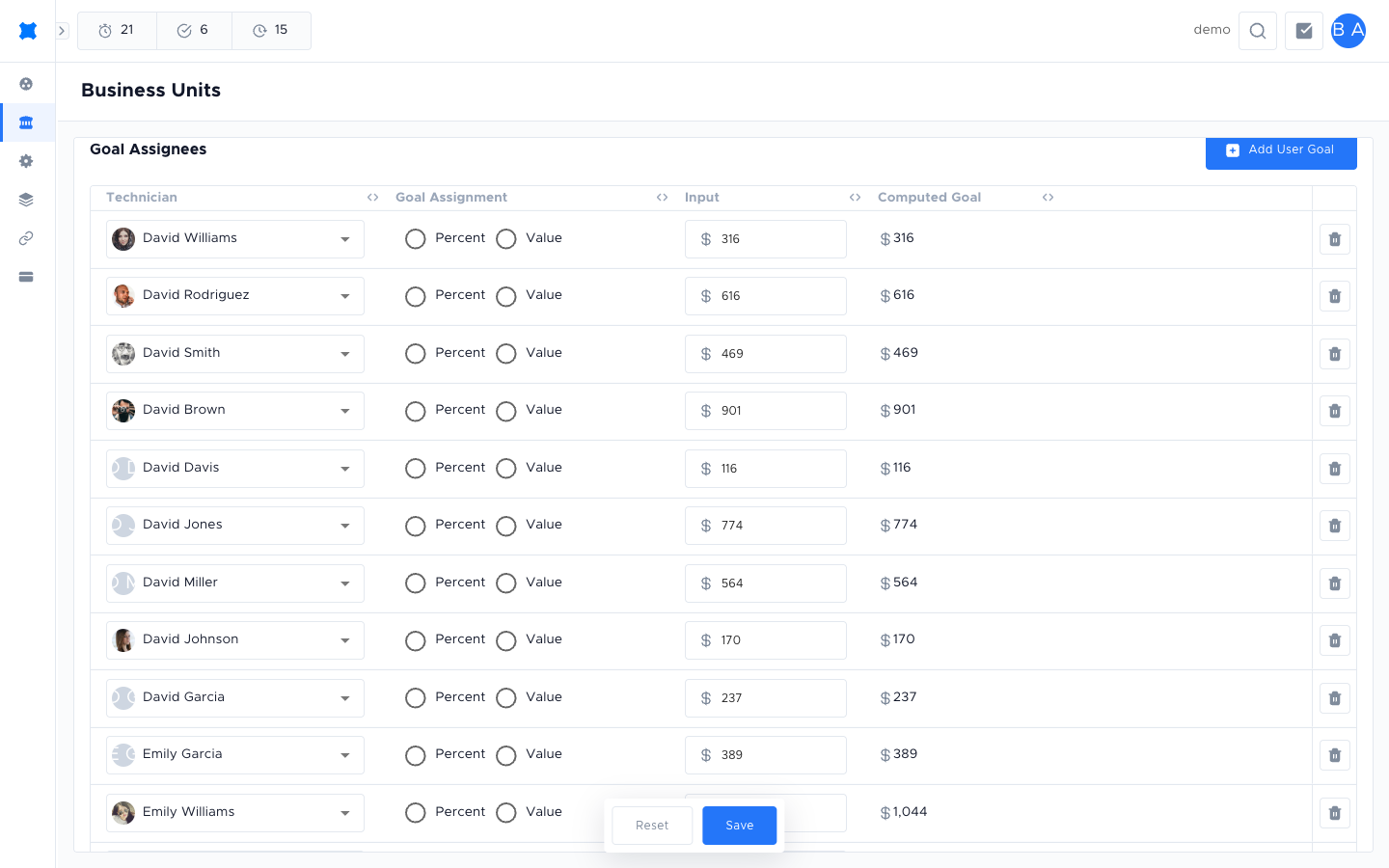
Section titled “Assigning the goal to technicians”After setting the Total Goal, break it down across the technicians in the business unit using the Goal Assignees table.
-
Click Add User Goal to add a new technician row (or edit existing rows).
-
Pick the Technician from the dropdown in the first column.
-
Choose how the goal is assigned in the Goal Assignment column:
- Percent: the technician owns a share of the business unit’s total goal (for example, 25%).
- Value: the technician owns a fixed dollar amount of the business unit’s goal.
-
Enter the amount in the Input column: a percentage or a dollar amount, depending on the assignment type chosen.
-
The Computed Goal column shows the resolved dollar amount. If you chose Percent, brix calculates the dollars from the unit’s Total Goal. If you chose Value, the Input dollar amount is used directly.
-
Repeat for every technician you want to give a goal.
-
Click Save to commit the assignees.
To remove a technician from the goal split, click the trash icon at the end of their row. Click Reset to discard unsaved changes before saving.
Reading the goal widget on the dashboard
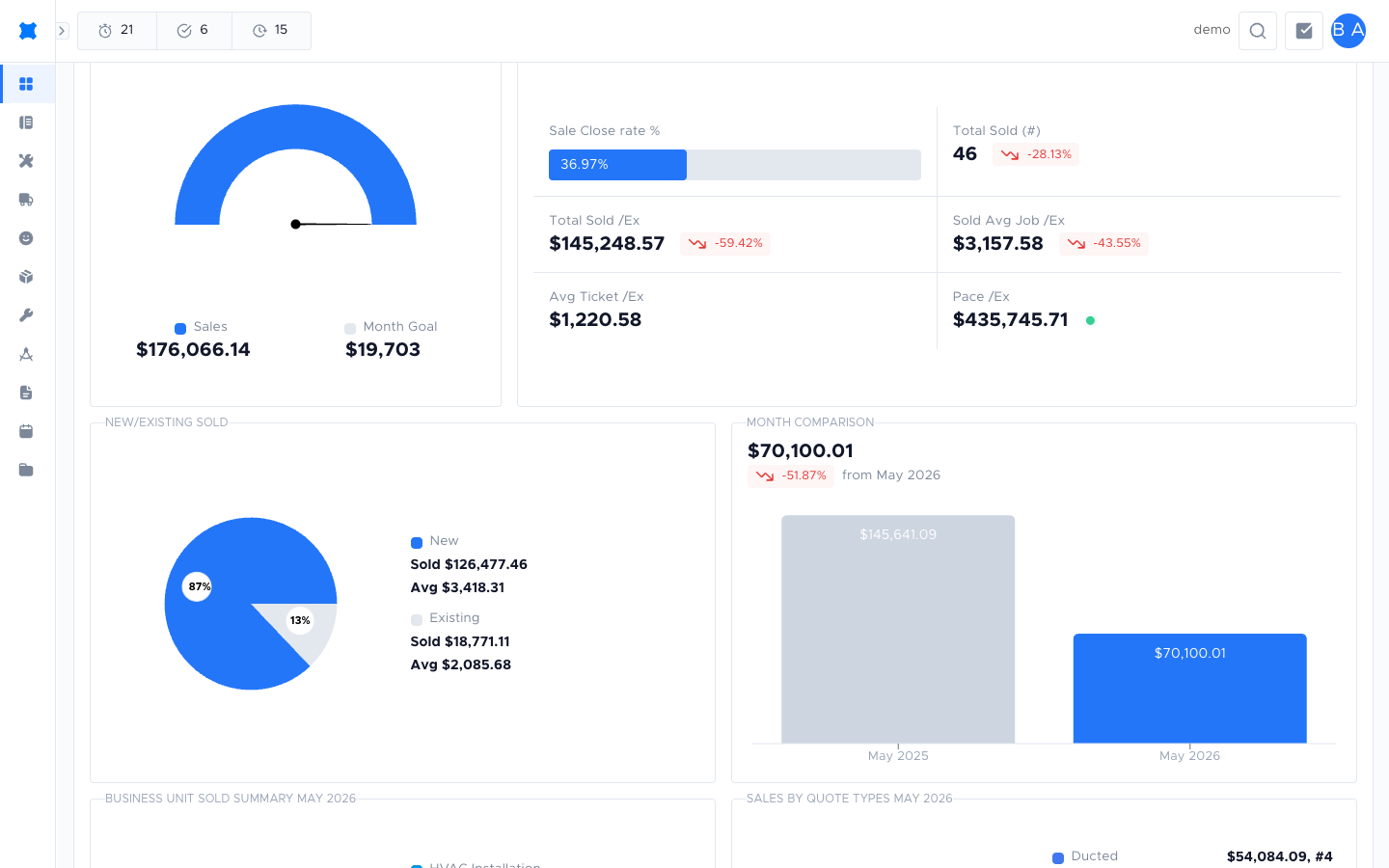
Section titled “Reading the goal widget on the dashboard”The Monthly Goal widget on the Company Dashboard shows progress toward the rolled-up company goal for the current month. The chart fills as invoiced revenue increases, so the whole team can see how the company is tracking at a glance.
Frequently asked questions
Section titled “Frequently asked questions”Can different technicians have different goals?
Yes. Each technician row in the Goal Assignees table can have its own Percent or Value assignment, so two technicians in the same business unit can carry different shares of the target.
Do goals carry over to the next month?
No. Goals are set per month. Pick a new Period to set the next month’s goals.
What happens if I change the Total Goal after assigning technicians?
The Computed Goal for any technician assigned as Percent updates automatically against the new total. Technicians assigned as Value keep their fixed dollar amount until you change it.
Where do I see workspace-wide stats?
Stats live on the Company Dashboard. The Monthly Goal widget there reflects progress against the goals set here.
Things to check
Section titled “Things to check”Goal is not showing on the dashboard
Make sure a goal has been saved for the current month. Goals set for a previous month do not carry over.
Computed Goal column shows $0
Either the Total Goal ($) has not been entered for the selected business unit, or the Percent input is 0. Enter the values and click Save.
Goal progress bar on the dashboard is stuck at 0%
The widget counts invoiced revenue, not quote values. Ensure jobs have been completed and invoiced during the current month.
I cannot see Sales Goals under Business Units
You may not have the View Monthly Goals permission. Ask your workspace owner to check your permission group.