
Linking Jobs
Linking a ServiceM8 job
Section titled “Linking a ServiceM8 job”When your workspace has ServiceM8 enabled, the Linked ServiceM8 Jobs section appears at the bottom of the quote request detail page. Use it to create a new ServiceM8 job or link an existing one.
-
Open the quote request from Quotes → Requests.
-
Scroll to the Linked ServiceM8 Jobs section and click Link ServiceM8 Job.
-
In the Select Mode step, choose Create new ServiceM8 job or Link to existing ServiceM8 job and click Next.
-
In the Select Quote Options step, tick the quote options you want to link to this job and click Next.
-
In the Job Details step (create mode) or Link Job step (link mode):
- For a new job: enter a Job Status (Quote, Work Order, Completed, or Unsuccessful) and Job Date.
- For an existing job: type at least two characters in the ServiceM8 Job Number field to search.
-
Click Link.
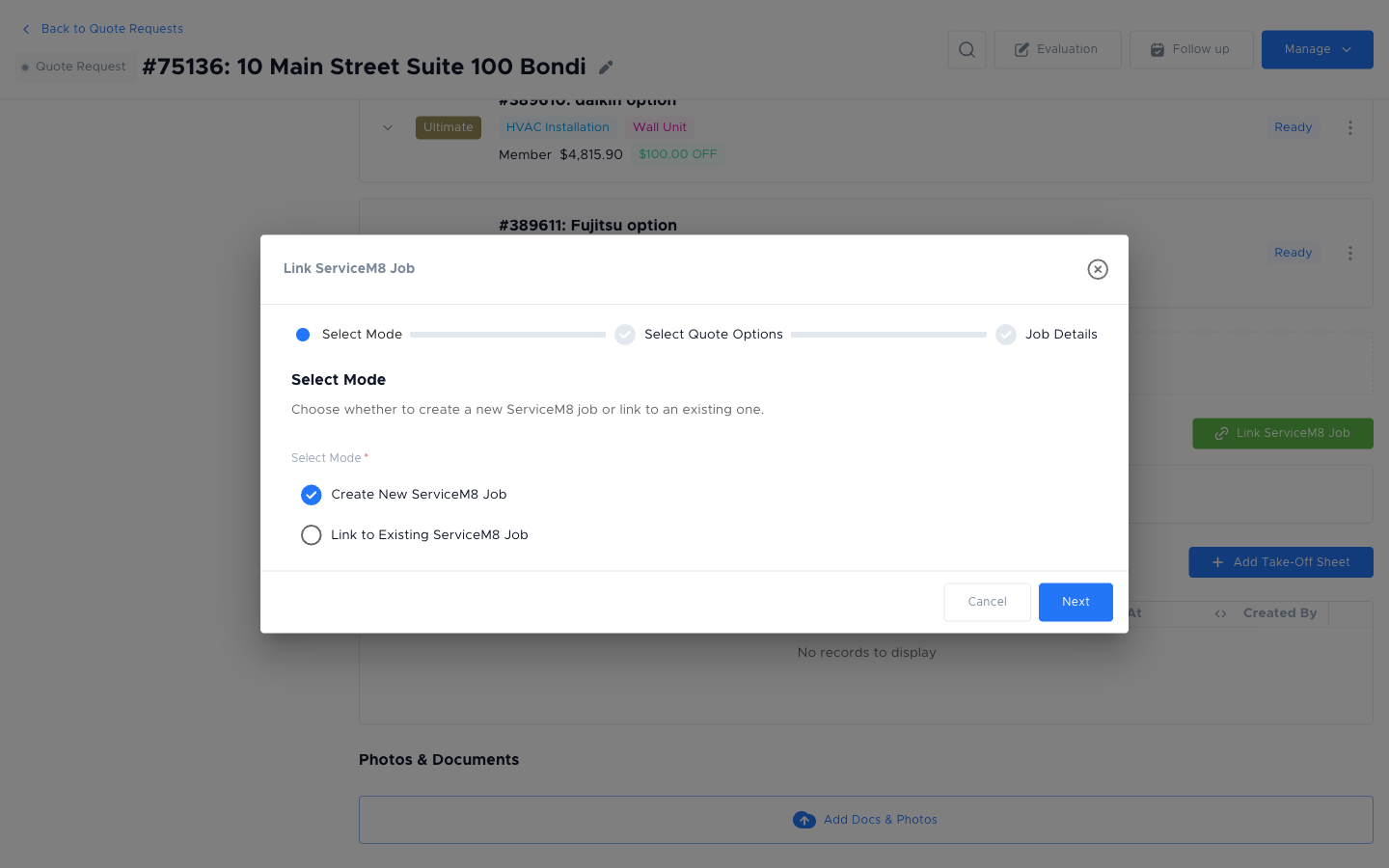
Linking via AroFlo reference number
Section titled “Linking via AroFlo reference number”AroFlo does not use a separate job-linking section. Instead, enter the AroFlo job number in the Ref Number field on the quote request header. brix uses this number to sync notes and documents back from AroFlo automatically.
-
Open the quote request from Quotes → Requests.
-
Find the Ref Number field in the request header (usually near the client name and dates).
-
Type the AroFlo job number and press Enter or save the request.
Once the Ref Number is set, brix syncs: push notes to AroFlo, pull document photos from AroFlo, and pull the rejected quote status from AroFlo (if the job is declined).
Things to check
Section titled “Things to check””No Jobs Found” in the Linked ServiceM8 Jobs section
No ServiceM8 jobs have been linked yet. Click Link ServiceM8 Job to start.
The autocomplete shows no results
Type at least two characters in the ServiceM8 Job Number field. Results load from ServiceM8 as you type.
The Ref Number field is not visible
Confirm the AroFlo integration is enabled in Integrations.