
Label Templates
What is a label template?
Section titled “What is a label template?”A label template defines the layout and content of printed identification labels for materials, equipment, or assets in your workspace. Labels are useful for job-site organisation, warehouse stock management, and equipment tagging.
Where to find label templates
Section titled “Where to find label templates”Go to Quotes → Books → Templates → Label Templates tab.
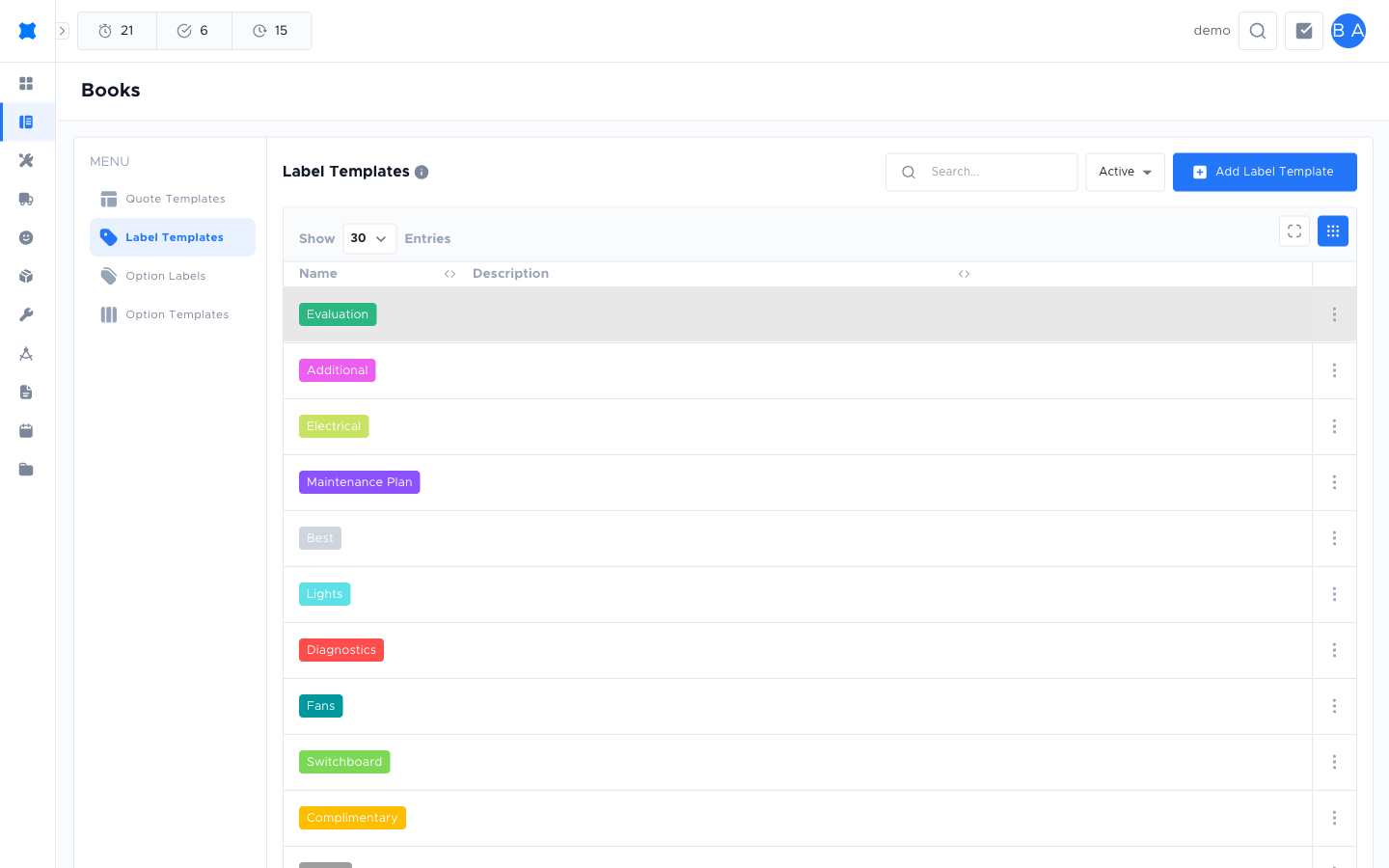
Creating a label template
Section titled “Creating a label template”-
Go to Quotes → Books → Templates → Label Templates tab.
-
Click Add Label Template.
-
Enter a Name and a Description (optional).
-
Choose a colour for the label (used for visual distinction in the label list).
-
Configure the label content and layout.
-
Click Save.
Using a label template
Section titled “Using a label template”Once a label template is set up, your team can apply it when printing or exporting labels from the materials, equipment, or assets lists. The template controls what information prints on each label and how it is laid out.
What happens next?
Section titled “What happens next?”Label templates are typically a one-time setup task managed by your admin. Once set up, your team uses them for printing without needing to configure the label layout each time. See Templates Overview for other template types.
Things to check
Section titled “Things to check”The Label Templates tab is empty
No label templates have been created yet. Ask your admin to set them up.
The printed label doesn’t match the template
The label print settings (printer, size, DPI) may need adjusting for your physical label stock. Check your printer settings.