
Navigating the App
The sidebar
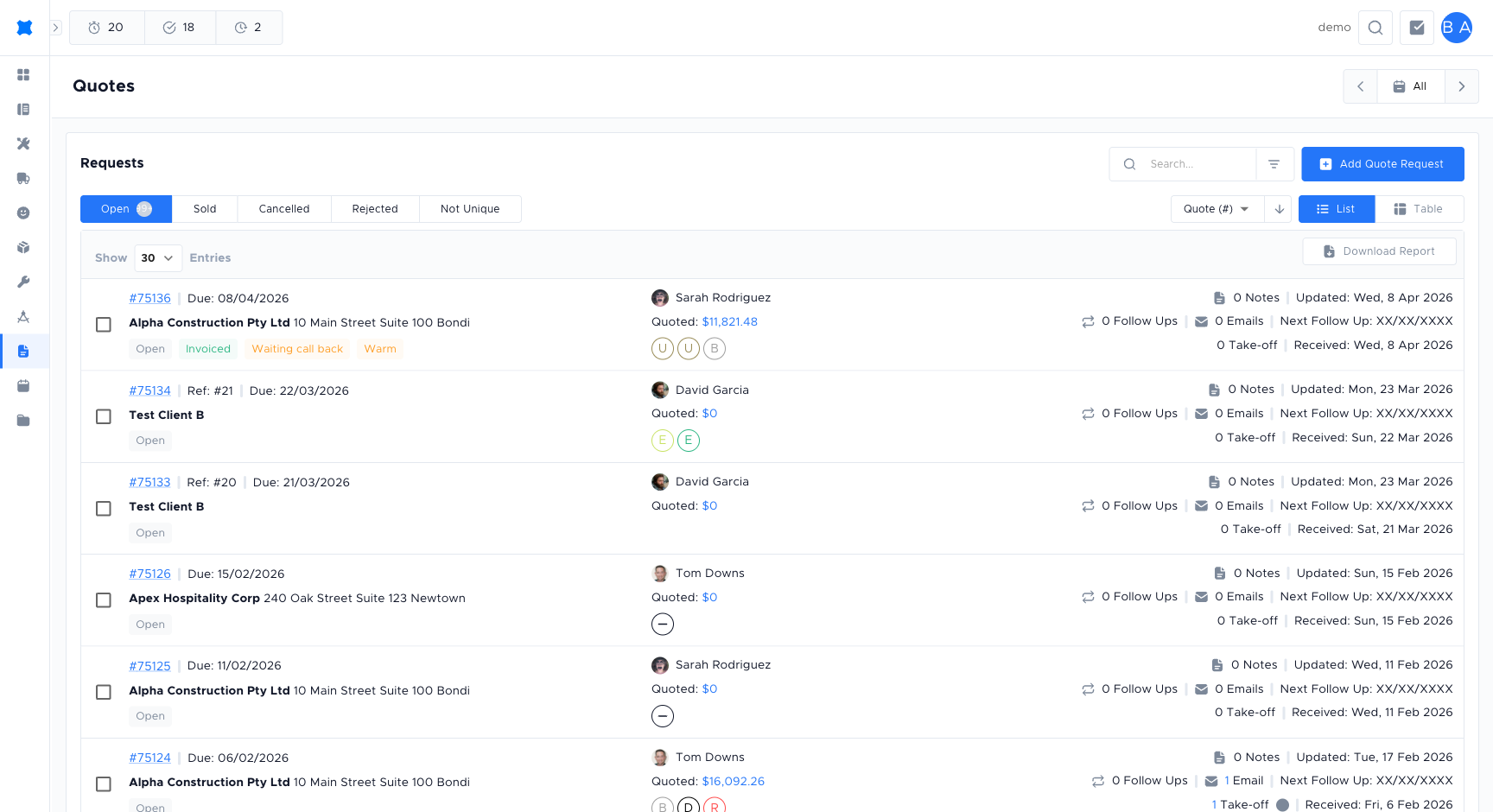
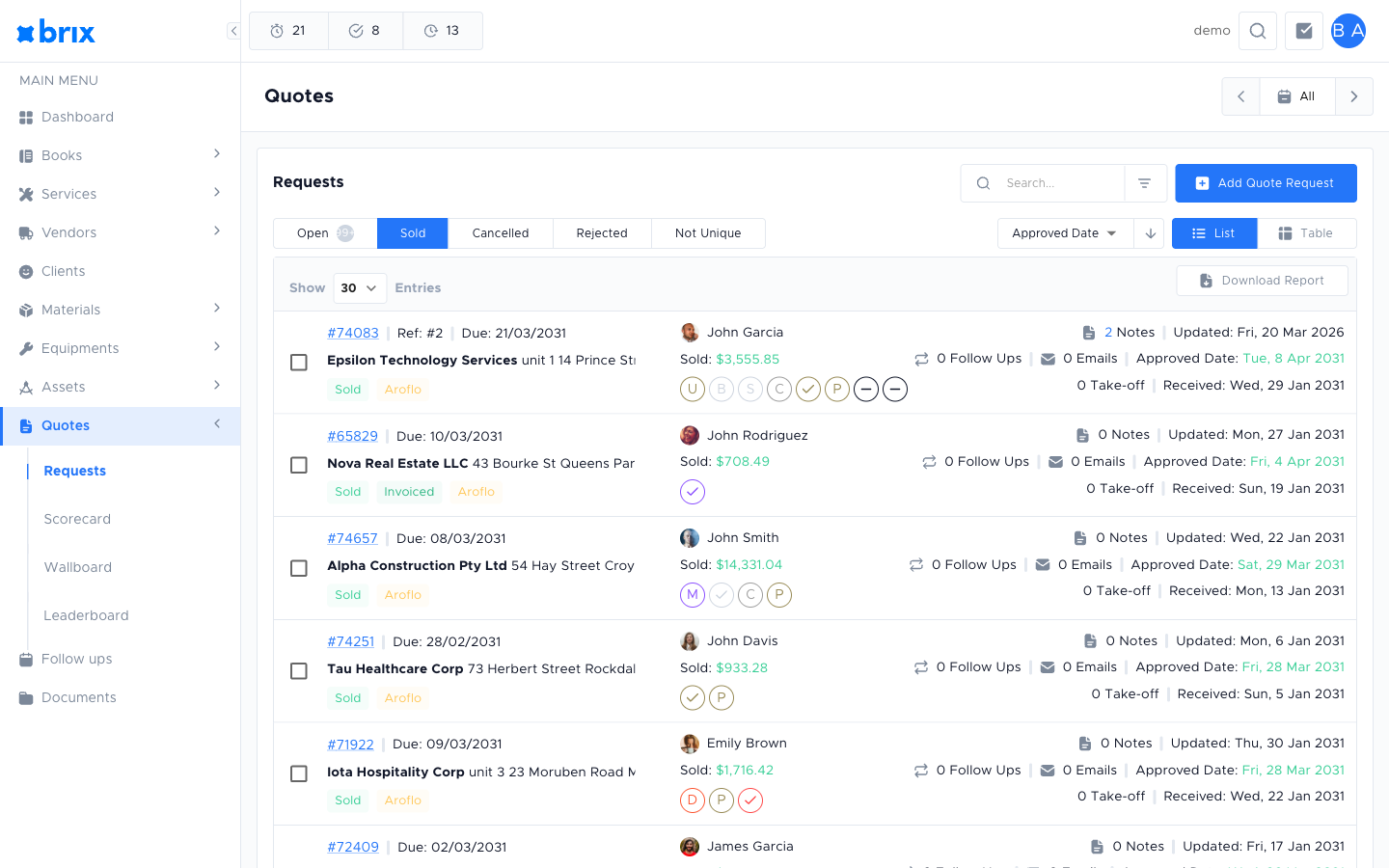
Section titled “The sidebar”When you’re signed in, a sidebar (menu) on the left shows the main areas of brix. Click any item to go there.
Typical areas you’ll see:
- Books: business units that organise your services, materials, and pricing.
- Services: the work you can add to a quote (e.g. installations, repairs).
- Vendors: suppliers and brands for parts and pricing.
- Clients: your customers.
- Materials, Equipments, Assets: items and equipment you can add to quotes.
- Quotes: quote requests, score card, wallboard, and leaderboard.
- Follow-ups: reminders and follow-up tasks.
- Transfers: syncing data to external tools.
- Documents: stored files and photos.
Some menu items have sub-items. Click the main item to expand it, then choose the page you need.
Top bar
Section titled “Top bar”The top of the screen usually shows:
- Logo or app name: often links back to the home or dashboard.
- Manage (if you have admin rights): opens admin settings; see Manage and Settings.
- User menu: your name or avatar; click to sign out or access profile/settings.
Normal view vs Manage
Section titled “Normal view vs Manage”Most of the time you work in the normal view: Quotes, Clients, Services, and so on. That’s what the sidebar is for.
If you have admin rights, you may also see a Manage option (often in the top bar). Manage is for setting up the business: users, teams, business units, labour costs, discounts, and app settings. Use it only if your role includes those tasks; otherwise, stick to the main sidebar for day-to-day quoting.