
Scheduling and Logging Follow-ups
Schedule a follow-up
Section titled “Schedule a follow-up”When you want to set a future reminder for a quote request:
-
Open the quote request (from Quotes → Requests or from the Follow-ups calendar/list).
-
Click Schedule Follow Up (or Log Follow Up and choose to schedule).
-
Pick the date and time for the follow-up.
-
Optionally add a note (e.g. “Call about revised option B”).
-
Save. The follow-up appears as Scheduled and shows on the Follow-ups calendar and in the request’s timeline.
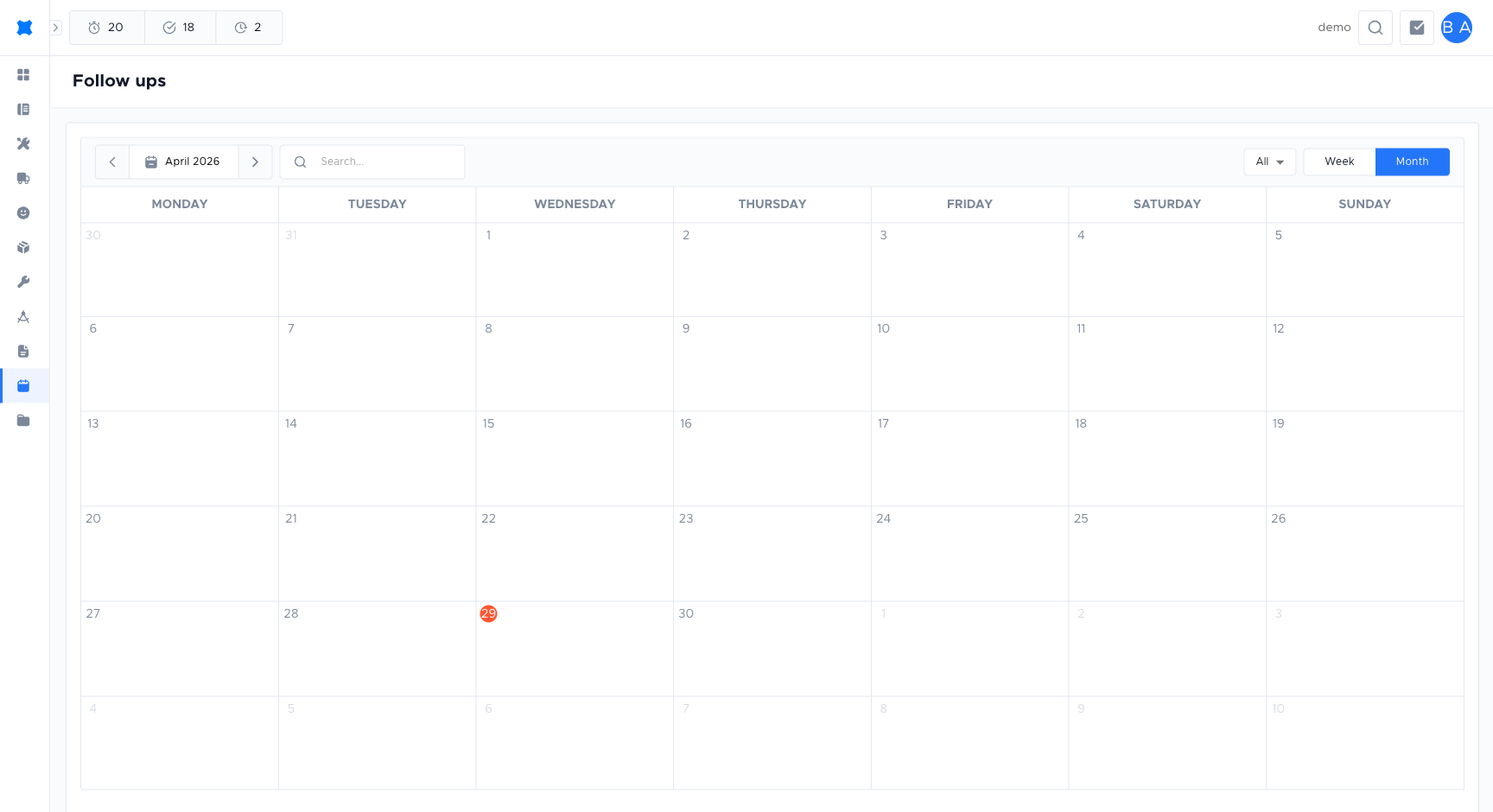
You can also open the Follow-ups page, click a date on the calendar, and add a follow-up for a quote request from there.
Log a follow-up
Section titled “Log a follow-up”When you’ve already done the touchpoint (or tried and couldn’t reach the customer):
-
Open the quote request and click Log Follow Up.
-
Set the date/time (usually now or when it happened).
-
Choose the status:
- Completed: you finished the follow-up (e.g. spoke to the customer).
- Unable to Reach: you tried but couldn’t get through.
-
Add a note if helpful (e.g. “Left voicemail”, “Customer asked for quote by Friday”).
-
Save. The follow-up is recorded and appears in the timeline.
You can schedule a new follow-up after logging “Unable to Reach” so you don’t forget to try again.
Viewing and editing in the timeline
Section titled “Viewing and editing in the timeline”On the quote request detail, the Follow-ups section shows a timeline of all follow-ups (oldest to newest). Each entry shows the date, status, note, and who created it. From there you can edit or delete follow-ups if your permissions allow.
The Next Follow Up field on the request is updated when you add or change scheduled follow-ups, so the quote request list and detail always show the next due date.
Follow-up count and Scorecard
Section titled “Follow-up count and Scorecard”The quote request list displays how many follow-ups have been logged for each request. In Quotes → Scorecard, your team can see metrics such as average number of follow-ups per opportunity or per sale, which helps track follow-up activity.
Frequently asked questions
Section titled “Frequently asked questions”Can I reschedule a follow-up after setting it?
Yes. Open the follow-up from the timeline or calendar and edit the date and time. The status stays “Scheduled” until you log an outcome.
What’s the difference between logging “Completed” and “Unable to reach”?
Both mark the follow-up as resolved, but the outcome label differs in the timeline. Use “Unable to reach” when contact was attempted but not made, and “Completed” when the touchpoint was successful.
Why does my follow-up count look different on the Scorecard?
The Scorecard aggregates follow-up counts by the date range and filter settings. Make sure you’re viewing the same period you expect.
Things to check
Section titled “Things to check”Scheduled follow-up doesn’t appear on the calendar
Only Scheduled follow-ups show on the calendar. Check the follow-up status and the calendar’s date range.
”Schedule Follow Up” option is missing from the request
The request may be Closed or Declined. Check the quote request status; follow-ups can typically only be added to active requests.
Follow-up count on Scorecard doesn’t match records
Check that you’re filtering by the same date range and lead-technician assignment in both places.