
Lead Groups
What is a lead group?
Section titled “What is a lead group?”A lead group records where a piece of work came from, for example “Website”, “Google Ads”, “Builder referral” or “Repeat customer”. Each lead group has a name, an optional description and an optional thumbnail image, so it stands out in lists and pickers.
Your team chooses a lead group on each quote request, so your reports can show which sources bring in the most work.
Where to find it
Section titled “Where to find it”Go to Manage → Settings → Lead Groups. If you don’t see Lead Groups, your permission group doesn’t include it. Ask your workspace owner to update your Permissions.
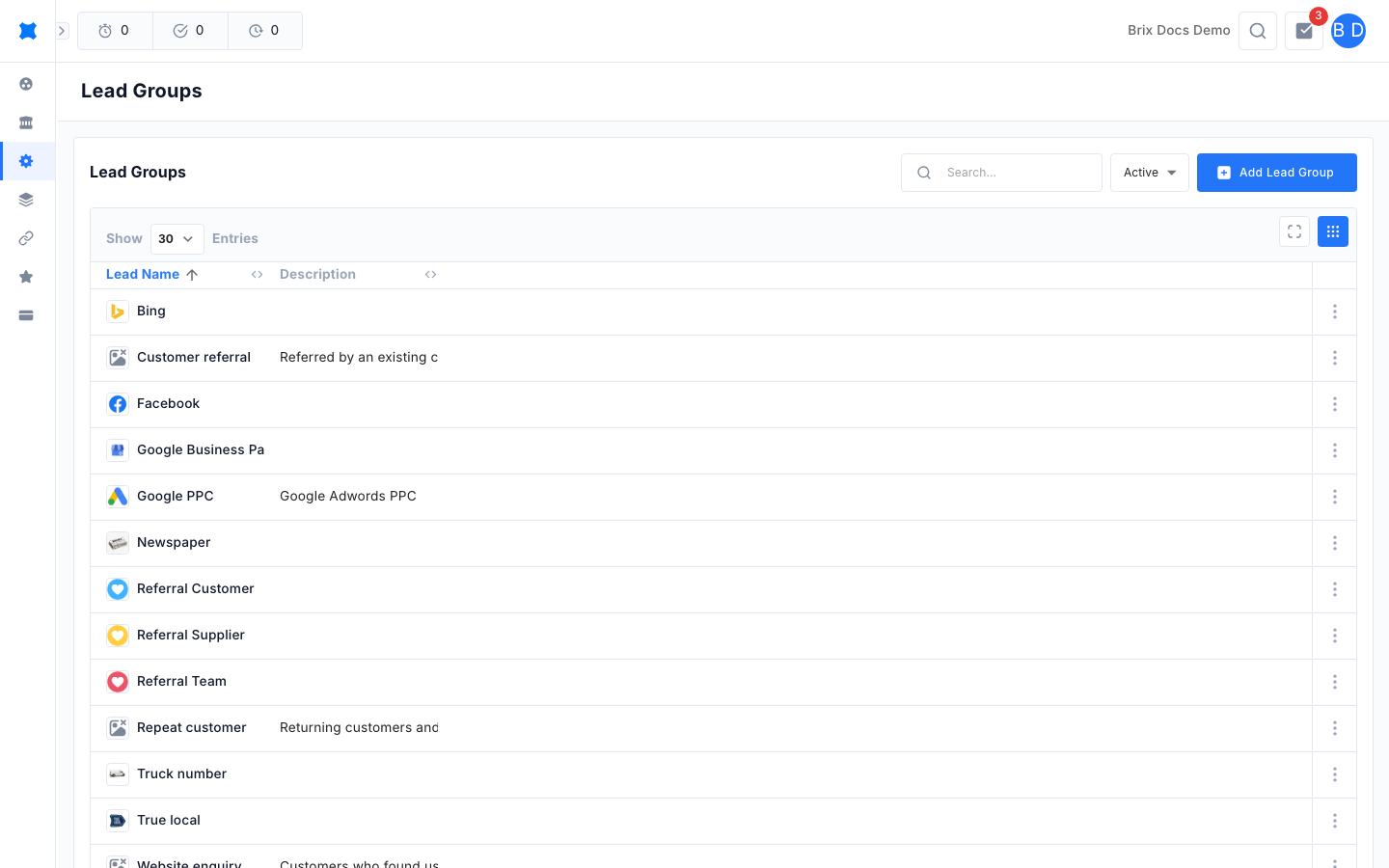
The list shows a Lead Name column (with the thumbnail beside the name) and a Description column. Use the search box to find a group by name. Turn on the archived filter to see groups you have archived.
Add a lead group
Section titled “Add a lead group”-
Go to Manage → Settings → Lead Groups.
-
Click Add Lead Group.
-
Enter a Lead Group Name. This is the only required field.
-
Add a Description if the name needs explaining. The limit is 500 characters.
-
Upload a Thumbnail if you want an image to show beside the name.
-
Click Save.
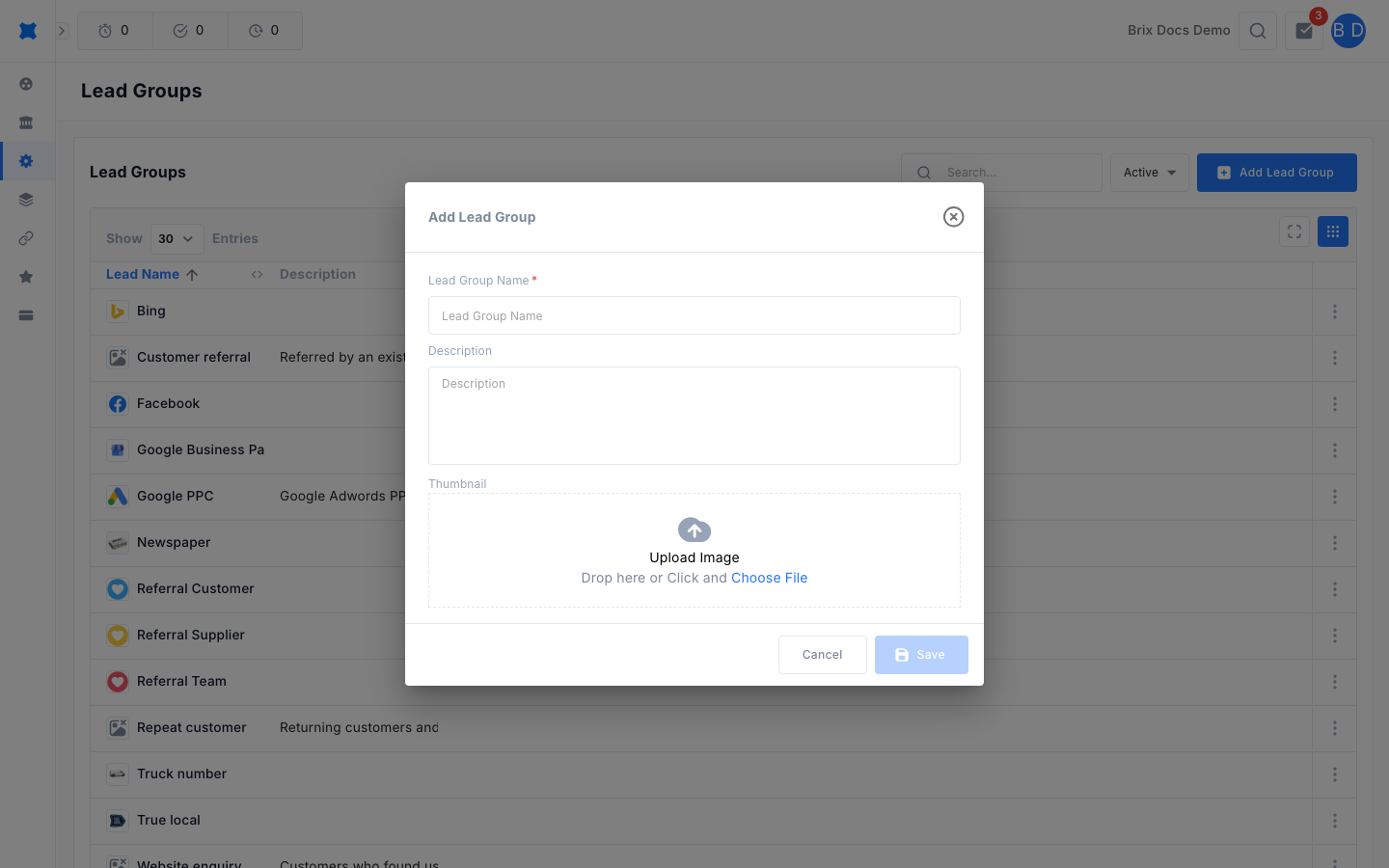
The Save button stays greyed out until you change something in the form.
Edit, archive or delete a lead group
Section titled “Edit, archive or delete a lead group”Click a row to open it, or click the row’s action menu (the three dots) and choose from:
- View details: Open the group to read it.
- Edit: Change the name, description or thumbnail, then click Save.
- Archive: Hide the group from new selections. Quote requests that already use it keep it. Choose Activate on an archived group to bring it back.
- Delete: Remove the group after you confirm.
Where lead groups show up
Section titled “Where lead groups show up”Lead groups appear as a field when you create or edit a quote request. Your admin can also hide the field, or make it required, from the quote request form editor in Quote Settings.
Statuses
Section titled “Statuses”A lead group is either active or archived. Only active groups appear in the pickers on new quote requests.
| Status | What it means |
|---|---|
| Active | Shown in the list by default and available to pick. |
| Archived | Hidden from the default list and from new selections. Turn on the archived filter to find it again. |
Things to check
Section titled “Things to check”- Can’t find a group when creating a quote request? It may be archived. Open the archived filter, then choose Activate from its action menu.
- Save is greyed out? Make sure you have changed a field and that the name is filled in.
- Don’t see Lead Groups under Settings? Ask your workspace owner to grant the Lead Groups permission.
What happens next
Section titled “What happens next”Once your groups are set up, choose one when you create a quote request. To control whether the field is shown or required, see Quote Settings.