
Portfolio
What is the portfolio?
Section titled “What is the portfolio?”The Portfolio is your library of finished-job photos. Once a photo is labelled and published, customers can see it as Recent work on quotes for the same type of job. Each photo carries a caption, a suburb, one or more quote types and a record of whether the property owner agreed to it being shown.
Every photo starts as a draft. Customers see nothing until someone with publish permission publishes it.
Where to find it
Section titled “Where to find it”Click Books in the sidebar, then click Portfolio. If you do not see Portfolio, ask your workspace owner to add the portfolio permission to your permission group. See Books and Templates for the rest of the Books section.
The page has three parts:
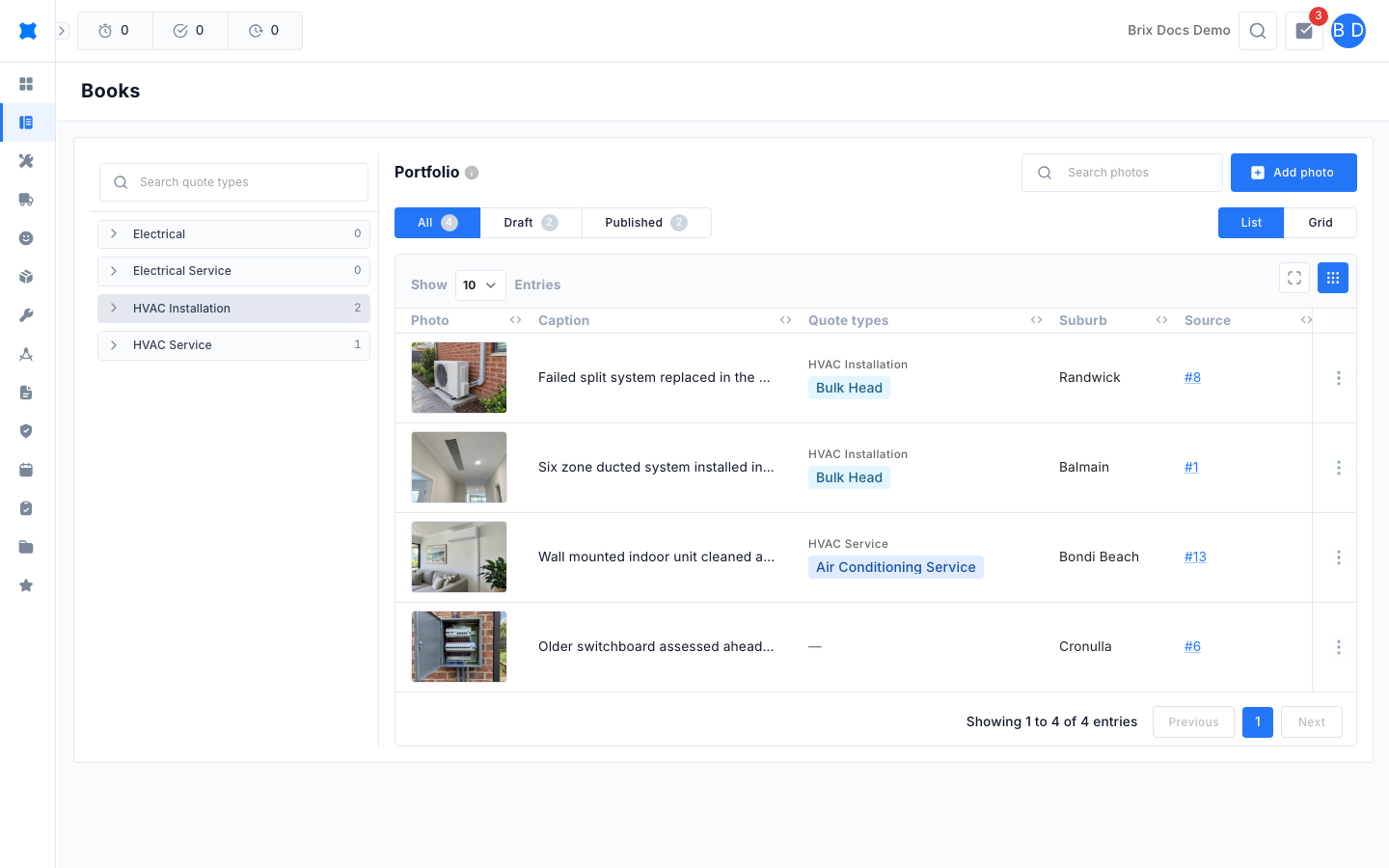
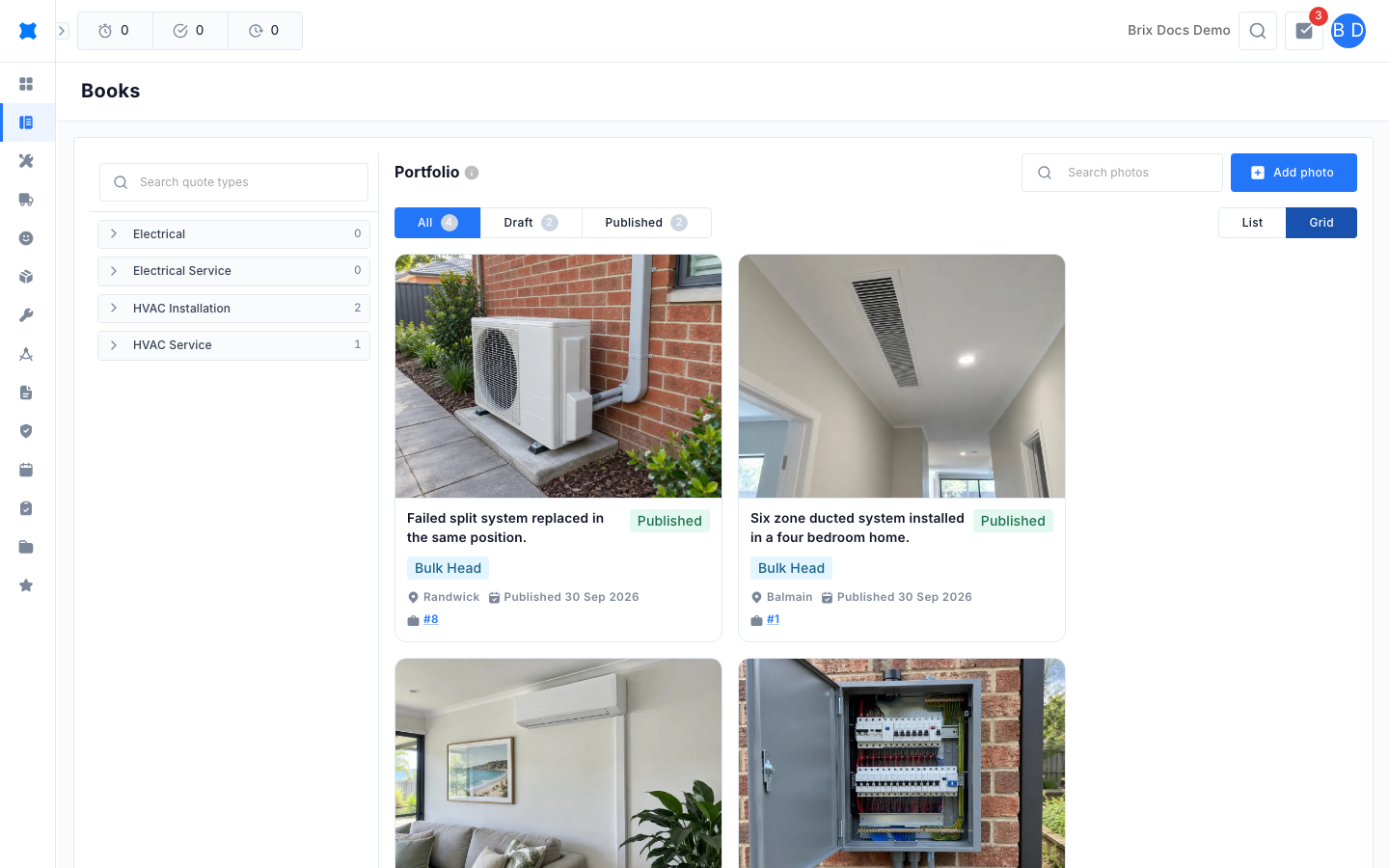
- Quote type filter on the left. Business units are listed as groups, with a count of photos beside each. Click the arrow to open a group and pick a single quote type, or click the group name to filter by the whole business unit. Click a selected row again to clear it. Use Search quote types to find one quickly.
- Status tabs across the top: All, Draft and Published, each with a count. The counts follow the quote type you have selected.
- List and Grid views. List shows a table with the photo, caption, quote types, source and status. Grid shows each photo as a card. Your choice is kept in the page address, so you can bookmark either view.
Use Search photos in the title bar to search by caption or suburb.
Add photos to the portfolio
Section titled “Add photos to the portfolio”There are two ways to add a photo, and both create a draft.
Add a photo directly
-
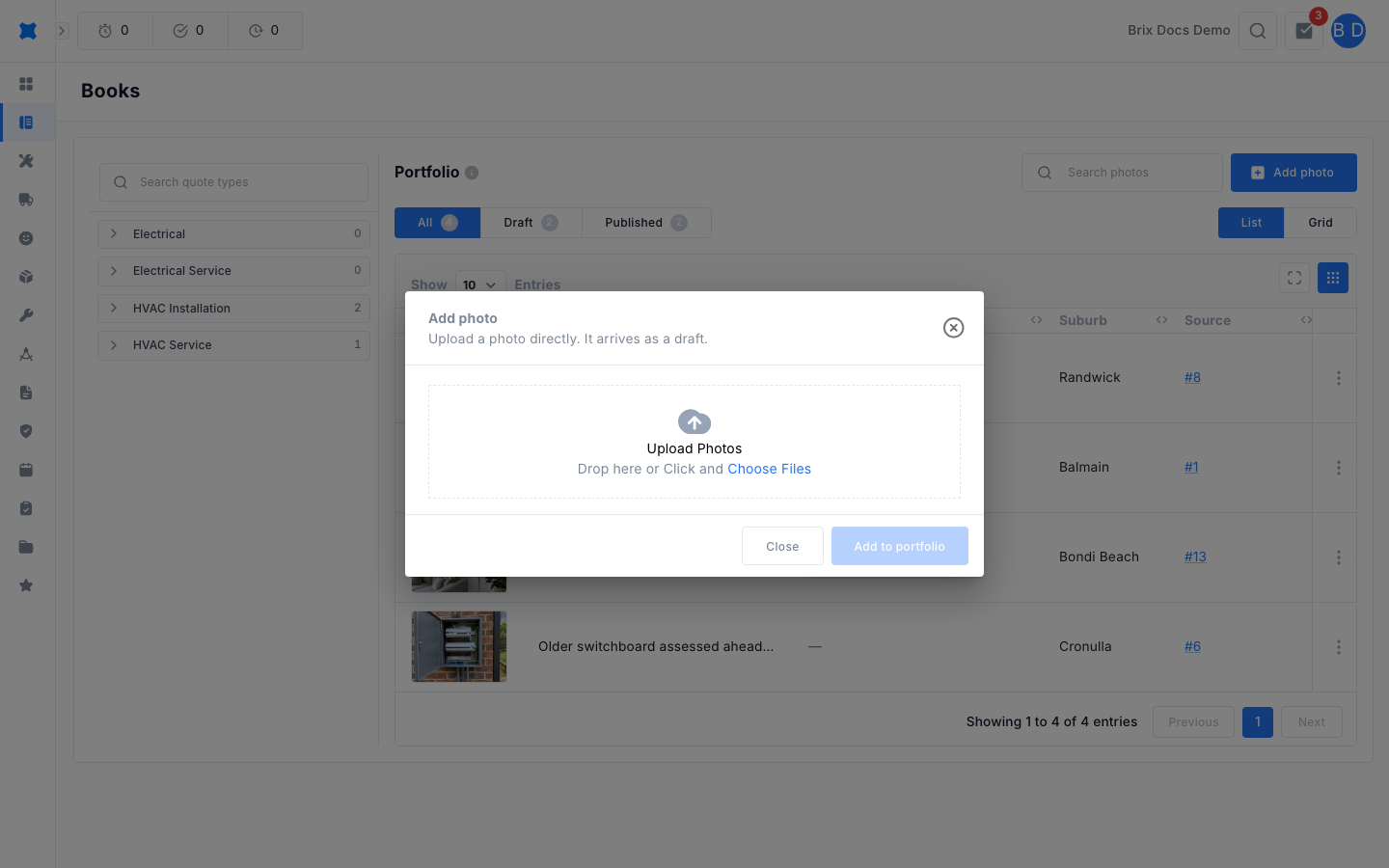
Click Add photo in the title bar.
-
Drop your photos into Upload Photos, or click to choose them. The portfolio takes JPEG, PNG and HEIC photos. Any other file type is refused and listed in a red message.
-
Wait for the uploads to finish, then click Add to portfolio. The button stays greyed out until at least one photo has uploaded and none have failed. Hover over it to see why it is disabled.
-
If you added a single photo, the Edit labels window opens straight away so you can label it. If you added several, a message tells you how many drafts were created. Open each one to add its details.
Nominate a photo from a quote request
Open a quote request, go to its photos, and choose Nominate for portfolio on a photo worth showing. The photo arrives in the portfolio as a draft. If it was already nominated, brix opens the existing draft instead of making a second one.
Label a photo
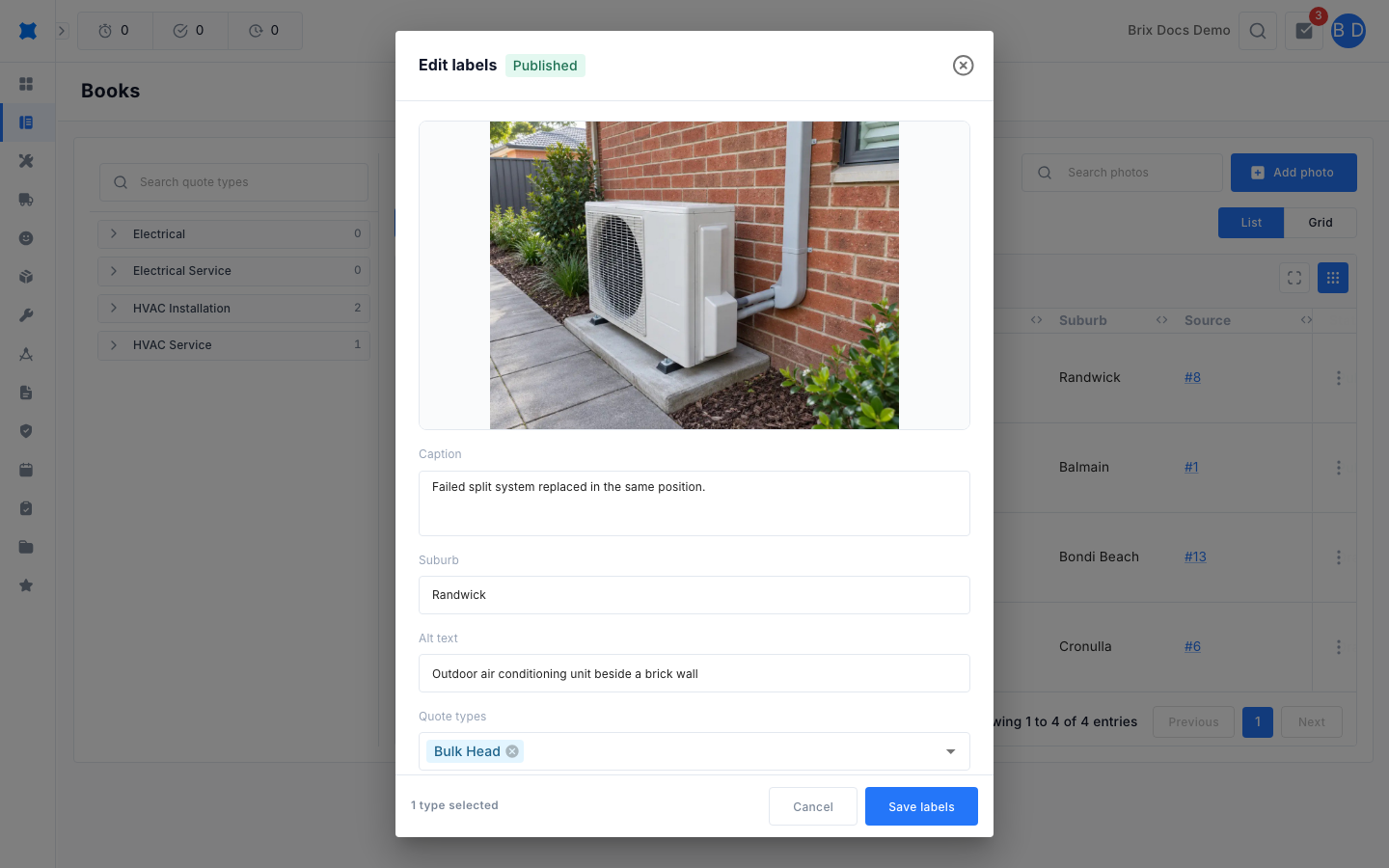
Section titled “Label a photo”Click Edit labels on a card, or open the actions menu on a table row and choose Edit labels. You need the portfolio manage permission.
| Field | What to enter |
|---|---|
| Caption | Text shown under the photo on the quote. Up to 280 characters. |
| Suburb | Where the job was done, for example Richmond. |
| Alt text | A short description of what is in the photo, for screen readers. |
| Quote types | The types of quote this photo should appear on. Pick at least one. |
| Display consent | Not obtained, Owner consented, or Not required (our own property or stock photo). |
| Consent note | Optional. How consent was given, for example “verbal on site, email 3 Sep, signed release”. Up to 500 characters. |
Click Save labels. When consent has been recorded, the window also shows who recorded it and the date.
Saving works even when a label is missing. The window then lists what the photo still needs before it can be published.
Publish a photo
Section titled “Publish a photo”Publishing needs the portfolio publish permission. A photo can only be published when it has at least one quote type and its display consent is not left as Not obtained.
-
Find the draft photo and click Publish on its card, or open the actions menu on its table row and choose Publish.
-
Read the checks in the Publish to portfolio window. Quote types, Suburb and Consent are listed, and anything missing is shown in amber.
-
Look at the photo itself. Check it for addresses, faces, number plates and paperwork.
-
Click Publish photo.
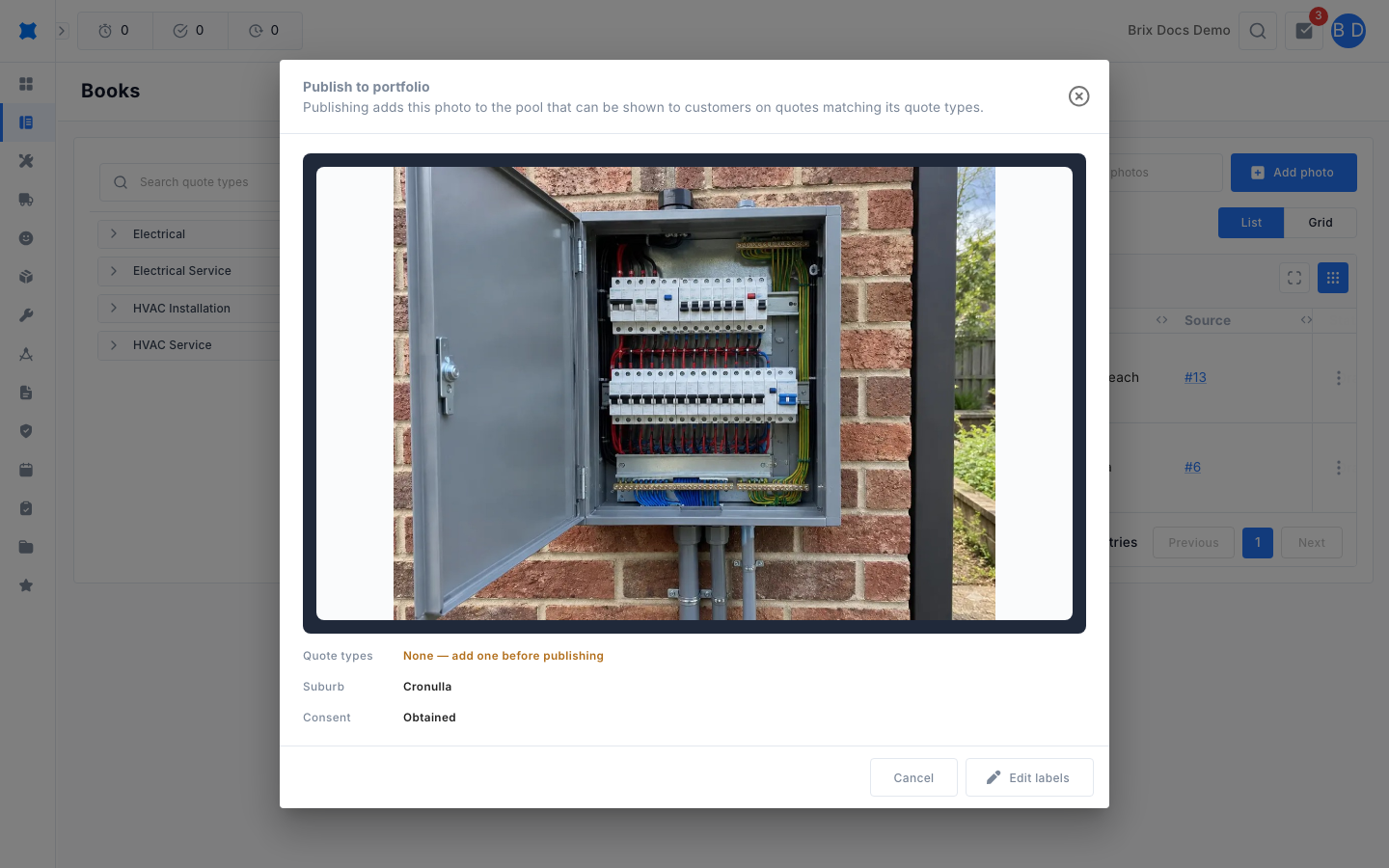
If something is missing, the window shows Edit labels instead of Publish photo. Click it to fix the gap, then publish again. If you can publish but cannot manage the portfolio, the window tells you that someone with portfolio management permission needs to complete the labels first.
Statuses
Section titled “Statuses”| Status | What it means | What you can do |
|---|---|---|
| Draft | The photo is in the library but customers cannot see it. | Edit labels, Publish, Delete. |
| Published | The photo can be shown as Recent work on quotes that match its quote types. | Edit labels, Revert to draft, Delete. |
Draft cards may also carry an amber note: Needs a type to publish or Needs consent to publish. These show what to fix before Publish will work.
Take a photo off customer quotes
Section titled “Take a photo off customer quotes”To stop showing a published photo without losing it, click Revert to draft on its card or in the actions menu. It goes back to Draft and can be published again later.
Changing Display consent to Not obtained on a published photo has the same effect. The window warns you first: “Saving will also unpublish this item.”
Delete a photo
Section titled “Delete a photo”Click Delete on the card, or choose Delete from the actions menu, then click Delete permanently. To retire a published photo without deleting it, use Revert to draft instead.
What happens next
Section titled “What happens next”- Published photos appear as Recent work on the customer view of matching quotes. See Quote requests for how quotes are sent.
- To change how a quote is priced, go back to Books and Templates.
Things to check
Section titled “Things to check”I cannot see Portfolio in the Books menu
Your permission group needs the portfolio view permission. Ask your workspace owner to update it.
I cannot see Add, Edit labels, Publish or Delete
Each action has its own permission. Add photo, Edit labels and Delete need portfolio manage. Publish and Revert to draft need portfolio publish. Ask your workspace owner if you are missing one.
The photo will not publish
Check that it has at least one quote type and that Display consent is not Not obtained. Click Edit labels in the publish window to fix either.
My photo was refused when I added it
Only JPEG, PNG and HEIC photos are accepted. Convert other formats first, then add the photo again. If an upload failed, retry or remove that file, because Add to portfolio stays disabled while any upload has failed.
A quote type shows no photos
The filter counts every active quote type, including ones with no photos. A count of 0 means nobody has labelled a photo for that type yet.
The page says it could not load
Click Retry portfolio (or Retry quote types for the left-hand filter). If it keeps failing, refresh the page and try again.