Message Templates
What is a message template?
Section titled “What is a message template?”A message template is a saved email or SMS with placeholders, such as the client name or a link to a quote option. When a notification fires, brix fills the placeholders with the real details and sends the message. You write the wording once and reuse it.
Where to find it
Section titled “Where to find it”Go to Manage → Templates → Message Templates.
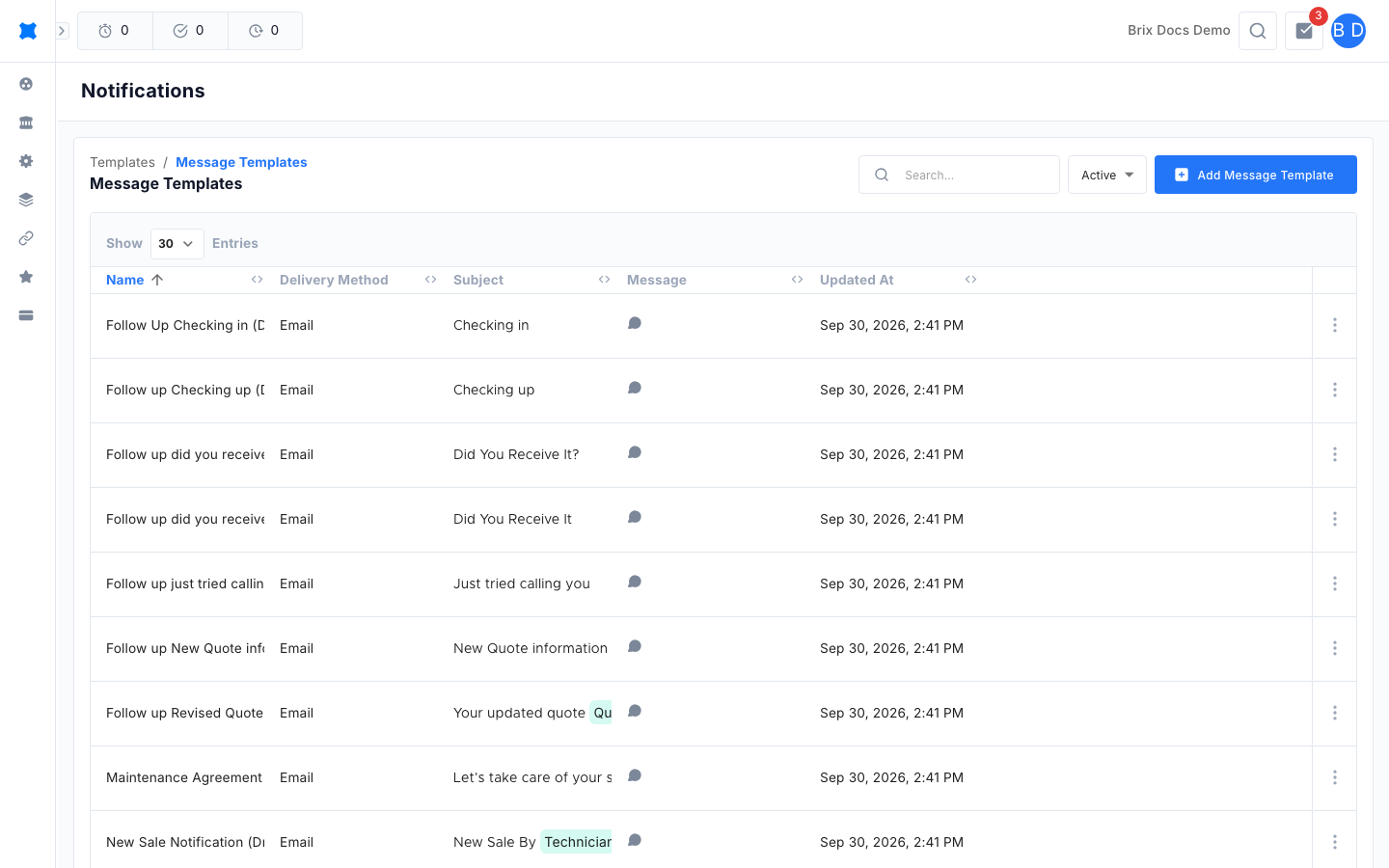
The list
Section titled “The list”| Column | What it shows |
|---|---|
| Name | The template name. |
| Delivery Method | Email or SMS. |
| Subject | The email subject. |
| Message | Hover over the speech bubble icon to preview the message. |
| Updated At | When the template was last saved. |
Use the search box to find a template by keyword. Click a row to open it. Use the menu at the end of a row to Edit, Archive or Delete it.
Create a template
Section titled “Create a template”-
Go to Manage → Templates → Message Templates.
-
Click the add button at the top of the list.
-
Enter a Name so you can find the template later.
-
Choose a Delivery Method: Email or SMS.
-
For email, type a Subject and a Message. For SMS, type the Message only.
-
To add a fill-in field, click into the subject or message, then click a field in the Insert Variables list on the right. Use Search for variables to narrow the list.
-
For email, add files under Attachments if you want them sent with every message.
-
Click Save.
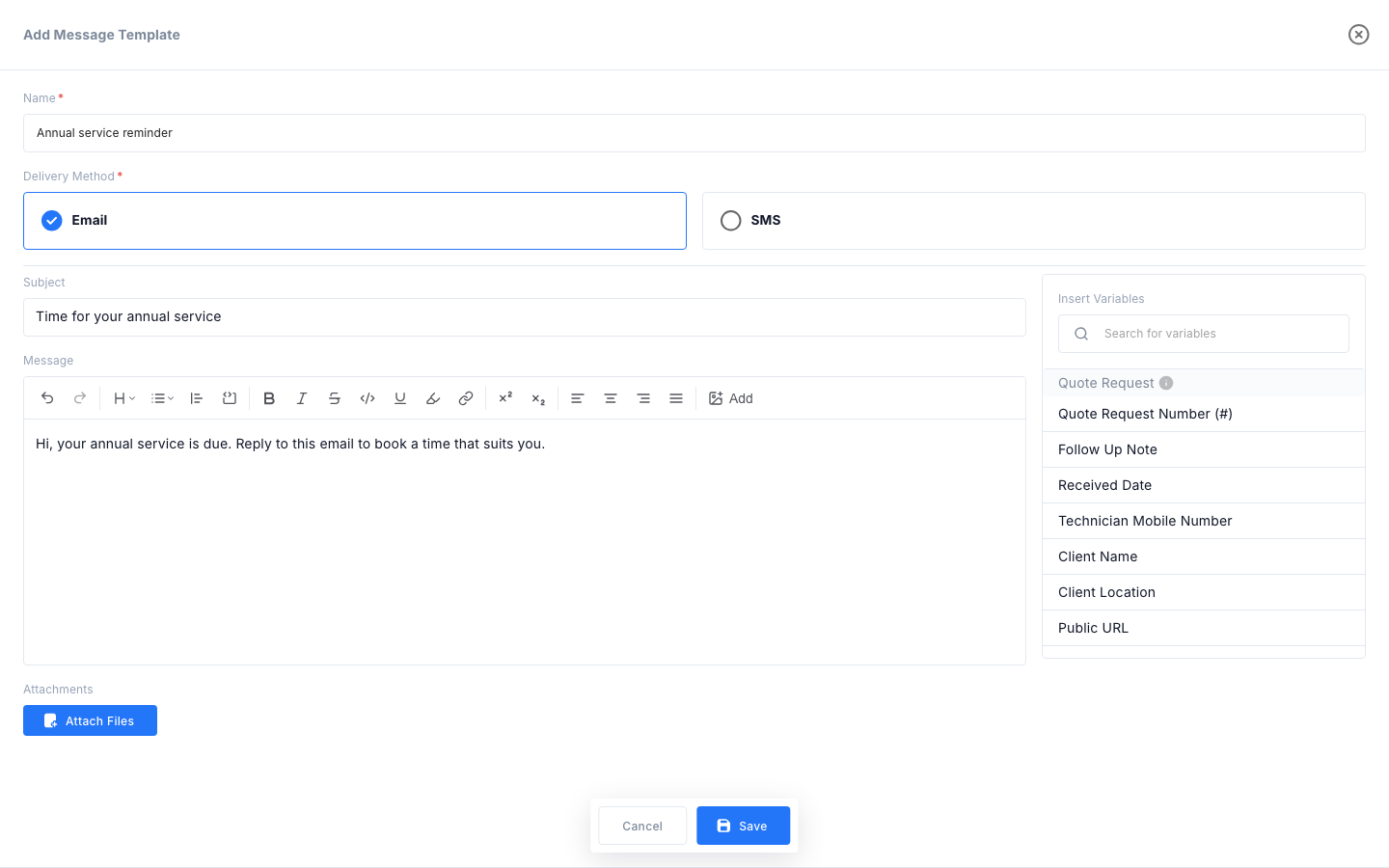
The Save button stays disabled until you change something.
Insert Variables
Section titled “Insert Variables”Each group in the Insert Variables list covers a different part of your work. Hover over the information icon next to a group name for a short explanation.
| Group | What it covers |
|---|---|
| Quote Request | The quote request itself: client, due date, technician and reference number. |
| Take-off | The take-off name, status, who submitted or approved it, and a link back to it. |
| Quote Option | The quote option label, business unit, sold amount, approval date and a link to it. |
| Sender | The email’s From identity. This group is currently reserved. |
| Actioned By | The person who caused the notification, for example who approved a quote. |
| Happy Call | The score, comments and time of a logged happy call. Only filled in for Happy Call - Completed notifications. |
Variables inserted into the message appear as placeholders. Brix replaces each one with the live value when the message goes out. Image link fields (avatar URLs) are hidden while you are editing an email subject or an SMS, because those can’t show images.
Archive, activate or delete a template
Section titled “Archive, activate or delete a template”Use the menu at the end of a row.
- Archive hides the template from the pickers you choose from when setting up a notification. Use the archived filter in the toolbar to see archived templates, then Activate to bring one back.
- Delete removes the template.
What happens next
Section titled “What happens next”Choose your template when you set up a notification. See Notifications for how to pick the event, the recipients and the sending address. You can also create a template straight from the template picker in the notification, without leaving that screen.
Things to check
Section titled “Things to check”My template isn’t in the list when I set up a notification
Check that it isn’t archived, and that its delivery method matches the notification. Email notifications only list email templates, and SMS notifications only list SMS templates.
A placeholder shows up blank in the message I received
The variable had nothing to fill in. For example, Happy Call fields are only filled in for Happy Call - Completed notifications, and Take-off fields only make sense on take-off notifications. Use variables that match the event the notification is for.
I can’t attach files to my SMS template
Attachments are for email only. Switching the delivery method to SMS clears any attachments.