
Agreement Types
What is an agreement type?
Section titled “What is an agreement type?”An agreement type is a plan you sell, for example “Annual Maintenance Plan”. It sets which commitment terms you offer, which business units a member discount applies to, and the colour used for the plan across brix. The price is not part of the plan. You enter it each time you assign an agreement.
Where to find it
Section titled “Where to find it”Go to Manage → Settings → Agreement Types. You need the Agreement Types permission.
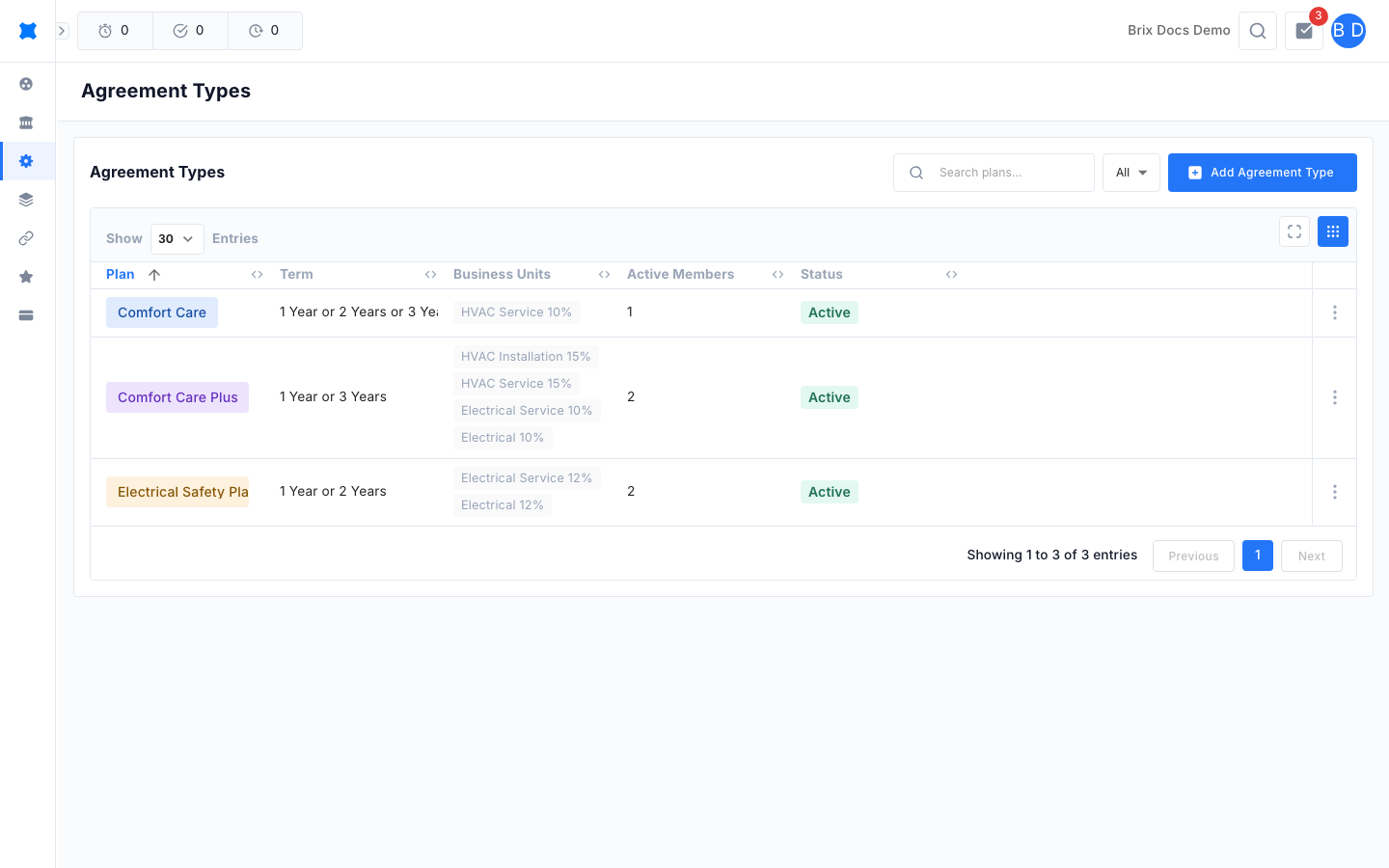
What you can do here
Section titled “What you can do here”Read the list
Section titled “Read the list”| Column | What it shows |
|---|---|
| Plan | The plan name in its colour. |
| Term | The terms on offer, for example 1 Year or 2 Years. |
| Business Units | Each business unit the plan covers, with its discount, for example Plumbing 10%. |
| Active Members | How many agreements use the plan. |
| Status | Active or Inactive. |
Use the search box to find a plan, and the status menu to show All, Active or Inactive plans. The list starts on All.
Create a plan
Section titled “Create a plan”-
Go to Manage → Settings → Agreement Types.
-
Click Add Agreement Type.
-
Enter a Plan Name (up to 150 characters), for example “Annual Maintenance Plan”.
-
Under Available Commitment Terms, tick each term you offer. See the next section to add your own.
-
Under Applies To Business Units, tick each business unit the plan covers and enter its discount as a percentage from 0 to 100.
-
Pick a Colour.
-
Leave Plan is active (offered to new customers) switched on if you want to assign the plan straight away.
-
Click Save.
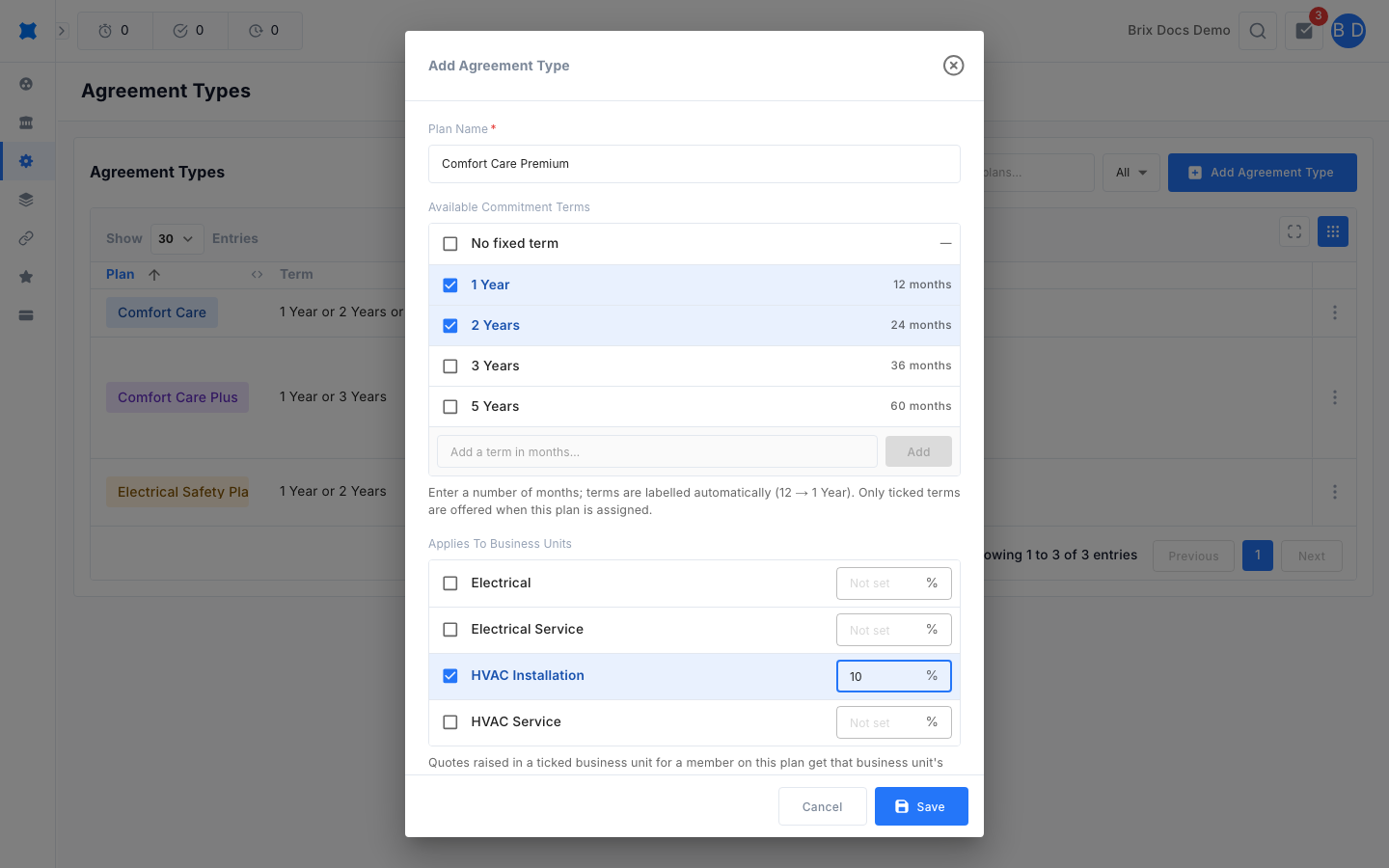
The term list starts with No fixed term, 1 Year, 2 Years, 3 Years and 5 Years. To offer a different length, type a number of months in Add a term in months and click Add. Brix labels it for you, so 18 becomes 1 Year 6 Months. The longest term is 600 months. Only ticked terms appear when you assign the plan.
Member discounts
Section titled “Member discounts”A member on this plan gets that business unit’s discount applied automatically to quotes raised in a ticked business unit. A business unit you leave unticked gets no discount. The discount rate for each business unit is locked into the agreement when you assign it.
Edit, archive or delete a plan
Section titled “Edit, archive or delete a plan”Click a row to edit it, or use the menu at the end of the row.
- Archive a plan you no longer sell. It stops appearing when you assign agreements, and existing agreements keep it. Archive it again from the menu to reactivate it, or switch Plan is active back on when editing.
- Delete removes the plan.
Statuses
Section titled “Statuses”| Status | Meaning |
|---|---|
| Active | The plan is offered when you assign a new agreement. |
| Inactive | The plan is hidden from the assign dialog. Agreements already using it are unchanged. |
What happens next
Section titled “What happens next”Assign the plan to a client in the Agreements register.
Things to check
Section titled “Things to check”- The plan is missing when you assign an agreement: it is probably inactive. Reactivate it here.
- Save shows a percentage error: each discount must be between 0 and 100.
- A term will not add: it may already be on the list, or it is longer than 600 months.
- No business units are listed: only active business units appear. Check them under Business.
- A quote has no member discount: the plan needs that business unit ticked with a rate above 0.