
Agreements Register
What is the register?
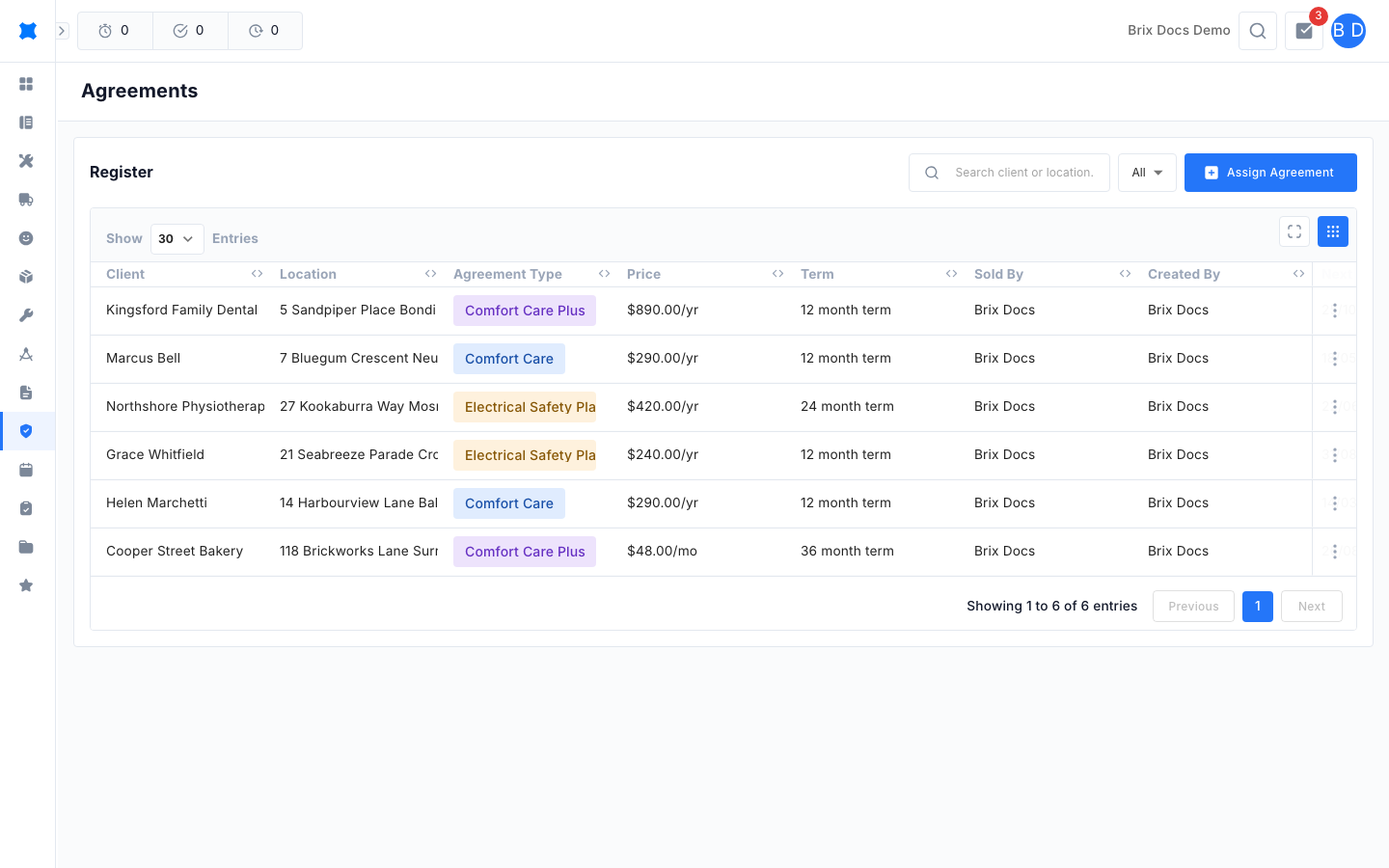
Section titled “What is the register?”The Register is the full list of agreements you have sold. Each row is one agreement for one client at one service location. Agreements are held per location, not per client, so a client with three sites needs an agreement for each site you cover.
Where to find it
Section titled “Where to find it”In the sidebar, click Agreements, then Register. You need the Agreements permission.
What you can do here
Section titled “What you can do here”Read the list
Section titled “Read the list”| Column | What it shows |
|---|---|
| Client | The client the agreement is for. |
| Location | The service site covered. |
| Agreement Type | The plan, shown as a coloured label. |
| Price | The locked-in price, followed by /yr or /mo to match the billing cadence. |
| Term | The commitment term, for example 1 Year or No fixed term. |
| Sold By | The team member who sold it. |
| Created By | Who entered it in brix. |
| Next Renewal | The renewal date. |
| Status | Active, Renewal Due or Cancelled. |
Newest agreements appear first. Click a column heading to sort by it.
Search and filter
Section titled “Search and filter”- Type in the search box to find a client or location.
- Use the status menu to show All, Active, Renewal Due or Cancelled agreements.
Assign an agreement
Section titled “Assign an agreement”-
Click Assign Agreement.
-
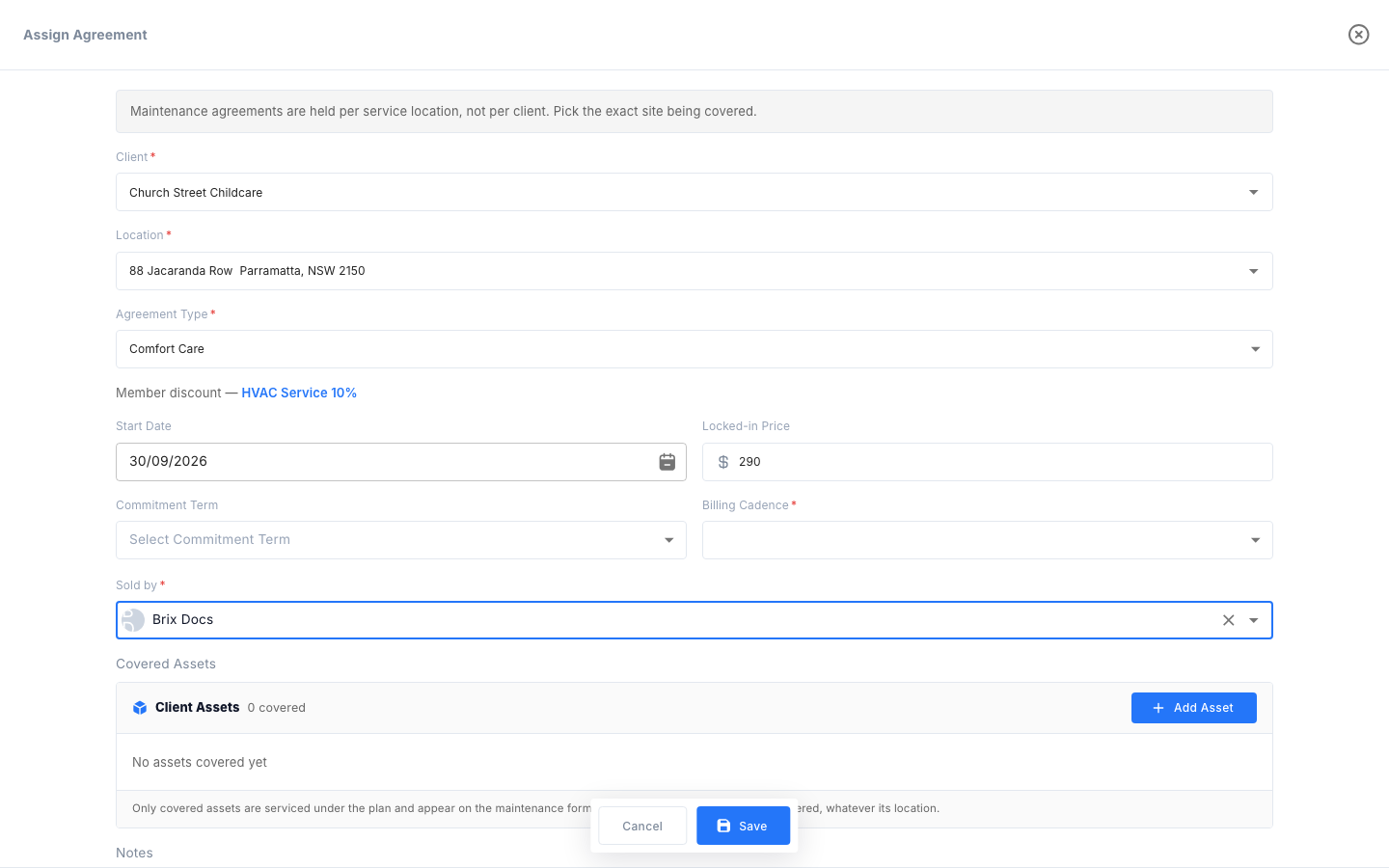
Pick the Client, then the Location. The location list shows that client’s addresses, so choose the exact site being covered.
-
Choose the Agreement Type. The member discount for that plan appears underneath, for example a percentage per business unit.
-
Set the Start Date. It starts as today.
-
Enter the Locked-in Price. This is the price for this agreement, and the plan itself does not carry one.
-
Choose a Commitment Term. The list only offers the terms that plan has, so pick the agreement type first.
-
Choose the Billing Cadence: Annually or Monthly.
-
Optionally pick who it was Sold by, and add Notes.
-
Add the Covered Assets (see below).
-
Click Save.
Choose covered assets
Section titled “Choose covered assets”Covered Assets are the client’s equipment that the agreement services. Only covered assets are serviced under the plan and appear on the maintenance form. Any of the client’s assets can be covered, whatever its location.
- Pick a client first. Until you do, Add Asset is unavailable.
- Click Add Asset, then choose Select existing assets to tick one or more of the client’s assets, or Create new asset to add one on the spot.
- Click the cross at the end of a row to stop covering that asset.
Edit or remove an agreement
Section titled “Edit or remove an agreement”Click a row to open it, or use the menu at the end of the row to view, edit or delete it. Change what you need and click Save. The agreement keeps the term and price it was assigned with, even if the plan changes later.
What happens next
Section titled “What happens next”The Agreements Overview adds each new agreement to your recurring revenue and lists it under Renewals Due as its renewal date approaches.
Things to check
Section titled “Things to check”- The agreement type list is empty or missing a plan: only active plans are offered. Set one up or reactivate it under Agreement types.
- The Commitment Term list is greyed out: choose an agreement type first.
- Save is greyed out: change a field first, and make sure the required fields (location, agreement type, term, billing cadence) are filled in.
- You cannot pick a location: choose the client first. The list only shows that client’s addresses.
- Add Asset is unavailable: choose a client first.